EasyManua.ls Logo

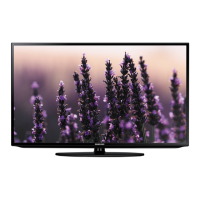
Samsung UN32H5203 - User Manual

Samsung UN32H5203
66 pages
Print Icon
To Next Page IconTo Next Page
Loading...
LED TV
user manual
Thank you for purchasing this Samsung product.
To receive more complete service, please register
your product at
www.samsung.com/register
Model _____________Serial No. ______________
© 2014 Samsung Electronics Co., Ltd. All rights reserved.
BN68-06330B-01
Contact SAMSUNG WORLD WIDE
If you have any questions or comments relating to Samsung products, please contact the SAMSUNG customer care center.
Comment contacter Samsung dans le monde
Si vous avez des suggestions ou des questions concernant les produits Samsung, veuillez contacter le Service Consommateurs
Samsung.
Country Customer Care
Center
Web Site Address
CANADA 1-800-SAMSUNG
(726-7864)
www.samsung.com/ca/support (English)
www.samsung.com/ca_fr/support (French)
Samsung Electronics Canada Inc. 2050 Derry
Road West, Mississauga, Ontario L5N 0B9
Canada
U.S.A 1-800-SAMSUNG
(726-7864)
www.samsung.com/us/support Samsung Electronics America, Inc. 85
Challenger Road Ridgefield Park, NJ 07660
If you have any questions, please call us at 1-800-SAMSUNG (1-800-726-7864) for assistance.
[UH6203-ZC]BN68-06330B-01L02.indb 1 2014-06-25  11:11:46

Table of Contents

Questions and Answers

  • K
    Kevin NicholsAug 15, 2025
    What to do if there is no picture/video on Samsung UN32H5203 LCD TV?
    • M
      Melissa LucasAug 15, 2025
      First, check the cable connections by removing and reconnecting all cables connected to the Samsung LCD TV and any external devices. Then, ensure the video outputs of your external devices (like Cable/Sat Box, DVD, or Blu-ray) match the TV's input connections. Make sure all connected devices are powered on and that you've selected the correct input source. Finally, try rebooting the connected device by unplugging it and then reconnecting its power cable.
  • C
    Charles FitzgeraldAug 18, 2025
    How to fix a Samsung UN32H5203 LCD TV that won’t turn on?
    • B
      Brian PhillipsAug 19, 2025
      First, ensure that the AC power cord is securely plugged into both the wall outlet and your Samsung LCD TV. Verify that the wall outlet is working correctly. If the TV still won’t turn on, try pressing the 'P' button on the TV itself to rule out any issues with the remote control.
  • J
    Jessica KingAug 22, 2025
    How to stop flickering and dimming on Samsung UN32H5203 LCD TV?
    • D
      Derek JordanAug 22, 2025
      Try disabling some of the energy efficiency features on your Samsung LCD TV. You can also disable Energy Saving by going to System > Eco Solution > Eco Sensor and/or Energy Saving by going to System > Eco Solution > Energy Saving and check again.
  • G
    gfreemanAug 25, 2025
    How to troubleshoot a Samsung LCD TV remote that is not working?
    • P
      patriciarojasAug 26, 2025
      Try replacing the remote control batteries. Ensure the batteries are installed correctly, paying attention to the poles (+/–). Clean the sensor’s transmission window on the remote and try pointing the remote directly at the Samsung LCD TV from 5~6 feet away.
  • J
    Jeremy JonesAug 28, 2025
    Why does my Samsung UN32H5203 LCD TV keep powering off by itself?
    • A
      Amanda WheelerAug 28, 2025
      Check if the Sleep Timer is enabled by going to System > Time > Sleep Timer. Also, check if No Signal Power Off (System > Eco Solution > No Signal Power Off) or Auto Power Off (System > Eco Solution > Auto Power Off) are enabled on your Samsung LCD TV.
  • J
    Joseph ClarkSep 1, 2025
    How to adjust screen brightness on Samsung LCD TV?
    • H
      Holly McgrathSep 1, 2025
      Navigate to Picture settings and adjust Backlight, Contrast, Brightness, Sharpness, Color, Tint (G/R) and other picture quality adjustment settings on your Samsung LCD TV.
  • C
    Cynthia BrownSep 4, 2025
    What to do if the screen color is not correct on Samsung LCD TV?
    • G
      Gabrielle BrownSep 4, 2025
      Run a Self Diagnosis Picture Test by navigating to Support > Self Diagnosis > Picture Test on your Samsung LCD TV. Confirm that the TV's video input ports are correctly connected to the external video device output ports and that none of the connections are loose. You can also test your external video devices by connecting them to another TV.
  • M
    Michael PinedaSep 7, 2025
    How to fix blurred images on Samsung LCD TV?
    • P
      Paula SheaSep 7, 2025
      Turn on Auto Motion Plus by going to Picture > Picture Options > Auto Motion Plus on your Samsung LCD TV.
  • T
    tonyabrewerSep 12, 2025
    What to do if my Samsung UN32H5203 cannot find a channel?
    • M
      moodyjustinSep 12, 2025
      Re-run Setup by going to MENU > System > Setup or run Auto Program by going to MENU > Broadcasting > Auto Program on your Samsung LCD TV.

Summary

Critical Safety Instructions

General Electrical Safety

Essential warnings on power cords, connections, and avoiding electric shock.

Safe Operation Environment

Guidelines for ventilation, water proximity, and environmental conditions.

Smart TV Internet Security

Key TV Features Overview

Smart Hub Functionality

Introduction to Smart Hub for web browsing and app downloads.

Basic TV Operation and Cabling

Powering On and TV Controls

Instructions for turning the TV on/off and using the TV controller.

Mastering Your Remote Control

Remote Control Button Functions

Comprehensive explanation of all buttons and their uses.

Specialized Remote Features

Details on buttons like P.SIZE, MTS, CC, E-MANUAL, and SEARCH.

Connecting External Devices

Universal Remote Setup

Guide for configuring the TV remote to control other home entertainment devices.

Advanced External Device Control

Universal Remote Configuration

Detailed steps for setting up universal remote control for external devices.

Exploring the Smart Hub

Smart Hub Interface Guide

Overview of the Smart Hub's layout and navigation.

SAMSUNG APPS Panel Details

Information on available apps, categories, and download requirements.

Smart Hub: Apps and Content

Downloading and Installing Apps

Step-by-step process for acquiring and installing applications.

Using the Built-in e-Manual

Accessing the e-Manual

Instructions for launching the on-screen user manual.

Troubleshooting Common TV Issues

Picture and Display Problems

Solutions for issues like flickering, dimming, and incorrect colors.

Power and Performance Troubleshooting

Addresses problems with powering on/off and unwanted shutdowns.

Troubleshooting: Connectivity and Performance

No Power or Picture Issues

Solutions when the TV does not turn on or display video.

Network Troubleshooting Guide

Optimizing Wireless Signal

Tips for improving Wi-Fi reception by positioning the router.

Enhancing Wireless Network Performance

Troubleshooting Wi-Fi and Smart Hub

Resolving Intermittent Wi-Fi

Solutions for unstable or dropped Wi-Fi connections.

Eco Features and Screen Longevity

Preventing Screen Burn-In

Advice on avoiding permanent image retention and screen damage.

Customer Support and TV Care

Wall Mounting Your TV

Installation Safety and Ventilation

TV Securing and Anti-Fall Safety

Installing the Anti-Fall Device

Instructions for securing the TV to prevent tipping or falling.

Samsung UN32H5203 Specifications

General IconGeneral
Screen Size32 inches
Resolution1920 x 1080
Display TypeLCD
Refresh Rate60 Hz
HDMI Ports2
USB Ports1
Smart TVNo
Wi-FiNo

Related product manuals