27 EN
Program playback
1
Press PLAY MODE during playback or stop mode.
Play Mode screen will appear.
2
Press
▲/▼
to select “Program”, then press or
ENTER.
3
Press
▲/▼
to select
“Create/Edit”, then
press ENTER.
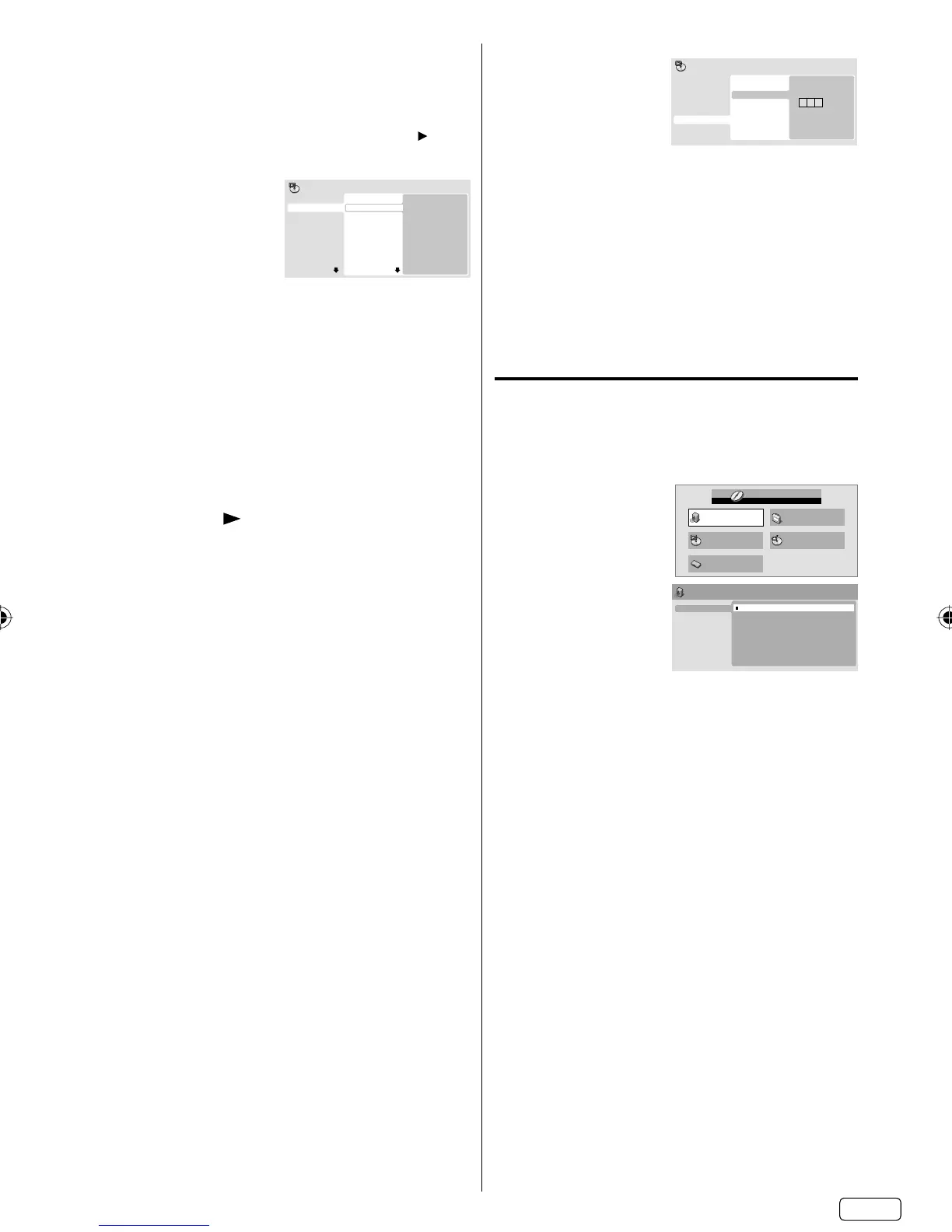
“Create/Edit” display
differs, depending on
discs or files.
Program Step
01. 01
02.
03.
04.
05.
06.
07.
08.
Title 1-38
Title 01
Title 02
Title 03
Title 04
Title 05
Title 06
Title 07
Title 08
Chapter 1-004
Chapter 001
Chapter 002
Chapter 003
Chapter 004
Program Current Title:02 Chapter:001
4
Press
▲/▼/◀/▶
to select Title, Chapter, Track or
File, then press ENTER.
When you add a program, find where you
want to add it (Program Step) and select Title,
Chapter, Track or File then press ENTER. (It will
be added to the left if File is added.)
To go to previous step, press RETURN.
If RETURN is pressed while programming, the
content will be deleted.
To delete a program, select Program Step that
you want to delete and press CANCEL.
•
•
•
•
5
Press PLAY ( ).
To play existing programmed contents, select
“Playback Start” from Play Mode screen and
press ENTER.
To resume normal playback, select “Playback
Stop” in Play Mode screen and press ENTER.
Your programmed contents are saved.
To delete all programmed contents, select
“Program Delete” in Play Mode screen and
press ENTER.
NOTE:
You can repeat the programmed contents. Select
“Program Repeat” from “Repeat” in the Play Mode
screen during Program playback.
You cannot play Random for programmed
contents (Random play is not permitted during
Program playback).
In stop mode, you can also enter Play Mode
screen by selecting “Play Mode” in HOME MENU.
•
•
•
•
•
•
Locating desired scene
1
Press PLAY MODE during playback or stop mode.
Play Mode screen will appear.
2
Press ▲/▼ to select “Search Mode”, then press ▶
or ENTER.
3
Press ▲/▼ to select desired search mode option,
then press ▶ or ENTER.
Search Mode options differs, depending on
discs or files.
•
4
Input Title, Chapter,
Track or Folder number
or Time by using
Number buttons
(0–9) and press
ENTER.
0 0 1
Title Search
Chapter Search
Time Search
Input Chapter
A-B Repeat
Repeat
Random
Program
Search Mode
Play Mode
For instance, if you want to enter 1hr 4min
(64:00), input 6, 4, 0, 0.
•
NOTE:
You can locate desired scene in Menu screen
for some DVD video.
In stop mode, you can also enter Play Mode
screen by selecting “Play Mode” in HOME
MENU.
•
•
Audio Settings menu
The Audio Settings menu offers features for adjusting
the way discs sound.
1
Press SETUP during stop mode.
HOME MENU will appear.
2
Press
▲/▼/◀/▶
to select “Audio
Settings”, then press
ENTER.
Audio Settings Video Adjust
Disc Navigator
Play Mode
Initial Settings
HOME MENU
DVD
3
Press
▲/▼/◀/▶
to
setting the option,
then press ENTER.
Audio Settings
Equalizer
Audio DRC
Dialog
Off
Rock
Pop
Live
Dance
Techno
Classic
Soft
4
Press SETUP to save the setting.
Equalizer
Select the most suitable setting to match a
category of music that you are listening to.
Audio DRC
Adjusts loud sound levels down and quiet
sound levels up while playing. This is useful,
for instance, when you watch a film in the late
night.
Audio DRC only works with Dolby Digital
Sound.
The effect depends on your AV amplifier and
speaker volume. Adjust the sound as you wish
and find the most effective setting.
Dialog
Adjust setting when you cannot hear dialogs very
well.
NOTE:
It may not be very effective for some discs or
files.
•
•
•
•
J58D0121A_EN.indd 27J58D0121A_EN.indd 27 12/14/11 9:52:38 AM12/14/11 9:52:38 AM


 To Next Page