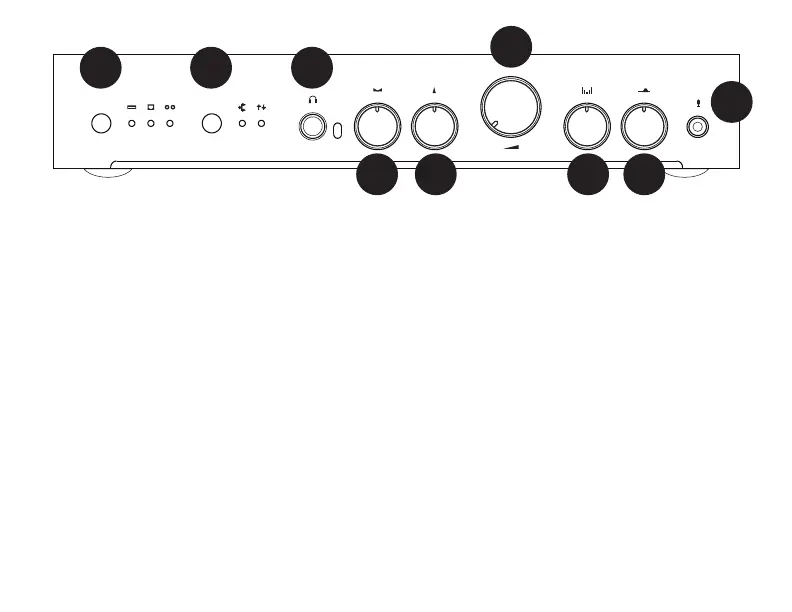
1 Input Select. Press the button to choose
which input you want to listen to—USB,
Optical, or Analog. The light to the right of
the button will indicate your current input.
The light to the current input will ash if the
input is muted. Mute is only available thru
the remote.
2 Mode Select. Press the button to choose
the mode. The lights to the right will indi-
cate the mode.
• No lights: stereo output only, all sur-
round channels off, no processing
• Left light only: surround channels on, no
processing of main channels
• Right light only: surround channels off,
Width and Presence controls on and
will affect main channels. This mode
accessed only through the remote.
• Both lights: surround channels on, Width
and Presence controls on; main chan-
nels affected by Width and Presence.
3 Headphone Jack. Plug headphones here
to listen in private. Or semi-private if they
are open back. Plugging in headphones will
mute all other outputs. When headphones
are plugged in and Width and Presence
controls are enabled, frequency shaping is
used to simulate a crossfeed effect when
using the Width control.
CONTROLS
1
32
54
6
7 8
9


 To Next Page
 Loading...