My source doesn’t show up;
I get the broken USB icon.
All sources must be UAC2 compliant and
all cables must meet a minimum of USB 2.0
specs. Try a different source and different
USB cable (modern, non-audiophile, free of
adapters and band-aids).
My DAC doesn’t show up, I get
the old-USB exclamation point icon.
All DACs must be UAC2 compliant. If you
have an older DAC, especially one that
needs drivers or cannot handle anything
above 24/96 material, it may not be
compatible. You can use Urd’s SPDIF
output for those older DACs.
Why does everything have
to be UAC2 compliant?
Because it is the international accepted
standard for USB Audio. That’s why it’s
called USB Audio Class 2. There’s no Class
3 or 4 or anything like that; Class 2 is all you
need. All modern operating systems support
UAC2, as well as the majority of DACs.
FAQ
I don’t get any output.
If you don’t have the “broken USB” icon on
your selected source, check the following:
Have you selected the right source? Is there
a CD in the tray? Have you selected Urd’s
USB input from your source? Is it selected in
your player software (lots of software and
streamers have separate output selection).
Sorry, that last one bites us a lot too.
Can I convert USB to SPDIF with Urd?
Absolutely. Connect a compatible USB
source and select SPDIF output. Great for
older DACs that don’t support UAC2.
Why no optical output for SPDIF?
Because Mike Moffat said it sounds like ass
and didn’t want any bad-sounding digital
outputs on his USB hub.
Can I run both USB and SPDIF outputs
simultaneously?
Nope, sorry, you have to pick one. This isn’t
us being mean, it’s just we couldn’t nd a
good way to make this happen.
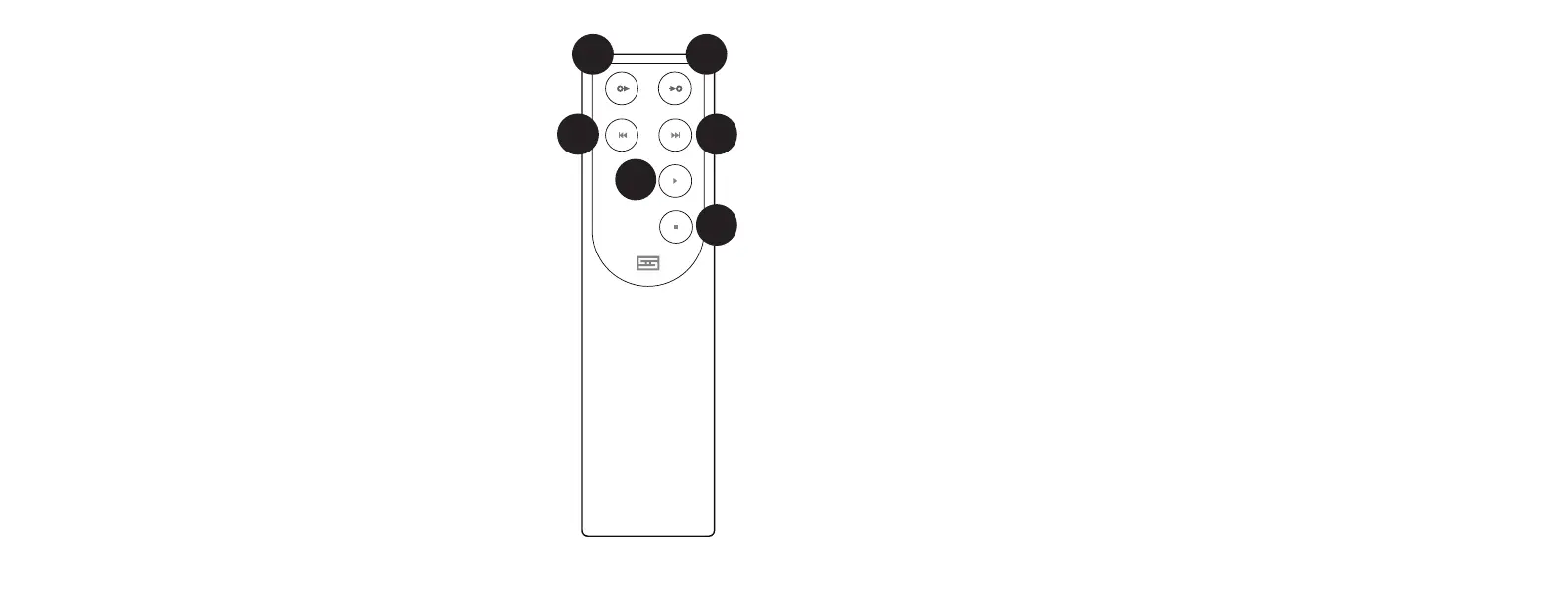
1 Input Select. Press this button to select the input you want
to listen to—CD, USB1, or USB2. If you skip the input, keep
pressing—it cycles back around.
2 Output Select. Press to select output—USB or SPDIF.
3 Skip Back. Press to skip back to the previous track. Press
and hold to fast reverse. This only works for CD, not your
streamer or computer.
4 Skip Forward. Press to skip forward to the next track.
Press and hold to fast forward. Also only works for CD.
5 Play. Press to play the current CD. Press again to pause.
As with the Skip controls, this only works if there’s a CD in
the tray and listening to CD.
6 Stop. Press to stop playing the current CD. Press and hold
to eject the tray.
Changing the Battery
1. Flip the remote over to reveal a single hole on the back.
2. Push the remote open by inserting the end of an open paper clip into
the hole in the back and pushing rmly. It’s held together with magnets.
3. Replace the battery inside with one of the same type.
4. Reassemble the remote by rst inserting the clear LED in the front, then
dropping the panel down onto the matching magnets. Press down gently
to pop the panel in place.
1
3
2
4
REMOTE
6
5



 To Next Page
 Loading...