Schüco de
Commissioning instructions – Schüco DCS Touch Display 49
Dok-Nr.10000432116_01
In order to connect the DCS Touch Display to an associated IP secure connector, it is necessary to
search for the IP secure connector. If the DCS Touch Display or the IP secure connector is removed
or replaced, the connection must be dissolved once more. If no IP secure connector is provided for
the installation, you can skip this point.
To connect the DCS Touch Display to an IP secure connector, proceed as follows:
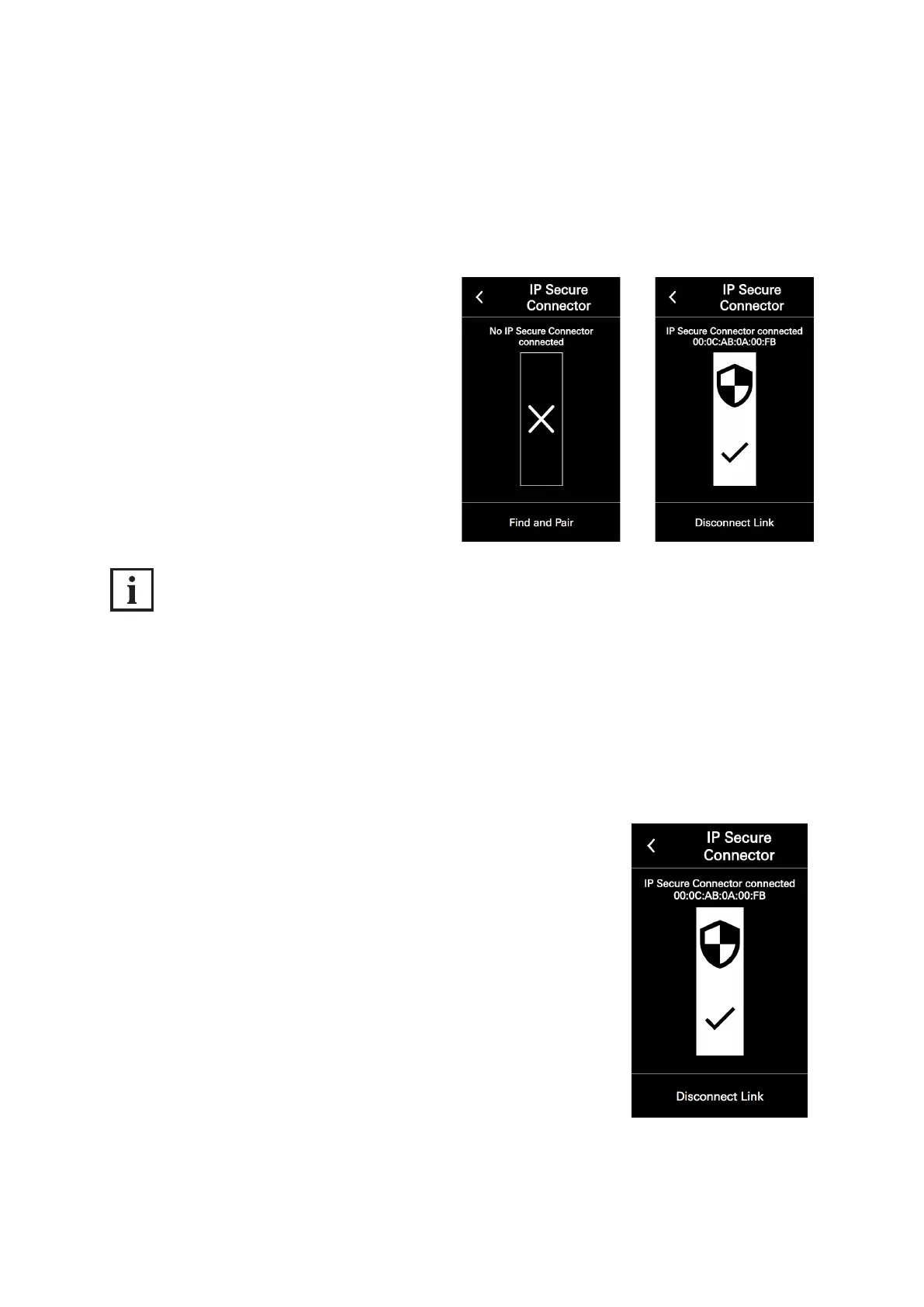
1. Open the „IP secure connector“ conguration
view.
2. Tap „Search and connect“. Once the
DCS Touch Display is connected to an
IP secure connector, the message
„Connected to IP secure connector (serial
number)“ appears.
INFORMATION
No IP secure connector found
If no IP secure connector is connected to the DCS Touch Display or the „Search and connect“ button
has not yet been pressed since an IP secure connector has been connected to the
DCS Touch Display, the message „No IP secure connector connected“ can be seen on the screen.
To disconnect the DCS Touch Display from an IP secure connector, proceed as follows:
3. Open the „IP secure connector“ conguration view.
4. Tap „Disconnect connection“.


 To Next Page