Schüco de
Commissioning instructions – Schüco DCS Touch Display 57
Dok-Nr.10000432116_01
If the web interface has been called up, it already shows the most important information about the
DCS Touch Display on the „Overview“ page.
The following information is available in the „Device information“ section:
● Application: The name of the intercom station is shown here („SIP station“).
● Schüco FW version: The ofcial software version of the DCS Touch Display is shown here.
● Image version: The image of the ofcial software version of the DCS Touch Display is shown here.
● Device type: The type of intercom station is shown here („DCS Touch Display“).
● Status: The current operating mode of the intercom station is shown here.
● Locale: The current settings for language and country are shown here.
9.3. Logging in
You must log in to the web interface in order to make changes to the DCS Touch Display.
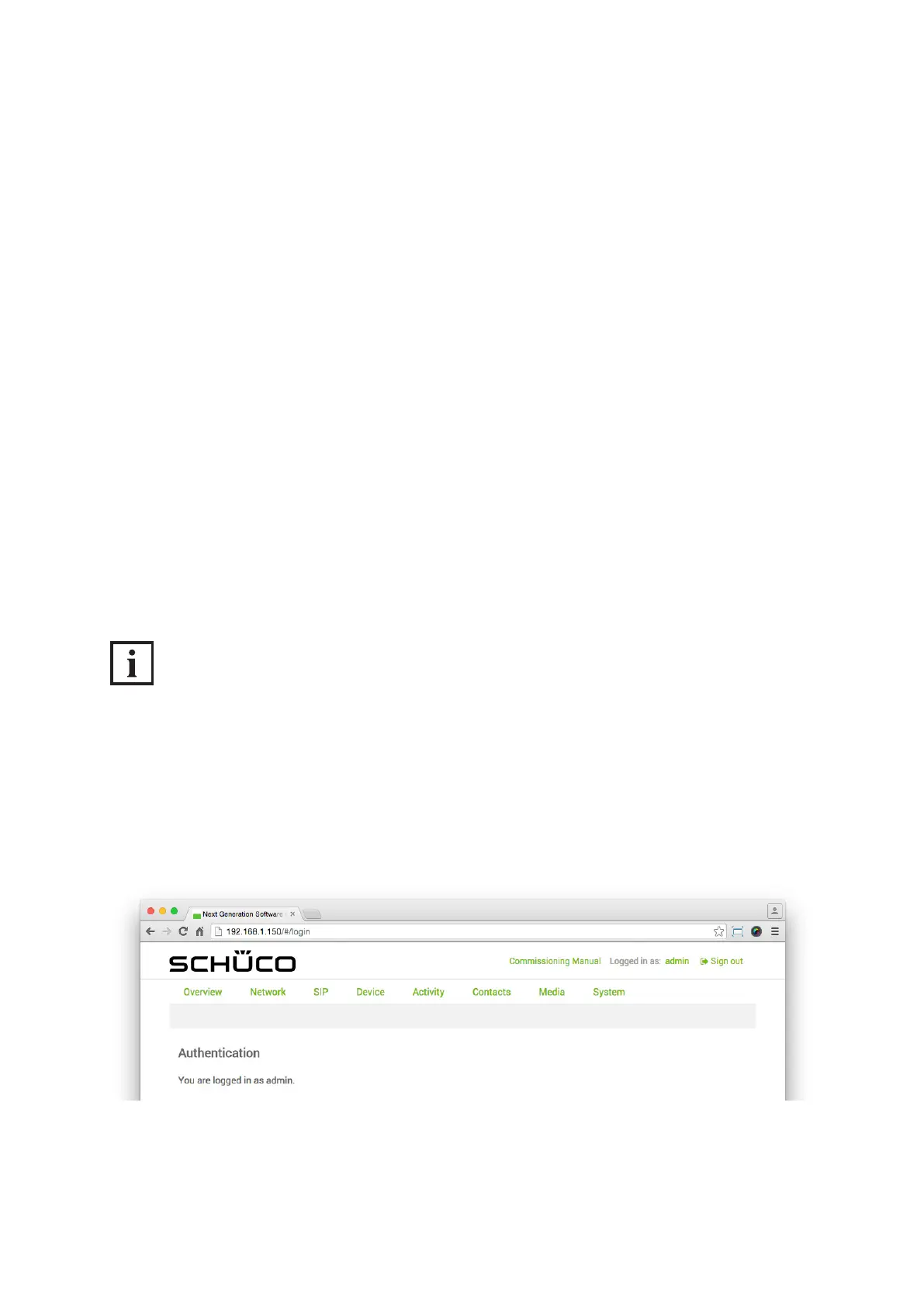
The „Login“ page appears when you click on „log in“ in the top right-hand corner of the window.
To return to the „Overview“ page, click on „Overview“ or on the Schüco logo on the left in
the web interface.
The standard administrator access data for the web interface is:
Username: admin
Password: schueco
INFORMATION
Access data
Contact your system administrator if the administrator access data has been changed or you have
been issued personal access data.
After successfully logging in as administrator, the message „You are logged in as administrator“
appears.


 To Next Page