EasyManua.ls Logo

Securifi Almond 2015 - User Manual

Securifi Almond 2015
5 pages
Print Icon
To Next Page IconTo Next Page
Loading...
To edit default wifi settings, tap
on ‘Edit WiFi Settings’.Tap Next
to set-up your Almond account.
STEP 1
Easy Setup Guide.
For tips on how to setup call our tech-support @ 1-855-969-7328
Mail us at support@securifi.com
This screen shows the stylus
location. Tap Next to proceed.
Select ‘Router’ (default selection)
and tap Next.
Tap on Start Wizard.Choose your language. Here we
are choosing English.
How do you want to use Almond
Router
Range Extender
Back Next
Setting up your Almond.
This Wizard will help you:
Connect your Almond to the Internet.
(Optional) Setup your Almond Account
so you can control your Router and
Sensors remotely
Skip Start wizard
Wizard
1
2
Almond is connected to the Internet.
Connet your devices to the Internet using
the below Wifi Settings.
Name (SSID):
John’s Home
Password: fed1234exrt
Back Next
Edit WiFi Settings
Door Sensors Peanut PlugMotion Sensor12V, 1A Power Adapter/
Ethernet Cable
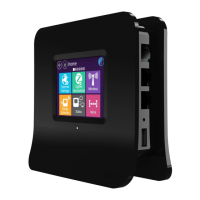
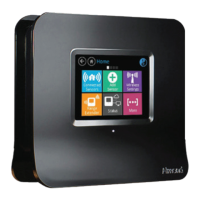
Almond 2015
Stylus
Plug the power adapter into your Almond’s socket, which is located on base of Almond 2015. Then plug
your ethernet cable into your Almond’s ethernet port, which is the top-most port on the right-side of your
Almond 2015.
Wait for the Almond to initialize and follow the below process.
Select your region.
Select Region
North America Europe Japan
China Rest of the World
Language
English Français Deutsch
日本
русскийEspañol
繁體中文
Portugues
Svenska
Nederlands
Polskie
rk
Back Next
The stylus is located at
the bottom of your
Almond Router.
All manuals and user guides at all-guides.com
all-guides.com
Question and Answer IconNeed help?

Do you have a question about the Securifi Almond 2015 and is the answer not in the manual?

Summary

Setting up Your Almond

Connect to Internet

Almond connects to the internet via Ethernet.

Creating Almond Account

Install Securifi Almond App

Download and install the mobile application.

Sign Up via Mobile App

Create a new account using the smartphone app.

Enter Account Credentials

Provide email and password for the Almond account.

Link Almond Device

Connect the Almond device to the user account.

Connecting Peanut Plug

Setting up Door;Window Sensors

Setting up Motion Sensor

Setting Up Alerts and Arming System

Overview

The Securifi Almond 2015 is a versatile smart home device that functions as both a Wi-Fi router and a smart home hub, allowing users to connect to the internet and manage various smart sensors. Its easy setup guide outlines a step-by-step process for initial configuration, account creation, and the integration of compatible smart devices such as Peanut Plugs, door/window sensors, and motion sensors.

Function Description

The Almond 2015 serves as a dual-purpose device:

  • Wi-Fi Router: It provides internet connectivity, allowing users to connect their devices to a local network. The setup process guides users through configuring Wi-Fi settings, including SSID and password, and offers the option to operate as a router or a range extender.
  • Smart Home Hub: Beyond internet connectivity, the Almond 2015 acts as a central hub for various smart home sensors. It supports Zigbee and Hue protocols, enabling communication with a range of compatible devices. This hub functionality allows users to monitor and control their home environment remotely through the Almond App.

The device's core function is to simplify smart home management by integrating network and sensor control into a single unit. It aims to provide users with a comprehensive system for home security and automation, accessible via a touchscreen interface on the device itself and through a dedicated mobile application.

Usage Features

The Almond 2015 offers a user-friendly experience with several key usage features:

  • Touchscreen Interface: The device features a built-in touchscreen that facilitates initial setup and ongoing management. Users can select their language and region, initiate the setup wizard, and add sensors directly from the screen. This eliminates the need for a computer during much of the initial configuration.
  • Mobile App Control (Almond App): For remote management and advanced features, the Almond App (available for iOS and Android) is essential. After creating an Almond account and linking it to the device, users can:
    • Monitor Connected Sensors: View the status of all paired sensors, such as Peanut Plugs, door/window sensors, and motion sensors.
    • Remote Control: Control smart devices connected to the hub from anywhere with an internet connection.
    • Account Management: Manage their Almond account, including login credentials and activation status.
    • Alerts and Notifications: Configure and receive notifications from sensors. Users can set notification frequency (e.g., "Always," "When I'm away," "Never") and toggle between arming (receiving notifications) and disarming (stopping notifications) the security system.
    • Rule Creation: Create automated rules for their smart home. For example, users can set up rules to automatically arm or disarm the system based on the presence of a mobile device connected to the Almond 2015's Wi-Fi network. This allows for personalized automation scenarios, such as switching the mode to "Home" when a specific phone is detected.
  • Sensor Integration: The Almond 2015 supports the addition of various smart sensors:
    • Peanut Plug: This smart plug allows users to control connected appliances remotely. The setup involves plugging it into an outlet and initiating the "Add Sensor" process on the Almond's touchscreen. The device guides users through pairing, indicated by an LED blinking on the plug. If the LED is not blinking, a reset procedure (pressing the pairing button for 10 seconds) is provided.
    • Door/Window Sensors: These sensors detect the opening and closing of doors or windows. The setup involves inserting a battery, tapping "Add Sensor" on the Almond, and then quickly pressing the sensor's "Join/Reset" button. An LED flash on the sensor confirms successful pairing.
    • Motion Sensors: These sensors detect movement within a designated area. The setup is similar to door/window sensors: insert a battery, tap "Add Sensor" on the Almond, and press the sensor's "Join/Reset" button. An LED flash indicates successful pairing.
  • Router/Range Extender Mode: During setup, users can choose whether the Almond 2015 functions as a primary Wi-Fi router or as a range extender to boost an existing Wi-Fi signal. This flexibility allows it to adapt to different network configurations.
  • Language and Region Selection: The initial setup allows users to choose their preferred language and geographical region, ensuring a localized experience.

Maintenance Features

The Almond 2015 and its associated sensors are designed with maintenance in mind, focusing on ease of access and troubleshooting:

  • Stylus Location: The manual explicitly points out the location of the stylus at the bottom of the Almond Router, ensuring users can easily find and use it for touchscreen interaction.
  • Battery Replacement: For sensors like the door/window and motion sensors, the manual provides clear instructions on how to access the battery compartment. This involves pushing a specific button or releasing a latch to remove the back cover, allowing for straightforward battery replacement. The importance of correct battery polarity (+ and -) is highlighted.
  • Sensor Reset Procedures:
    • Peanut Plug: If the LED on the Peanut Plug is not blinking during pairing, users are instructed to press and hold the pairing button for 10 seconds to reset it, then unplug and replug it before attempting to add it again.
    • Door/Window and Motion Sensors: After initial pairing and reattaching the back cover, users are guided to tap the "Tampered" button on the Almond's touchscreen for the newly added sensor. This action resets the tamper switch, making the sensor fully operational. This is a crucial step for ensuring the sensor functions correctly after battery insertion or reassembly.
  • Troubleshooting Support: The manual provides contact information for tech support (phone number and email) for users who encounter difficulties during setup or operation, indicating a commitment to user assistance.
  • Firmware Updates (Implied): While not explicitly detailed as a maintenance feature, the nature of smart devices and apps typically implies that firmware updates for the Almond 2015 and app updates for the Almond App would be provided to enhance functionality, security, and address any bugs, contributing to the long-term maintenance of the system.
  • Sensor Sensitivity Adjustment: For the motion sensor, the manual notes that sensitivity and timer settings can be adjusted using a flat screwdriver at the top of the sensor. This allows users to fine-tune the sensor's performance to suit their specific environment and needs.

Overall, the Securifi Almond 2015 is presented as a comprehensive and user-friendly solution for smart home connectivity and automation, with clear instructions for setup, daily use, and basic maintenance.

Securifi Almond 2015 Specifications

General IconGeneral
ModelAlmond 2015
TypeWireless Router
Frequency Bands2.4 GHz
Wireless Speed300 Mbps
Ports4
SecurityWPA/WPA2
TouchscreenYes
Wireless Standard802.11n
WAN Port1
USB Ports1
Antennas2

Related product manuals