11
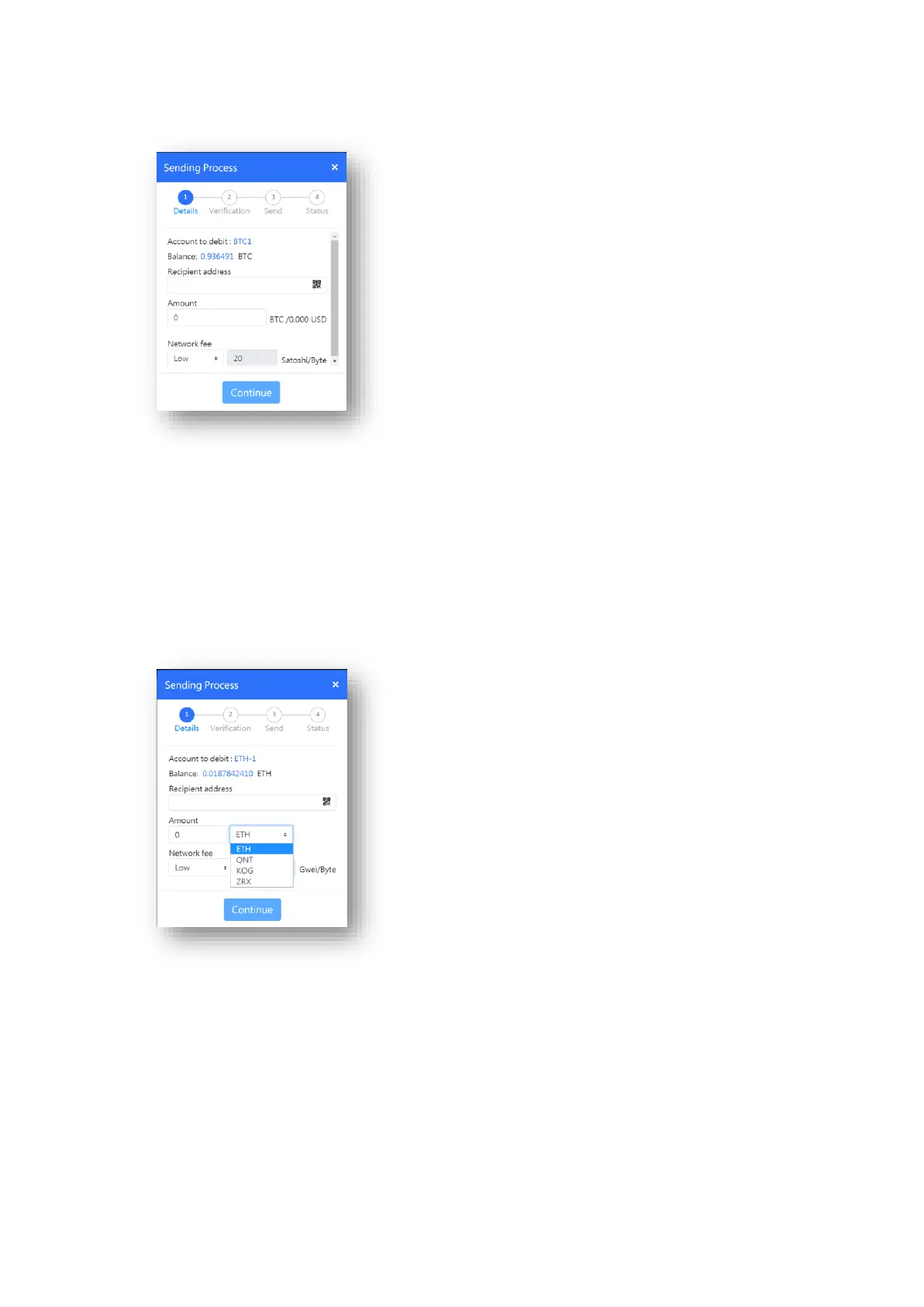
● Enter transaction details (Recipient address, Amount, Network fee*)
*It is recommended to check recent fee levels using a fee estimator such as
bitcoinfees.earn.com before sending a transaction to ensure you do not underpay or
overpay the fee. The speed at which the transaction is confirmed depends on the fee
and current network conditions.
● Click Continue to make verification on your wallet device
To send ERC-20 tokens, select the Ethereum account which the ERC-20 token is stored
under. Select the token from the Amount section as below.
Step 2: Verify the transaction details.
After clicking Continue, the transaction details will be also shown on the SecuX hardware
wallet for your verification. Compare the transaction details displayed on the host's
SecuXcess interface. If they match, click CONFIRM. If not, do not proceed. Click CANCEL
and try again with another host device, or contact SecuX support team for assistance.


 To Next Page
 Loading...