3
Step 2: Set your personal device PIN
Please set your personal PIN (4-8 digits). This PIN will be required whenever you use the
device.
For security reasons, the device will reset after 5 failed attempts to enter the PIN. If you fail
to enter the correct PIN 5 times, the device will be completely reset. To restore your
accounts, please refer to step 4 to use the recovery words to restore them.
Step 3: Set the device name
There is a default device name when it leaves the factory. You can rename it (1-13
capital or small English letters) if you like.
Step 4: Create or recover wallet
The SecuX wallet is fully compatible with Bitcoin Improvement Proposal (BIP)
standards such as BIP32, BIP39, BIP44 and BIP49 and allows the generated private key
to be restored using a set of 12, 18 or 24 recovery words.
There are two options for the device configuration:
- Configure as a new wallet
The device will randomly generate a list of 24 recovery words which are unique to
you. Please write them down sequentially on the recovery sheet and keep it in a
safe place. If the device is reset, damaged, lost or stolen, you can use these 24
recovery words to restore your crypto assets (accounts) to any SecuX wallet or
other BIP standard compatible wallets.
- Restore from an existing wallet
The SecuX wallet can restore the crypto assets from other BIP standard compatible
wallet by sequentially entering its 12, 18 or 24 recovery words. Please have your
existing recovery words ready for the next step.
WARNING: Recovery words can be used to gain access to your funds. Keep them safe
and protect them against theft, loss or damage. If your recovery words are lost or stolen,
transfer your assets to another wallet immediately.
WARNING: Do not store your recovery words in digital format, such as in cloud storage,
email, digital photos, etc. Digital storage of recovery words makes them vulnerable to
hacking.
Step 6: Generate the private key
The device will then generate the private key based on the recovery words, which will
be securely stored inside the device's secure element chip.
Once the device has been initialized successfully, the device will switch to regular
operation mode allowing you to turn on Bluetooth function (for SecuX V20/W20 only),
view your accounts or change device and security settings.
3. Introduction to the Setting Menu of the Device
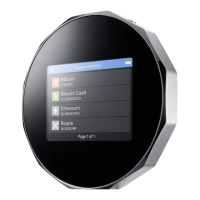
From Account Portfolio page of the device, tap to open setting menu. The setting
menu provides Bluetooth setting, Hidden wallet setting, device reset function, idle time


 To Next Page
 Loading...