5
● Change PIN Code
You may change the device PIN at all times, which was set during device
initialization.
● About
- Firmware Version
It shows the current firmware versions of the Secure Element (SE) and the device
MCU. You may need this information for firmware upgrades or technical support
later on.
- Regulation
From here, you can find the regulation information like FCC or CE information.
● Battery Indicator
The battery indicator is only available on V20 and W20 with embedded rechargeable
battery.
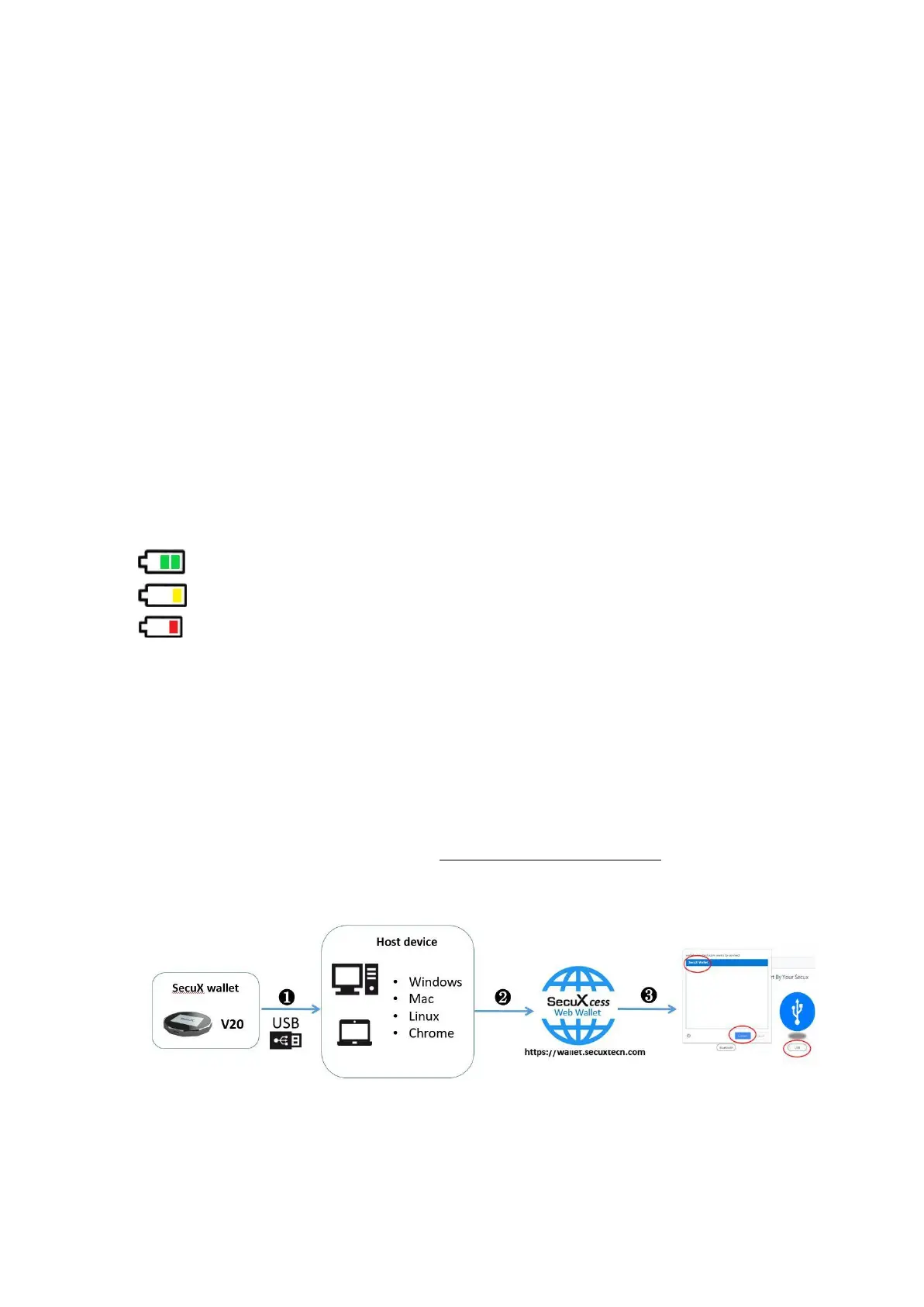
● The device is fully charged.
The battery level is around 75% full.
The battery level is low and should be recharged.
The battery level is extremely low. Please recharge the device immediately.
4. Connect the device to the host and SecuXcess web wallet
The instructions below will illustrate how to connect the device to your host
device and the SecuXcess wallet.
● Connect to the host device using USB
❶ Connect to the host via the supplied USB cable
❷ Access the SecuXcess web interface (https://wallet.secuxtech.com) on the host
❸ On the SecuXcess splash page, select the USB icon, choose your SecuX Wallet and click
Connect to open the SecuXcess main menu.


 To Next Page
 Loading...