EasyManua.ls Logo

Seeley MaglQtouch - User Manual

Seeley MaglQtouch
40 pages
Print Icon
To Next Page IconTo Next Page
Loading...
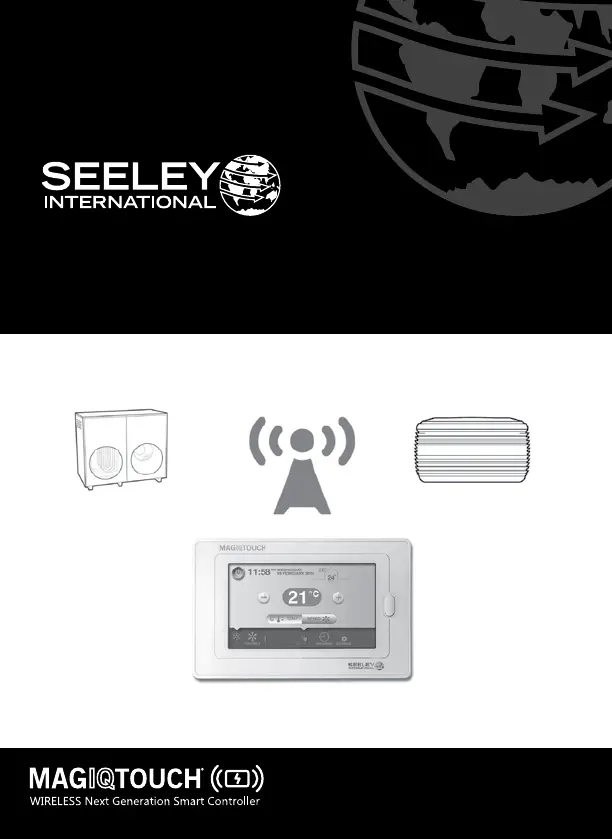
INSTALLATION AND OWNER MANUAL
MaglQtouch WIRELESS Smart Controller
Original English Instructions

Questions and Answers

  • M
    mphillipsAug 4, 2025
    What to do if Seeley MagIQtouch Controller lost communication?
    • J
      Joshua JordanAug 4, 2025
      If your Seeley MagIQtouch Wireless Smart Controller displays ‘This Controller has lost Communication!’, first ensure the controller is within range by checking the RF signal in ‘SETTINGS’ and moving it closer to the wireless receiver if needed. Also, verify that the appliance connected to the wireless receiver is powered on. Finally, check and replace the 4x AA batteries in the controller, as low batteries can cause this issue.
  • S
    Sarah AguilarAug 14, 2025
    How to fix Seeley MagIQtouch Controller when the display is blank?
    • A
      Alan CarrilloAug 15, 2025
      If your Seeley MagIQtouch Controller has no display, there are a few things you can check. First, make sure that 4x AA batteries are properly installed in the battery compartment, ensuring they are oriented correctly as shown inside the cavity. Remember not to use rechargeable batteries, only good quality Alkaline or Lithium AA batteries are recommended. If the batteries are fine, the controller might be in sleep mode. Press the Home button on the right side of the screen to wake it up.
  • A
    Andrea EspinozaAug 23, 2025
    What to do if Seeley wireless Smart controller screen goes blank?
    • V
      vballardAug 25, 2025
      If the screen on your Seeley wireless Smart controller goes blank while the system continues to operate, it is likely due to the controller's sleep mode, which conserves battery life. To check the system's status, press the ‘HOME’ button on the right of the wireless smart controller. This will show the current running condition of the system.

Summary

Safety

Responsibilities

Guidance for employers and employees regarding safe installation and maintenance of evaporative coolers.

Installer and Maintenance Risk Assessment

Information for contractors on risk assessment for hazardous tasks, especially working at height.

Warnings

Important safety warnings for installation and use of the MagIQtouch Wireless Smart Controller and receiver.

FCC Compliance Statement

Device complies with FCC Rules Part 15, detailing conditions for operation and interference.

Mounting the MagIQtouch Wireless Smart Controller

Location

Guidance on optimal placement of the controller for accurate temperature sensing.

Mounting the Controller

Step-by-step instructions for removing the mounting bracket from the controller.

Mounting the MagIQtouch Wireless Receiver

Heater Installation

Diagram and explanation of wireless receiver placement relative to a gas heater.

Heater with Zones Installation

Diagram showing wireless receiver placement for a gas ducted heater with zone control.

Cooler Installation

Diagram showing wireless receiver placement for an evaporative cooler.

Mounting the Wireless Receiver

General instructions and diagrams for mounting the wireless receiver (Fig 1).

Commissioning

Connecting the Wireless Receiver

Instructions for connecting the wireless receiver to the heating or cooling appliance.

Pairing

Step-by-step guide to fitting batteries and cycling power for initial pairing.

Pairing Additional Wireless Controller

Procedure to pair a second Wireless Smart Controller to the system.

Wireless Connection Maintenance

About Wireless Receiver

Details RF signal strength (RSSI) and battery voltage information.

Check;Modify Wireless Configuration

Scan for wireless devices and maintain system configuration.

Reset;Remove this Controller from System

Option to safely remove a Wireless Smart controller from the system.

Wireless Receiver Replaced

Procedure to load system configuration to a new wireless receiver.

Wireless RF Signal Range

How to check the RF signal strength and range of the wireless smart controller.

Controller or System Reset

Reset Whole System

Resets the entire system to default factory settings, requiring re-pairing.

System Reset When 2 x Wireless Wall Controllers are Connected

Recommended sequence to reset the system with two wireless controllers.

User Guide

General Tips

Replacing the Batteries

Instructions on how to replace the batteries in the Wireless Smart Controller.

Quick Start

Sleep Mode

Wireless Range

Additional Wireless Smart Controller

Seeley MaglQtouch Specifications

General IconGeneral
BrandSeeley
ModelMaglQtouch
CategoryController
LanguageEnglish

Related product manuals