TEC Series v 3.2X
Page 62
Holidays can be used to keep time zones valid (or not)
on Holidays, or by setting a different time zone to be
valid for a different period of time on a Holiday. There
are 9 Holidays numbered 0 - 8 available for use on a
TEC.
Holiday Month Day Holiday
0
1
2
3
4
5
6
7
8
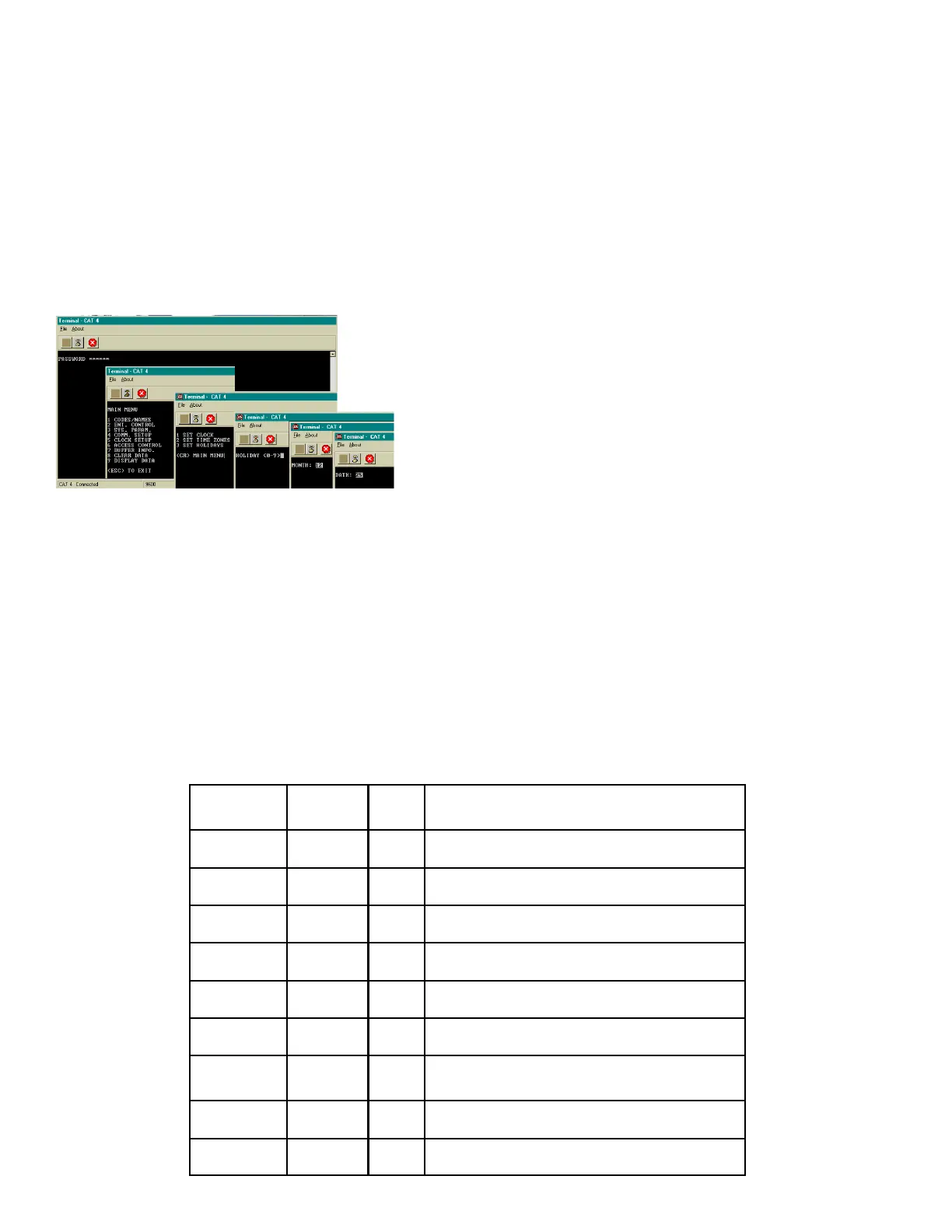
HOLIDAY <0-8>: Select "3" to set the Holiday. Holidays may be entered in any order. You will be
prompted to select a Holiday between 0 and 8. If you make a mistake, press <BkSpc> to backspace
one character.
MONTH: After the Holiday is selected, you will be prompted to key in the month. This is a 1 or 2 digit
number. If you make a mistake, press <BkSpc> to backspace one character. Press the “Enter” key
after the month is entered.
DATE: After the month is selected, you will be prompted to key in the date. This is a 1 or 2 digit
number between 1 and 31. If you make a mistake, press press <BkSpc> to backspace one character.
Press the “Enter” key after the date is entered.
This table may be used to help keep track of which Holidays are required for this installation. Writing
them down in the table provided will help reduce programming entry errors. Remember, Holidays may
be entered in any order.
SETTING HOLIDAYS
END HOUR 00: You will be prompted to key in the end hour. This is a 1 or 2 digit number. The hour
is expressed in 24 hour format (e.g., 2:25 P.M. is keyed in as 14:25), from 00:00 to 23:59.
If you make a mistake, press <BkSpc> to backspace one character. After the hour is entered, press
the "Enter" key.
END MIN 00: You will be prompted to key in the end minute. This is a 1 or 2 digit number between
00 and 59. If you make a mistake, press <BkSpc> to backspace one character. After the minute is
entered, press the "Enter" key.


 To Next Page
 Loading...