5. ALARM ZONES.
5.1 Linking Zones
It is not essential to link an Alarm Zone to a reader,
although not doing so will obviously mean that readers
will continue to behave as though no alarm system is in
operation. When a reader is linked, the act of arming its
associated Alarm Zone will cause the reader to reject all
access attempts, except those of a supervisor.
MNMSC0107_ALARMKEYPAD: Alarm Keypad Installation and User Manual 9/11
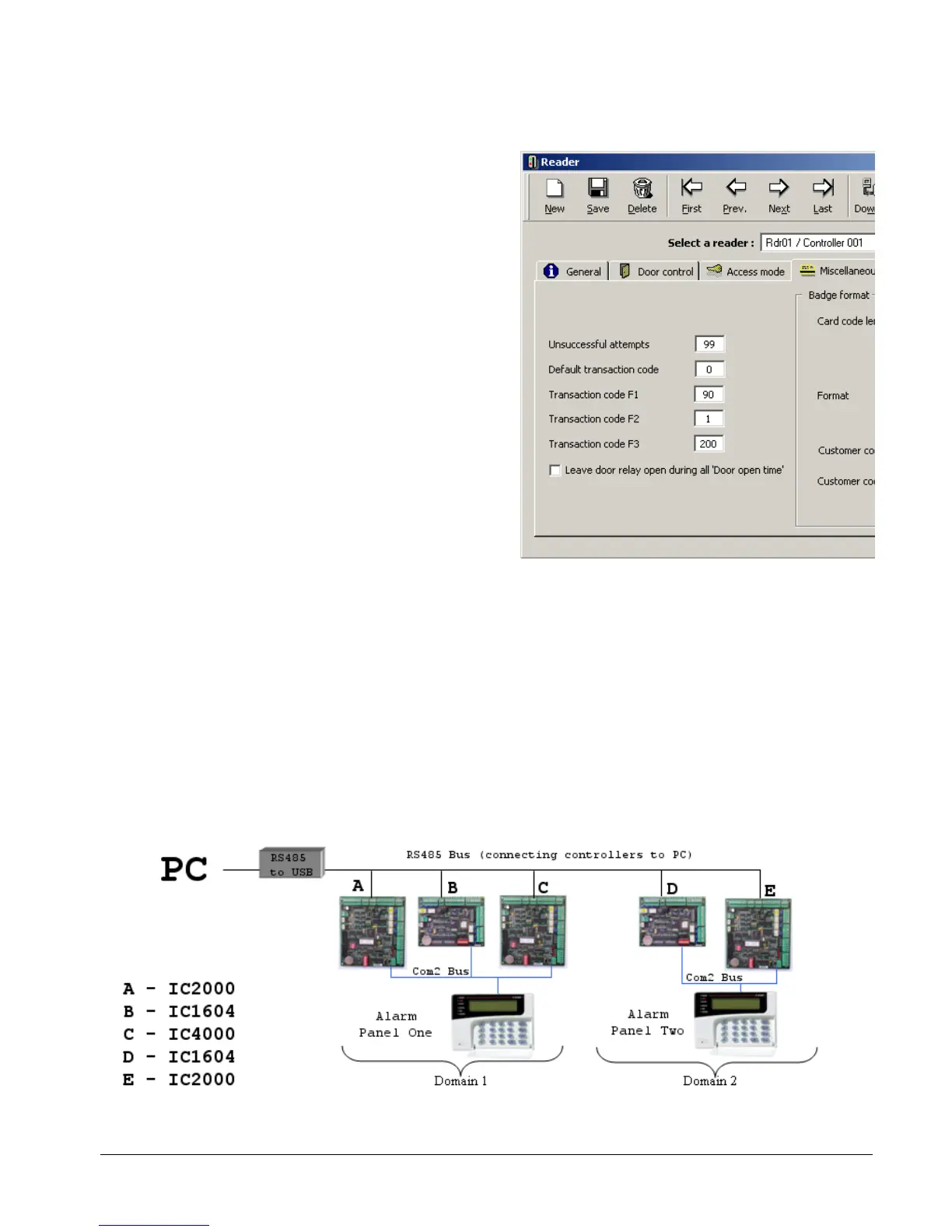
To link/unlink a Zone to a reader, simply access the
reader’s window by going to Parameter, Controller, t
clicking on the Readers tab. Select the relevant reade
and expand it using the ellipse (three dots) button.
Finally, click on the Miscellaneous/Badge Format t
hen
r,
ab.
he Zone to which the reader is linked is entered in the
ultiple
f one
.2 Multiple Zones
he creation of any Alarm Zone is done first by defining which inputs are to be part of that zone. In the
t of selected
ontrol of multiple zones can be achieved from a single Alarm Keypad panel, where multiple alarms and/or
T
box marked Transaction code F2. In the example on the
right, reader 1 is linked to Alarm Zone 1.
Note that whilst an Alarm Zone can have m
readers linked to it, a reader can only ever be part o
Alarm Zone. To unlink a reader, simply use the value 0
in the Transaction code F2 box.
5
T
simple example from section 3.4, we established an Alarm Zone with only one input, Input 1.
Multiple zones are set up in exactly the same way as a single Zone, with each being built up ou
inputs. Note that the same input can also be used in more than one Zone (see section 5.3).
C
controllers are wired to the same bus; or several Alarm Keypad panels, where multiple buses are used, with
each bus requiring its own panel. An example of this architecture can be seen below:



 To Next Page