EasyManua.ls Logo

SensoScientific OTA Series - User Manual

SensoScientific OTA Series
28 pages
Print Icon
To Next Page IconTo Next Page
Loading...
OTA Series
User Guide
V1.02
Question and Answer IconNeed help?

Do you have a question about the SensoScientific OTA Series and is the answer not in the manual?

Summary

OTA Series Introduction

Getting to Know Your Device

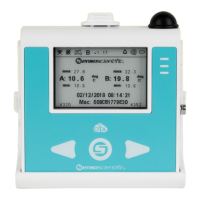
Provides a visual overview and explanation of the OTA Node's physical features and display indicators.

SensoScientific Cloud Platform

Setting Up Your OTA Device: App Method

Step 1: Download the SensoScientific App

Instructions for locating and downloading the required SensoScientific mobile application from your device's app store.

Step 2: Set Device to Provisioning Mode

Procedure to activate the OTA device's provisioning mode, indicated by specific LED behavior.

Step 3: Connect to Wi-Fi

Guidance on connecting your mobile device to the OTA Node's Wi-Fi network for initial setup.

Step 4: Configure Wi-Fi Settings

Details on configuring the OTA device's Wi-Fi network credentials via the SensoScientific app.

Setting Up Your OTA Device: Browser Method

Step 1: Set Device to Provisioning Mode

Instructions to place the OTA device into provisioning mode using its physical buttons.

Step 2: Connect to Wi-Fi

Connect your Wi-Fi enabled device to the OTA Node's Wi-Fi network.

Step 3: Configure the Node Network

Configure network settings for the OTA device through its web interface.

Step 4: Verify Network Profile

Confirm that the network profile has been successfully added to the OTA device.

Understanding OTA Device Display and Notifications

Display Notifications Legend

Explains the various icons and indicators displayed on the OTA device screen.

LED Status Indicators

Details the meaning of different LED colors and patterns for device status feedback.

OTA Device Push-Button Functions

Wake Up Device

How to wake the device from sleep mode to view current readings and timestamps.

Silence Audible Alarm

Procedure to temporarily silence the device's audible alarm.

Reset Minimum;Maximum Readings

Steps to reset the recorded minimum and maximum sensor readings on the device.

Turn Off Device

Instructions on how to properly power down the OTA device.

Delete Wi-Fi Configuration

Procedure to clear stored Wi-Fi SSID and password from the device's memory.

Contact and Support Information

Sales and Technical Support

Provides contact details for pre-sales inquiries and technical assistance.

Document Revision History

Revision Log

Records changes and updates made to the document across different versions.

Associated Forms and Procedures

Lists related forms and procedural documents for reference.

Associated Records

References external or related records pertinent to the document.

Overview

The SensoScientific OTA Series device is a second-generation Wi-Fi sensor designed for remote temperature monitoring, featuring over-the-air (OTA) upgrade capabilities for convenient firmware updates without manual servicing. It boasts a large 2.7" e-ink display that continuously shows current readings, battery level, and various feedback notifications. The device is equipped with 2.4GHz 802.11 b/g/n Wi-Fi compatibility and an onboard visual and audible alarm system to alert users of data excursions. Beyond local alerts, it can send notifications via SMS, text message, voice call, pager, cell phone, fax, and email. All data is time-stamped, recorded locally (up to 4000 readings), and perpetually transmitted to the SensoScientific Cloud for comprehensive monitoring and storage.

Function Description:

The primary function of the OTA Series device is to monitor and record environmental data, typically temperature, and transmit this information to the SensoScientific Cloud platform. It acts as a Wi-Fi sensor node, collecting data from connected probes and relaying it wirelessly. The device's OTA capabilities allow for remote firmware upgrades, ensuring that the sensor remains up-to-date with the latest features and improvements without requiring physical intervention. The integrated alarm system provides immediate alerts for out-of-range data, both visually on the e-ink display and audibly through a speaker. Data is stored locally as a buffer in case of connectivity loss and then transmitted to the cloud once a connection is re-established.

Usage Features:

The device offers a user-friendly interface through its e-ink display and push-buttons.

  • Display Notifications: The 2.7" e-ink display provides critical information at a glance. This includes:

    • Wi-Fi Symbol: Indicates connection to a Wi-Fi Access Point. A crossed-out symbol means no connection.
    • Internet Symbol (@): Shows connection to the internet. A crossed-out symbol means no internet connection.
    • Cloud Symbol: Confirms connection to the cloud and active data storage.
    • Buffering Symbol (B): Appears when a connection cannot be established, indicating that temperature readings are being stored locally on the device (up to 4000 readings).
    • Firmware Version (vX.XX): Identifies the current firmware version.
    • Power Supply Symbol: Shows when the device is connected to power via Micro USB. This symbol is absent when running on battery.
    • Speaker Symbol: Indicates whether the audible alarm is on or off. A crossed-out symbol means the alarm is muted, though alerts will still be sent to the cloud.
    • Battery Symbol: Displays the battery level (High, Medium, Low, Empty).
    • Current Reading: The most recent data measurement (e.g., temperature in deg C).
    • Minimum/Maximum Readings: Shows the highest and lowest recorded readings since the last reset.
    • Date and Time: The current date and time.
    • MAC Address: The unique identifier for the device.
  • LED Status Indicators: Three LEDs (green, yellow, red) provide quick visual feedback on the device's status:

    • Wake Up: A solid yellow light indicates the device is waking up, taking a reading, and resetting the screen.
    • Sleep (Power Supply): A blinking green light signifies the device is in sleep mode while connected to a power supply.
    • Sleep (Battery): No light is shown when the device is in sleep mode and powered by battery.
    • MAC Address Not Registered: A blinking yellow and red light indicates the device is connected to Wi-Fi and the internet, but its MAC Address is not registered.
    • Data Alarm (Power Supply): The device will constantly sound an alarm (unless muted) when data is outside alarm limits, and the speaker is turned off, or data returns to limits.
    • Data Alarm (Battery): The device will sound an alarm every time it wakes up when data is outside alarm limits, until the speaker is turned off or data returns to limits.
  • Push-Button Functions: The device features a push-button interface for various controls, often requiring specific sequences to prevent accidental activation.

    • Wake Up/Reset Screen: Pressing the center button wakes up the device, resets the screen, and displays the most current reading and timestamp. A solid yellow light will appear.
    • Silence Speaker: Holding the center button for five seconds will silence the audible alarm until the next reading. The yellow light will flash until released, then turn solid, and the screen will reset. Permanent disabling of the audible alarm must be done via the cloud.
    • Min/Max Reset: To reset the minimum and maximum readings displayed:
      1. Press and hold the center and right buttons simultaneously. The green and yellow lights will flash.
      2. Release the center button while continuing to hold the right button. The yellow light will remain solid, and the green light will flash.
      3. Once the green light becomes solid, release the right button.
    • Turn Off Device: Press and hold the center button for 10 seconds. The screen will flash and turn off. To turn the device back on, press the center button once.

Maintenance Features:

The OTA Series device includes features that facilitate its maintenance and configuration.

  • Over-the-Air (OTA) Upgrades: This is a key maintenance feature, allowing firmware updates to be pushed remotely to the device. This eliminates the need for manual intervention, reducing downtime and ensuring the device always runs the most current and optimized software.
  • Device Setup (App Method):
    1. Download the "SensoScientific" app on an iOS (8 or newer) or Android (6.0 or newer) cell phone.
    2. Set the device to provisioning mode by inserting batteries. The screen will flash, and the yellow LED will turn solid. After 15 seconds, if no Wi-Fi connection is made, the device will alternate between green and red LEDs with an audible beep.
    3. Press the left and right buttons simultaneously to enter provisioning mode.
    4. Connect the cell phone to the device's Wi-Fi network (e.g., "mysimplelink-57D475," where the last six digits match the device's MAC Address).
    5. In the SensoScientific app, go to "Wi-Fi Setup" to configure the desired Wi-Fi network, selecting security type (Open, WEP, WPA/WPA2, Enterprise) and entering credentials.
  • Device Setup (Browser Method):
    1. Set the device to provisioning mode as described above.
    2. Connect a Wi-Fi enabled device (laptop, smartphone, tablet) to the device's Wi-Fi network ("mysimplelink-57D475").
    3. Open a web browser and navigate to mysimplelink.net.
    4. Configure network settings under the "IP Config" tab (for Static IP) or "Profiles" tab (for network SSID and Password). For enterprise security, scroll to "Add Enterprise Profile" to input specific credentials.
    5. After adding the profile, verify it under the "Profiles" tab.
    6. Restart the device twice (by removing and reinserting batteries or unplugging/replugging power) to complete the configuration. The device should then connect to the network and show a green light, with no crossed-out symbols on the notification panel.
  • Delete Wi-Fi SSID and Password: To clear stored Wi-Fi information from the device's memory:
    1. Hold the left and center buttons for 10 seconds until the device stops alarming and blinking red.
    2. Once cleared, the device can be reconfigured using the setup steps.
  • Probe Connection: The device uses an M8 connector for probes, allowing for easy attachment and placement of monitoring probes in the desired location.
  • Technical Support: SensoScientific provides technical support during business hours (Monday-Friday, 8:00 AM - 5:00 PM Pacific Standard Time) and 24/7 emergency support. Contact information (phone, email, online help desk) is readily available.

SensoScientific OTA Series Specifications

General IconGeneral
Ingress ProtectionIP65
Wireless CommunicationWi-Fi
Data LoggingYes
Power SourceBattery
Probe TypeRTD, Thermocouple
Battery LifeUp to 2 years
Housing MaterialPlastic
Alarm FunctionalityHigh/Low temperature alarms, visual and audible alerts

Related product manuals