Updating the Senstar LM100 Firmware
Page 74 Senstar LM100 Product Guide
the firmware upgrade from Senstar Technical Services. Save the firmware file to a known location
(e.g., a folder on your desktop). Save a UCM file with your current settings as a safety backup
before proceeding with the update.
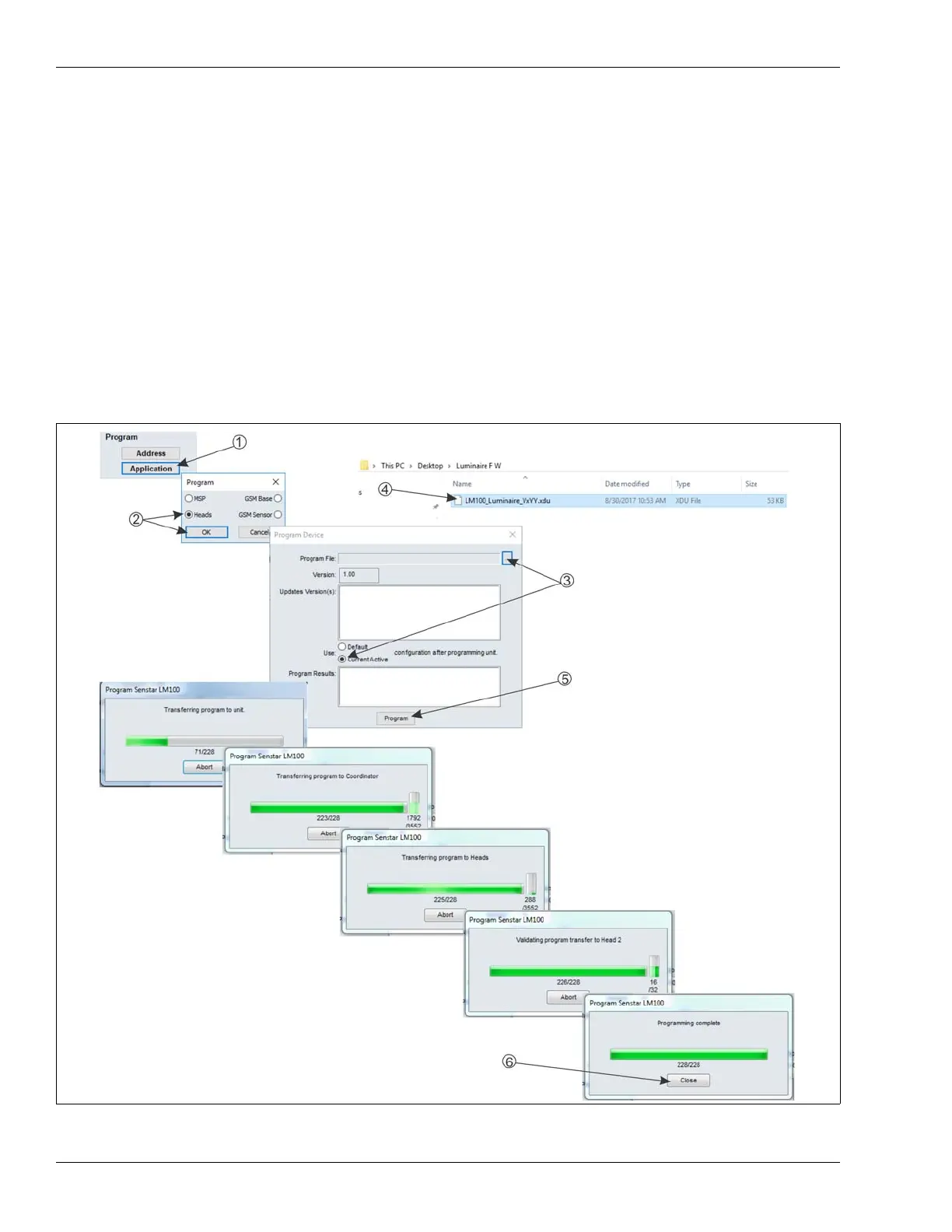
1. Select the Application button in the Program field at the top of the UCM screen.
2. Specify the device firmware being updated and select OK (i.e., MSP for gateway, Heads for
luminaires, GSM Base for wireless gate sensor receiver, GSM Sensor for gate sensor
module).
3. Select the Use: Current Active configuration after programming unit radio button, then select
the Browse button.
4. Navigate to the location of the firmware file and select the appropriate .XDU file.
If you select an incorrect .XDU file, the UCM will not allow the installation.
5. Select the Program button on the Program Device dialog.
A series of progress windows will be displayed as the firmware is loaded into the devices.
6. When the Programming complete window is displayed, select Close.
7. Reset or restart the gateway.
Figure 62: Firmware update process



 To Next Page