©2020 Sentinel Gaming Systems 2 Quick Setup/Operations Guide – Sentinel Mini 4.xx
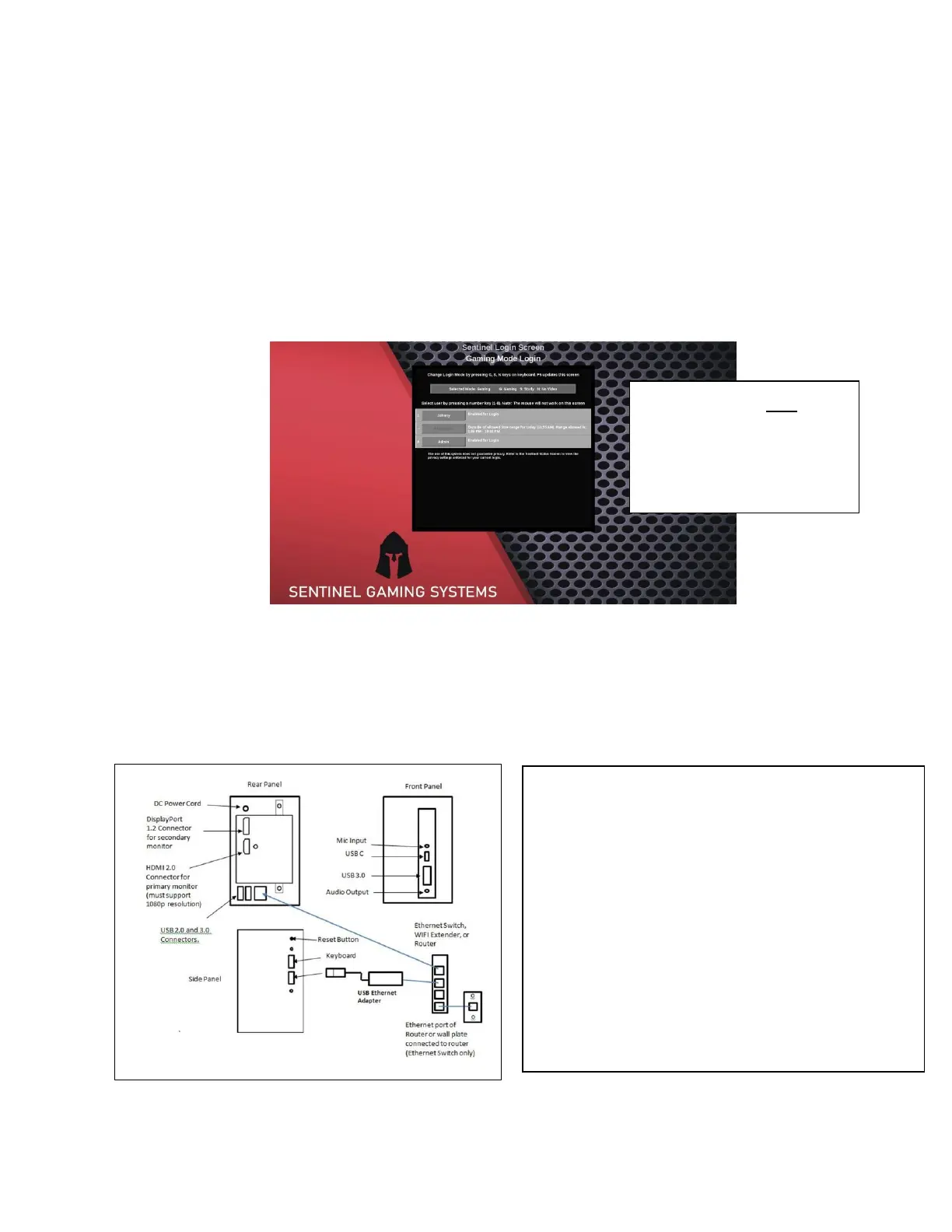
4. Connect all other peripherals, (i.e. USB 2.0, 3.0, Audio 3.5mm) to the
System Rear and Front Panels. Use the front panel headphone / line outputs for
audio output and NOT built in speakers within a HDMI display. Otherwise sound will not
be available in Study or No-video Modes.
5. Plug the DC power cord from the supplied power adapter into the back of
the computer and the AC power plug into a live AC outlet. After 30 seconds
the Sentinel Login Screen should appear:
Sentinel Login Screen
Note: If the following image and error message appears and you are using a WIFI Extender
provided by Sentinel Gaming Systems, you will need to set it up. You may press “w” and a WIFI
Setup Login Screen will be displayed. Follow the instructions in the WIFI Extender Setup Guide
provided with the WIFI Extender to setup and pair the WIFI Extender to your WIFI router.
Important: You will need the passcode for your WIFI Router.
The Mouse is not
usable on the Sentinel
Login Screen. Use only
the keyboard!
If the error message states that everything is
connected correctly but cannot reach the
internet, it is likely that the problem is in the
connection from the Ethernet switch to your
router, perhaps in the premise wiring or pairing
of the WIFI Extender. You can move the system
to the room with the router and test it by
connecting directly to the router. If the problem
reported in the error message is anything else,
correct the problem as suggested by the error
message.


 To Next Page
 Loading...