Conguring the Recorder to work with C3 Series Cameras
After connecting C3 series cameras, you’ll need to congure the recorder in order for the cameras to work:
1. Congure port(s): the procedure differs depending on the recorder’s rmware version:
For rmware v3.1 or newer:
• Navigate to the Network Settings, choose Port Functions, and select IP Camera for the ports
connected to a 48 V PoE injector.
For rmware older than v3.1:
• Navigate to the Recording Settings, choose HD Cam Expansion 1 or HD Cam Expansion 2 and
select IP Camera.
2. Click Camera, select the IPC1 or IPC2 tab depending on the port used, and choose the appropriate camera
model from the Type dropdown menu.
3. Select C3W9PD or C3Q9PD from the dropdown menu.
1
2
3
4
5
6
Y-Power
Harness
Microt
Control
Cable
POE
Inserter
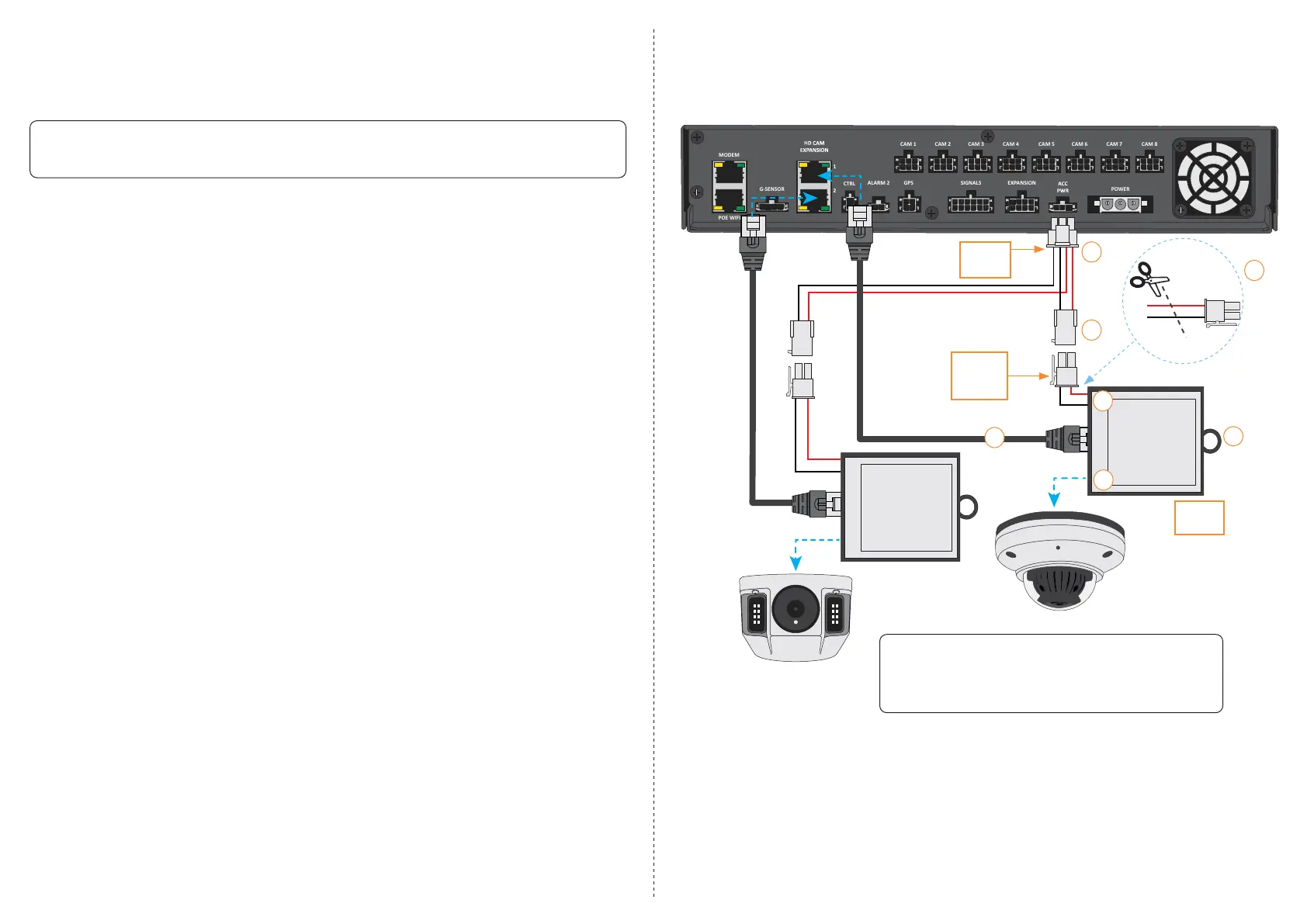
48 V POE Kit Installation Diagram
7
WARNING: Always use compatible cameras
Adding an incompatible camera to a 48 V POE Injector can
damage the camera and void your warranty. Always ensure
that you’re connecting a compatible camera!
Black
Black
Red
Red
Installing the 48 V POE Kit
(Refer to the diagram on page 3)
1. Connect the Y-Power Harness to the recorder’s ACC PWR output
2. Connect the other end of the Y-Power Harness to one end of the Microt Control Cable (MCC)
3. Cut off the other end of the MCC and strip the red and black wires
4. Connect the MCC red wire to the POE Injector’s VDC Input (+), and the black wire to the VDC Input ( –)
5. Connect an Ethernet cable from the recorder’s HD CAM EXPANSION port to the POE Injector’s IN port
6. Connect an Ethernet cable from the POE Injector’s OUT port to the camera. For the 48 V POE kit, you can
only connect the following camera models:
• C3 series
• C8 series
• C12 series
7. Secure the casing of the PoE Injector to the vehicle using the provided screw.
8. If installing a second POE Injector, repeat steps 3-7 (you can discard the spare Y-Power Harness).
WARNING: Ensure Recorder is Powered Down
Do not proceed unless the recorder is shut down.
Conguring the Recorder to work with C8 and C12 Series Cameras
1. Perform Step 1 in “Conguring the Recorder to work with C3 Cameras”, immediately above.
2. In the RTSP Connection Information card (part #700-1237) included with your camera:
• Jump to Step 3, “Congure Recorder Camera Settings”, and perform Step 3 and Step 4.


 To Previous Page
 Loading...






