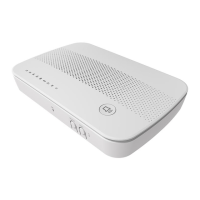
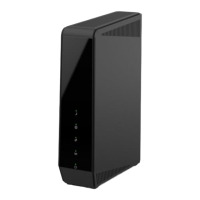
The NA502S-4G Multiple RF Home Gateway is a consumer electronic device designed to bridge all appliances in a home, from IP cameras to sensors, and allow users to monitor and manage them over the Internet. It provides seamless communication between devices and clouds, whether at home or away, offering complete connectivity with certified devices including cameras, security systems, and WiFi/ZigBee/Z-Wave/4G devices. Most devices can be paired with the gateway via a single button push.
Technical Specifications:
- Model: Multiple RF Home Gateway
- Dimensions: 222mm (W) x 148mm (D) x 48mm (H)
- Operating Temperature: 0°C to 40°C
- Processor: MT7621S
- Memory: 128MB Flash and 512MB RAM
- Network Protocol: TCP/IP
- Network Interface: One 10/100/1000BaseT (RJ45) LAN connection
- Wireless Connectivity: WiFi, ZigBee, Z-Wave, 4G
- Ports:
- One 10/100/1000 Ethernet port with RJ45 connector
- One USB 2.0 Type A Port (USB host with support for mass storage device)
- SIM Card Slot (1)
- Power:
- Power Adapter: 12V, 2A
- Battery: 2S1P 18650 Battery (provides 2 hours of backup power)
- Antenna: Internal antenna for WiFi, ZigBee, Z-Wave, and 4G
- Built-in Features: Siren, Microphone (Function Disabled)
- Buttons: 5 (Power, Select, Sync, Reset)
- LEDs: 7 (Power, 4G, ZigBee, Z-Wave, WiFi, Service, Security)
Usage Features:
The gateway features a front panel with seven LEDs that provide visual status indicators for various functions:
- POWER (Green):
- On: Power On/Normal Operation
- Off: Power Off
- Flashing: Rebooting
- 4G (Green):
- On: 4G connection established
- Off: No active 4G connection
- Flashing: Data is being transmitted or received via the 4G connection
- ZigBee (Green):
- On: ZigBee mode is selected
- On (5 seconds): ZigBee sensor added or synchronization is successful
- Off: ZigBee module is in idle mode
- Flashing: ZigBee module is in active mode
- Z-Wave (Green):
- On: Z-Wave mode is selected
- On (5 seconds): Z-Wave sensor added or synchronization is successful
- Off: Z-Wave module is in idle mode
- Flashing: Z-Wave module is in active mode
- WiFi (Green):
- On: WPS mode is selected
- On (5 seconds): WiFi connection is established
- Off: No WiFi connection available
- Flashing: Data is being transmitted or received via the Wireless connection
- Service (Green):
- On: Cloud service is available and working properly
- Off: Cloud service is not available
- Flashing: Cloud service is not sending data properly
- Security (Green):
- On: Security function is enabled (Arm)
- Off: Security function is not enabled (DisArm)
The rear and side panels offer several functional ports and buttons:
- Power Port: Connects to the supplied power adapter.
- ETHERNET Port: A standard RJ45 connector for a 10/100/1000 BaseT LAN cable to connect to a PC or network.
- USB Port: A USB host port supporting mass storage devices.
- Mic: Built-in microphone (function disabled).
- Select Button: Used to choose the desired RF mode (WiFi/Z-Wave/ZigBee). Pressing for three seconds unselects the RF mode.
- Sync Button: After selecting an RF mode, push this button to synchronize the gateway and sensors. Pressing for three seconds stops the synchronization process.
- System on/off switch:
- On: System Power (default)
- Off: System Power off but Battery is still in charged.
Initial Installation and Configuration:
- Choose an Installation Site: Select a suitable location for the gateway.
- Connect Battery Plug Connector:
- Remove screws from the back cover with a screwdriver.
- Connect the battery plug into the designated slot. This will charge and maintain the backup battery.
- Reattach the back cover with screws.
- Connect LAN Cable: Use a standard LAN cable to connect the device to the Ethernet port.
- Power Up: Connect the supplied power adapter to the gateway. Only use the provided adapter to avoid hardware damage.
- Check LEDs: Verify that the Power LED is ON, and the WiFi LED is ON (if the PC is also ON).
- SIM Card Installation:
- Ensure the device is powered off.
- Remove screws from the back cover.
- Locate the SIM card tray.
- Push the SIM card cover upward.
- Insert the SIM card into the slot, ensuring correct installation.
- Put the SIM card cover back.
- Attach the back cover with screws.
Configuration Preparation:
- Ensure your PC can establish a physical connection to the gateway (either directly connected via the Hub port or on the same LAN segment).
- The gateway must be installed and powered ON.
- Choose the desired RF mode using the Select button and then push the Sync button for pairing the gateway and sensors. Ensure successful synchronization.
Maintenance Features:
- Reset Button: This button has two functions:
- Reboot: When pressed and released, the gateway will reboot (restart).
- Clear All Data: This function clears all data and restores all settings to factory default values. To perform this:
- Power On the device.
- Hold the Reset Button down for 3 seconds.
- Release the Reset Button. The gateway will now use factory default values.
Regulatory Approvals:
The device complies with Part 15 of the FCC Rules. Operation is subject to two conditions: (1) the device may not cause harmful interference, and (2) the device must accept any interference received. Users are advised to reorient or relocate the receiving antenna, increase separation between equipment and receiver, connect equipment to a different circuit, or consult a dealer/radio/TV technician if interference occurs. Any unauthorized changes or modifications could void the user's authority to operate the equipment.
Radiation Exposure Statement: This equipment complies with FCC radiation exposure limits for an uncontrolled environment. It should be installed and operated with a minimum distance of 20cm between the radiator and the user's body. The transmitter must not be co-located or operating in conjunction with any other antenna or transmitter. The country code selection feature is disabled for products marketed to the US/CANADA. Operation of this device is restricted to indoor use only.

 Need help?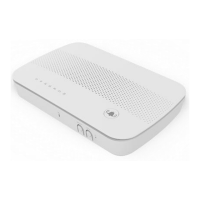

 To Next Page
 General