https://play.google.com/store/apps/details?id=com.aksys.shaksapp
※ NOTE) When upgrading gamepad firmware, please make the gamepad in charging to avoid any power shortage.
How to charge
You can charge the battery using USB Cable included through a computer or USB power charger. Please see the power LED status in charging (LED #1)
While Charging
when battery low
While charging When fully charged
Fast blinking Slow blinking On (stops blinking)
※ You can use gamepad while charging.
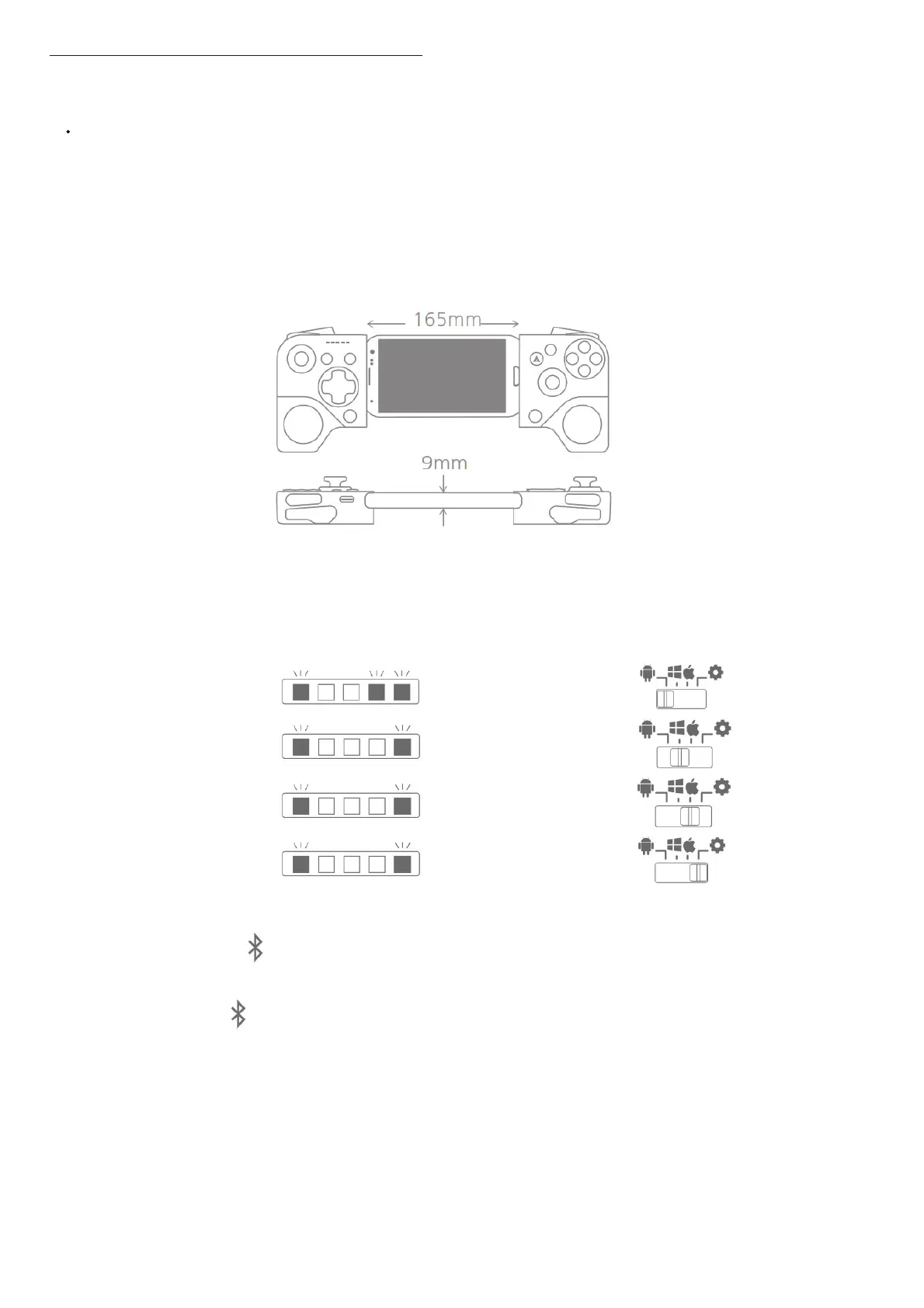
How to fit a Smartphone
Slightly pull both sides, put one side of the smartphone on one side of S5b first, and then stretch the other side of S5b to fix the phone.
*NOTE) The maximum thickness is 9mm and max length of the product is 165mm. Please be careful not to exceed this standard. Oversized installation may
result in excessive damage to the product.
3 Step Quick Setup
1. Select gamepad mode for your device in the table.
2. Power off (Press ‘Power Button’ for more than 3 sec) then, change the “Mode Switch”
3. Power on (Press ‘Power Button’ for more than 3 sec), pair Bluetooth, and enjoy!
Your Device LED Display Bluetooth Name Mode Switch
Android, Fire TV Stick SHAKS S5b xxxx Android
Windows, Mac,Chrome SHAKS S5b xxxx Win-Mac
iPhone, iPad Xbox Wireless Controller
Android (Mapping) SHAKS S5b xxxx mapping
※ If the power is on, the mode will not be changed, even though you change the mode switch. The mode will be changed based on mode switch status when it
reboots only.
※ Pairing: Press the ‘Pairing Button( )’ at the bottom for more than 2 seconds, then SHAKS will be on pairing mode and you can find & select one of
“Bluetooth Name” in an above table based on your mode selection. Up to two host devices’ Bluetooth profiles are stored for each mode. (LED #2,3 will be
blinking simultaneously)
※ If you press the ‘Pairing Button ( )’ for more than 5 seconds, the pairing profiles registered in the current mode will be deleted.
※ Reconnect: The last paired profile will be tried to re-connect. If fail, the next one is being tried in a sequence.
(LED #2,3 will be blinking rotationally)
※ Pairing newly: To connect with a new device, please perform the “Pairing” process newly. The new device will be saved, and the first device registered
Bluetooth profile will be deleted.
※ Please note that you cannot make Bluetooth pairings between an Android Device and a SHAKS Gamepad in Android Mode and Mapping Mode concurrently.
So please delete or unpair the prior pairing information from your paired device list in Bluetooth Setup of your Android Device, before you try a pairing using the
other mode.
When you make a pairing between SHAKS and your device, please check the paired device list, if there are the same HW number (xxxx) with a different mode
name, you should have to delete it before you make a new paring. For example, when you try to use SHAKS S5b in mapping mode, if “SHAKS
S5b_1E2A_Android” is listed in the paired list of your device, you should have to delete or unpair it before you make a new pairing using “SHAKS
S5b_1E2A_mapping”.
The mapping mode will be worked well when SHAKS is paired via Bluetooth name “…mapping”.
Connecting with an Android Device (Phone, Tablet, TV Box, Fire TV Stick)


 To Next Page
 Loading...