12
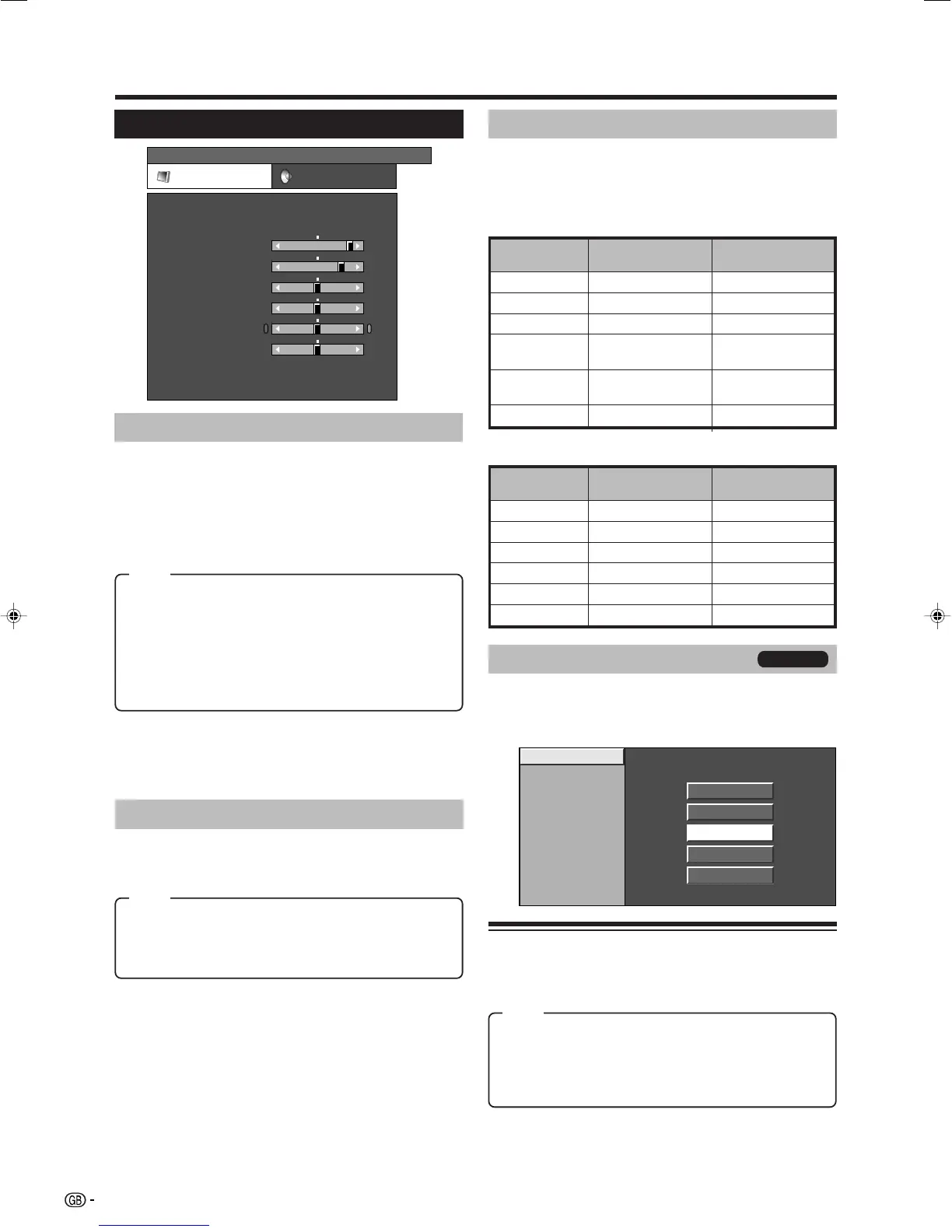
Picture menu
TitleB
Menu operations
MENU
[
Picture
]
Picture Audio
Contrast
OPC
AV Mode [STANDARD]
[Off]
Brightness
Colour
Tint
Sharpness
Advanced
Reset
[+30]
[0]
[0]
[0]
[0]
0
–30
–30
–30
–10
+40
+30
+30
+30
+10
Backlight [+6] –8
+8
Off: The brightness is fixed at the value set in Backlight.
On: Automatically adjusts
On(Display): Displays the OPC effect on the screen while
adjusting the brightness of the screen.
OPC
Menu Operation: A (page 11)
Automatically adjust the brightness of the screen.
NOTE
• When set to “On”, the TV senses the surrounding light and
automatically adjusts the backlight brightness. Make sure no
object obstructs the OPC sensor, which could affect its ability to
sense surrounding light.
NOTE
• You can adjust the factory preset parameters given in
“STANDARD”, “SOFT”, “ECO” and “DYNAMIC”. The parameters
chosen affect each of the input sources.
• The items marked with * are only available for TV/AV input mode.
STANDARD: For a highly defined image in a normally
bright room
SOFT*: Creates a softer image.
ECO*: Reduces power consumption.
USER: Allows the user to customise settings as desired.
You can set the mode for each input source.
DYNAMIC*: For a clear-cut image emphasising high
contrast for sports viewing
AV Mode
Menu Operation: A (page 11)
AV Mode gives you five viewing options to choose from
to best match the system environment, which can vary
due to factors like room-brightness, type of programme
watched or the type of image input from external
equipment.
Advanced
Menu Operation: C (page 11)
This TV provides various advanced functions for
optimising the picture quality.
Colour Temp.
Black
3D - Y/C
Monochrome
Film Mode
truD
I/P Setting
High
Mid-High
Middle
Mid-Low
Low
TV/AV only
Colour Temp.
Adjust the colour temperature to give the best white
image.
High: White with bluish tone
Mid-High: Intermediate tone between High and Middle
Middle: Natural tone
Mid-Low: Intermediate tone between Middle and Low
Low: White with reddish tone
Item
Item
Picture adjustments
Menu Operation: B (page 11)
Adjust the picture to your preference with the following
picture settings.
Adjustment items for AV source
c button d button
Backlight The screen dims The screen brightens
Contrast For less contrast For more contrast
Brightness For less brightness For more brightness
Red For weaker red For stronger red
Green For weaker green
Blue For weaker blue For stronger blue
Selectable
items
For stronger green
c button d button
Backlight The screen dims The screen brightens
Contrast For less contrast For more contrast
Brightness For less brightness For more brightness
Colour For less colour
intensity
For more colour
intensity
Tint Skin tones become
purplish
Sharpness For less sharpness For more sharpness
Selectable
items
Skin tones become
greenish
Adjustment items for PC source
Item
LC-32GA9E_GB_b 06.4.27, 9:49 AM12




 To Next Page