93
Music & Images
AQUOS zero
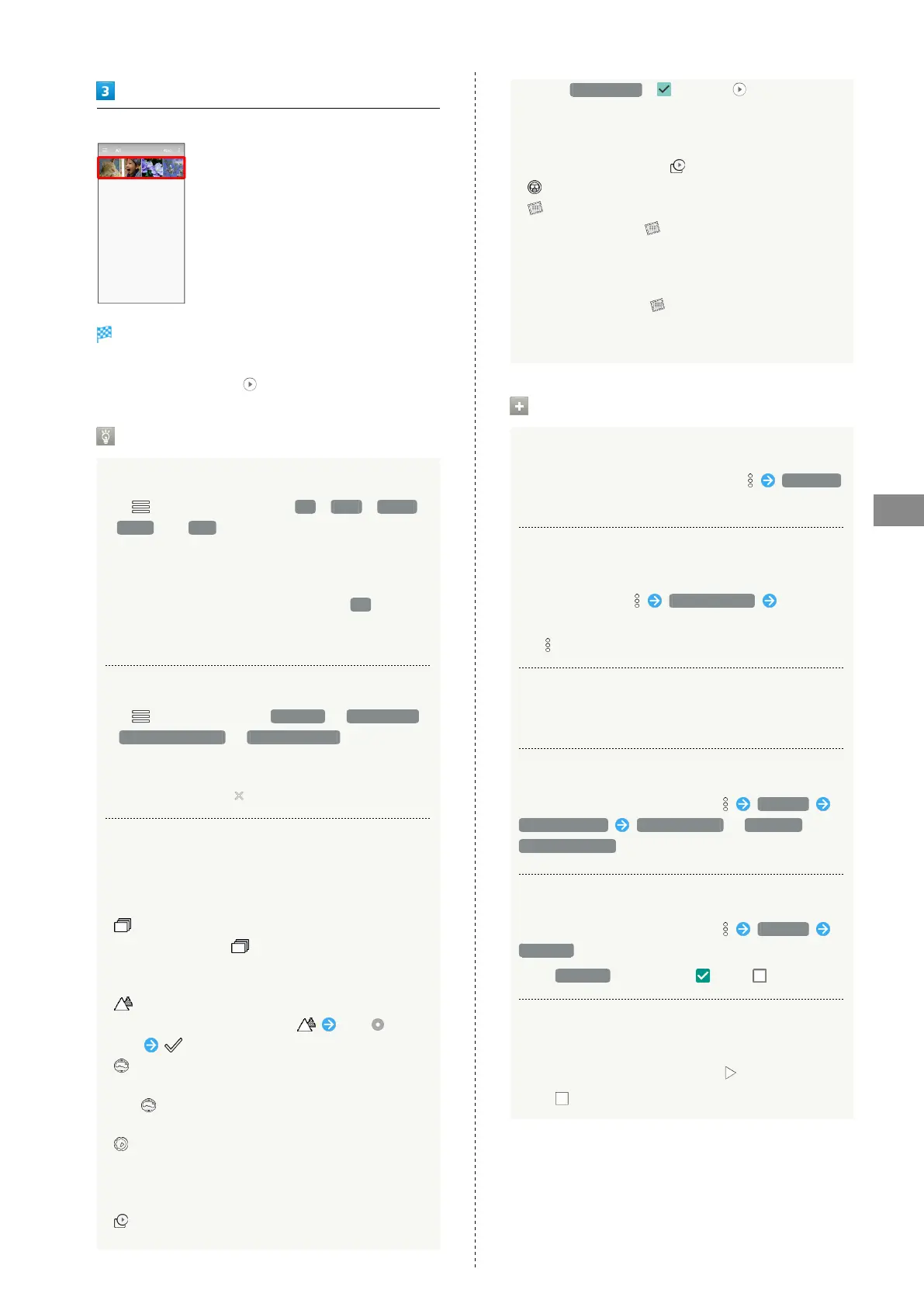
Tap photo/video
Photo/video opens (file view window).
・If confirmation appears, follow onscreen prompts.
・
For video playback, Tap , then follow onscreen prompts.
About Photo/Video List
Photo/Video List Categories
Tap to show file categories ( All , Date , Folder
, Event and Map ) below "View Change". Tap category
to access files sorted into the category. Alternatively,
to show file categories, Flick left edge of Display to the
right.
・
When activating Album for the first time, All photo/
video list opens. Album activates in the last-used state
thereafter (photo/video list or folders view).
Filtering Files in Photo/Video List
Tap for filter criterion ( All Video / Slow Motion
/ Rapid Shooting pic / Background Blur ) in "Filter
Change." Tap filtering type to access photos/videos sorted
into the filter. Flick left edge of Display to the right.
・
To cancel filter, Tap .
Icons Appearing for Photos/Videos in Photo/
Video List
Icon appears for photos/videos, indicating corresponding
shooting mode or setting specified for them.
・
appears for photos captured with Rapid Shooting pic.
Tap photo, then Tap in file view window, to open
photos as index at Display bottom (Rapid Shooting pic
index window).
・
appears for photos captured in DeFocus mode. Tap
photo, then in file view window, Drag left/
right to adjust intensity of defocusing effect.
・
appears for photos captured with an application
capable of 360-degree panorama shots. Tap photo, then
Tap in file view window, to view photo rotatable
360 degrees from left to right, and top to bottom.
・
appears for videos captured in slow video mode.
See "スロービデオモードで撮った動画を再生する (http://
help.mb.softbank.jp/aquos-zero/04-06-08-02.html)"
(Japanese) for details.
・
appears for videos with a photo captured while
taking the video. Tap video, then in file view window,
enable With photos ( ) and Tap to also play
photos captured during video capture (Video with Photos
Playback screen).
Alternatively, in file view window for photos captured
while taking a video, Tap to play a video.
・
appears for photos/videos that are set to be hidden.
・
appears for photos captured with Intelligent Framing.
Tap photo, then Tap in file view window, and at
Display bottom the original image (captured photo)
and a recommended image (intelligently framed photo)
appear. Flick screen left/right to toggle original and
recommended images. may not appear immediately
after activating handset. Activate Album again after
waiting a while.
Photo/Video Viewing Operations
Using Slideshow
In photo/video list or file view window, Slideshow
・To stop slideshow, Tap image.
Saving Images as Wallpapers or Address Book
Contact Photos
In file list window, Register image Follow
onscreen prompts
・
If is hidden, Tap Display first.
Zooming In/Out on Photos/Videos
In file view window, Tap Display twice or Pinch/Spread
Switching Views in Photo/Video List
In photo/video list or folders view, Settings
Thumbnail view Multi-tile view / Grid view /
Grid (large) view
Setting Whether to Show Images More Clearly
In photo/video list or folders view, Settings
Detail up
・
Tap Detail up to toggle on ( )/off ( ).
Showing Rapid Shooting Pic Photos
Continuously
In Rapid Shooting pic index window,
・
Tap to stop.






 To Next Page