EasyManua.ls Logo

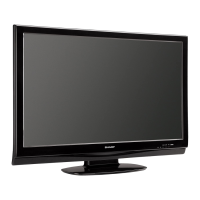
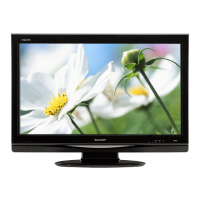
Sharp LC-37SB24U - 37" LCD TV - User Manual

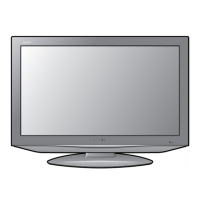
Sharp LC-37SB24U - 37" LCD TV
32 pages
Print Icon
To Next Page IconTo Next Page
Loading...
1
IMPORTANT : Please read this operation manual
before starting operating the equipment.
LC-32SB24U
LC-37SB24U
LIQUID CRYSTAL
TELEVISION
OPERATION MANUAL
ENGLISH
Supplied Accessories
Make sure the following accessories are provided with the product.
Remote control unit
(
g
1)
Page 7
“AA” size battery
(
g
2)
Page 8
AC cord
(
g
1)
Page 7
Stand unit
(
g
1)
Page 6
Cable clamp
(
g
1)
Page 7
Operation manual
(
g
3 languages)
To avoid scratching the frame or screen, please use a soft, lint free cloth for cleaning. Approved
cleaning cloths are available directly from Sharp in single (00Z-LCD-CLOTH) or triple (00Z-LCD-
CLOTH-3) packs. Call 1-800-BE-SHARP for ordering, or VISIT www.sharpusa.com/SharpDirect.
Always use the AC cord supplied with the TV.
LC-32SB24U
LC-37SB24U
LC-3237SB24UE00.indd1LC-3237SB24UE00.indd1 2008/02/1216:47:052008/02/1216:47:05

Questions and Answers

  • M
    Mercedes ThompsonAug 14, 2025
    How to turn on Sharp LC-37SB24U - 37" LCD TV if it has no power?
    • T
      Theresa BrownAug 14, 2025
      If your Sharp LCD TV has no power, first verify that you have pressed the POWER button on the remote. If the indicator on the TV doesn't illuminate, try pressing the POWER button directly on the TV itself. Also, ensure the AC cord is properly connected and that the power is turned on.
  • B
    brad06Aug 17, 2025
    What to do if my Sharp LC-37SB24U - 37" LCD TV has no sound?
    • A
      andrew08Aug 17, 2025
      If there is no sound on your Sharp LCD TV, first ensure that the volume isn't too low. Check if “Variable” is selected in “Output Select”. Also, check if you've accidentally pressed the MUTE button on the remote control.
  • N
    Natalie SandersAug 21, 2025
    What to do if Sharp LC-37SB24U - 37" remote control is not working?
    • M
      Michelle CostaAug 21, 2025
      If the remote control for your Sharp LCD TV isn't working, make sure the batteries are inserted with the correct polarity. If they are, try replacing them with new batteries. Strong or fluorescent lighting near the TV or remote control sensor may also interfere with the remote's operation.
  • V
    Vanessa BrockAug 25, 2025
    Why does my Sharp LC-37SB24U - 37" have no picture?
    • T
      Troy TaylorAug 25, 2025
      If your Sharp LCD TV has no picture, verify that the connection to other components is correct. Ensure the correct input signal source is selected after connection and that the correct input is selected. Check if picture adjustments are correct. Also, ensure that “On” is not selected in “Audio Only” and that a compatible signal is being input.
  • S
    stacy81Aug 27, 2025
    Why does my Sharp LCD TV power off suddenly?
    • K
      Karen GrantAug 28, 2025
      If your Sharp LCD TV is suddenly turning off, check if the sleep timer is set. You may also want to check the power control settings. Additionally, ensure that nothing is blocking the vents, as the unit's internal temperature may have increased. Clean the vents if necessary.
  • R
    rhendersonAug 30, 2025
    How to fix cut off picture on Sharp LC-37SB24U - 37" LCD TV?
    • P
      Phillip WilliamsAug 30, 2025
      If the picture on your Sharp LCD TV is cut off or has a sidebar screen, ensure that the image position is correct. Also, verify that screen mode adjustments, such as picture size, are made correctly.
  • B
    Brittany CameronSep 3, 2025
    Why does my Sharp LCD TV have strange colors?
    • D
      Devin BrewerSep 3, 2025
      If your Sharp LCD TV displays strange colors, light colors, or color misalignment, try adjusting the picture tone. The picture may also appear dark if the room is too bright. Also, check the input signal setting.
  • M
    Mrs. Laura Parrish MDSep 6, 2025
    What to do if my Sharp LC-37SB24U - 37" LCD TV cannot be operated?
    • D
      Diana CollierSep 6, 2025
      If your Sharp LCD TV cannot be operated, it may be due to external influences like lightning or static electricity. Turn off the power of the TV or unplug the AC cord, wait 1 or 2 minutes, and then plug it back in to resolve this.
  • R
    Rachel WalkerSep 9, 2025
    Why does my Sharp LC-37SB24U - 37" LCD TV make a cracking sound?
    • B
      bauerbettySep 9, 2025
      The occasional cracking sound from your Sharp LCD TV is normal. It occurs when the cabinet slightly expands and contracts due to temperature changes and does not affect the TV's performance.

Summary

Supplied Accessories

IMPORTANT INFORMATION

DECLARATION OF CONFORMITY

States compliance with FCC rules and identifies the responsible party for the product in the USA.

INFORMATION

Discusses FCC compliance, interference guidelines, and environmental considerations for disposal and recycling.

Trademarks

Lists trademarks associated with Dolby Laboratories, HDMI Licensing LLC, and ENERGY STAR certification.

IMPORTANT SAFETY INSTRUCTIONS

Precautions when transporting the TV

Details safe procedures for moving the television, emphasizing the need for two people and careful handling.

QUICK REFERENCE

Attaching;Detaching the Stand

Guides users through the process of safely attaching or detaching the TV stand, ensuring correct orientation and screw usage.

Setting the TV on the Wall

Provides instructions and warnings regarding wall mounting, recommending specific brackets and professional installation.

QUICK INSTALLATION TIPS

Offers step-by-step guidance for initial TV setup, including connecting the antenna, AC cord, and turning on the power.

Using the Remote Control Unit

Explains how to operate the TV using the remote control, including pointing it at the sensor and considerations for optimal performance.

Preparation

Antennas

Explains types of antenna connections (75-ohm coaxial, 300-ohm twin-lead) and how to connect them to the TV.

Installing Batteries in the Remote Control Unit

Details the procedure for inserting batteries into the remote control, including important cautions regarding battery types.

Part Names

TV (Front)

Labels the controls and indicators visible on the front panel of the television, such as power, sleep, and remote control sensors.

TV (Top;Rear)

Identifies the input/output terminals and control buttons located on the top and rear panels of the television.

Remote Control Unit

Provides a detailed breakdown of all buttons on the remote control unit and their corresponding functions for operating the TV.

Connecting to External Equipment

Connecting a Blu-ray disc player, HD-DVD player, DVD player, Digital TV STB (Air or Cable), VCR, game console or camcorder

Explains the necessary cables and connections for integrating audio/video equipment such as DVD players, VCRs, and game consoles.

Connecting a PC

Details the process of connecting a personal computer to the TV via RGB or HDMI cables for displaying PC content.

Watching TV

Turning On;Off the Power

Explains how to turn the TV on and off using the power button on the unit or remote control, and the function of the power indicator.

Initial Setup

Guides users through the first-time setup, including language selection, TV location, and automatic channel searching.

Direct Button Operation

Changing Channels

Details methods for changing TV channels using direct number input or channel up/down buttons.

Changing Volume

Explains how to adjust the TV's volume level using the dedicated volume buttons on the remote control or unit.

Mute

Describes how to temporarily silence the TV's audio output using the MUTE button, with details on cancellation.

Sleep Timer

Allows users to set a timer for the TV to automatically switch to standby mode after a specified period.

FREEZE

Explains how to freeze the current video image on the screen, with notes on its availability and automatic cancellation.

INPUT

Guides users on selecting different input sources (TV, HDMI, PC, etc.) to view content from connected external devices.

AV MODE

Allows selection of various picture modes (Standard, Movie, Game, Dynamic) to optimize image quality based on content.

AUDIO

Details options for adjusting audio settings, including MTS/SAP stereo modes and digital broadcasting audio formats.

FLASHBACK

Enables quick switching between the currently viewed channel and the previously tuned channel.

Closed Captions and Digital Closed Captions

Explains how to enable and select closed caption services for viewing dialogue and narration as on-screen text.

VIEW MODE

Allows users to select different screen aspect ratios (e.g., Full Screen, Zoom, Stretch) to best fit the program content.

On-Screen Display Menu

On-Screen Display Menu Operation

Explains the general procedure for navigating and operating the on-screen display menus using the remote control.

Menu Operation Buttons

Details the specific functions of menu control buttons on the remote and main unit for interacting with the on-screen display.

Picture Menu

Allows adjustment of picture settings like Backlight, Contrast, Color, Brightness, Tint, and Sharpness for optimal viewing quality.

Audio Menu

Provides options to adjust sound quality, including Treble, Bass, Balance, Surround sound, and Bass Enhancer for better audio.

Power Control Menu

Enables energy-saving features like automatic shutdown when no signal is detected or no operation is performed.

Setup Menu

Allows configuration of initial setup, channel memory, parental controls, language, and system resets for the TV.

Troubleshooting

Specifications

PC Compatibility Chart

Details the PC resolutions and frequencies compatible with the TV's input signals for optimal display performance.

Information on the Software License for This Product

Outlines software composition, copyright information, and how to obtain source code for open-source components.

LIMITED WARRANTY

LIMITED WARRANTY (Canada)

Sharp LC-37SB24U - 37" LCD TV Specifications

General IconGeneral
Screen Size37 inches
Display TypeLCD
Resolution1366 x 768
Aspect Ratio16:9
Response Time6 ms
HDMI Ports2
Component Video Inputs1
Brightness450 cd/m2
Viewing Angle176 degrees
Input PortsHDMI, Component, Composite, PC Input

Related product manuals