EasyManua.ls Logo

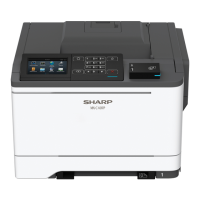
Sharp MX-B400P - User Manual

Sharp MX-B400P
249 pages
Print Icon
To Next Page IconTo Next Page
Loading...
Operation Guide
MX-B400PMODEL:
BEFORE USING
THE MACHINE
BEFORE USING
THE MACHINE
SYSTEM SETTINGS
SYSTEM SETTINGS
PRINTING
PRINTING
TROUBLESHOOTING
TROUBLESHOOTING

Table of Contents

Other manuals for Sharp MX-B400P

Questions and Answers

  • C
    Cameron PerryJul 31, 2025
    Why is my Sharp Printer not detected on the network?
    • R
      Rebecca GarciaJul 31, 2025
      If your Sharp Printer isn't being detected on the network, it could be due to a few reasons. First, ensure that the IP address is correctly configured in the "Network Settings" within the machine's system settings (administrator). If the machine and your computer are not connected to the same local area network, the machine will not be detected. If they are connected to different sub-networks, click the [Specify condition] button and enter the machine's name (host name) or IP address to search for the machine. Also, verify that the main power switch and the [POWER] key are both switched on. Finally, ensure the network cable is securely connected to both your computer and the printer, including checking the connections at the hub.
  • P
    Paula OliverAug 7, 2025
    What to do if the plug and play screen does not appear for my Sharp MX-B400P (USB connection in Windows)?
    • J
      jpenaAug 7, 2025
      If the plug and play screen doesn't appear when you connect your Sharp Printer via USB in Windows, first ensure that the printer's power is turned "ON" before connecting the USB cable. If it's not already on, switch on the main power switch and then the [POWER] key. Also, check in your computer's Device Manager to see if the USB interface is enabled and functioning correctly. Look for "Universal Serial Bus controllers." If a yellow exclamation point appears or the items do not appear, consult your computer manual or manufacturer to enable USB and then reinstall the printer driver.
  • M
    Michael CervantesAug 14, 2025
    How to fix the printer driver if it is not installed correctly by plug and play for my Sharp MX-B400P Printer (USB connection in Windows)?
    • J
      jordankatherineAug 14, 2025
      If the printer driver for your Sharp Printer isn't installing correctly via plug and play with a USB connection in Windows, and you connected the printer before installing the driver, check the Device Manager. If the printer's model name appears under "Other devices," delete it, restart your computer, and then reinstall the printer driver.
  • D
    dfisherAug 21, 2025
    How to fix if the software cannot be installed for Sharp Printer?
    • S
      Scott HallAug 21, 2025
      If you're having trouble installing the software for your Sharp Printer, try these steps: First, free up space on your hard drive by deleting unnecessary files and applications. Also, ensure that the software is compatible with your operating system. To check the installation requirements for Windows, click the [Display Readme] button in the installer. For Macintosh, refer to "ReadMe First" in the [US-English] folder within the [Readme] folder of the "Software CD-ROM".

Summary

Before Using the Machine

Exterior Part Names and Functions

Identifies and describes the external components and parts of the machine.

Operation Panel Overview

Details the buttons, display, and indicators on the machine's operation panel.

Power On;Off Procedures

Explains the steps for safely turning the machine's main power and operation panel power on and off.

Loading Paper into Trays

Provides instructions and important points for loading paper into the machine's trays and bypass tray.

Peripheral Device Information

Lists and describes optional peripheral devices like finishers and expansion kits.

Printing

Printing from Windows OS

Basic procedure and settings for printing documents from Windows applications.

Printing from Macintosh OS

Basic procedure and settings for printing documents from Macintosh applications.

Two-Sided Printing Function

Explains how to enable and configure two-sided printing for paper conservation.

Creating Pamphlets

Details the function for printing sheets that can be folded into a pamphlet.

Direct Printing via FTP Server

Procedure for printing files directly from an FTP server using the machine's operation panel.

Job Status Monitoring

How to view and manage print jobs in the queue, spool, or completed status.

System Settings

Default Settings Configuration (Operation Panel)

Configures default machine operations like date, time, and keyboard layout.

Energy Saving Settings (Administrator)

Administrator settings for power saving modes like Toner Save and Auto Power Shut-Off.

Paper Tray Settings (Web Page)

Configure paper type, size, and auto-detection settings for each paper tray via the Web interface.

Printer Settings Configuration (Web Page)

Administrator settings for printer behavior, including default settings and bypass tray options.

Troubleshooting

Removing Paper Misfeeds

Step-by-step instructions and visual guides for clearing paper jams from various machine parts.

Removing Staple Jams

Procedure for clearing jammed staples from the finisher unit of the machine.

Troubleshooting Printing Operations

Addresses issues like printing not occurring, two-sided printing failures, and direct printing problems.

Troubleshooting Machine Operation

Solutions for problems with the operation panel, power, and login functions.

Troubleshooting Paper Feeding and Output

Addresses issues like paper misfeeds, incorrect feeding, and skewed images.

Sharp MX-B400P Specifications

General IconGeneral
Engine speed Black ppm (A4)40 ppm
Print Speed40 ppm
Paper size MaxA4
Print Resolution600 x 600 dpi
ConnectivityUSB 2.0, 10Base-T/100Base-TX/1000Base-T
Duplex printingYes
Processor600 MHz
Memory256 MB
Monthly Duty Cycle100, 000 pages
PDLPCL 6, PostScript 3
Scan Resolution600 x 600 dpi
Copy Resolution600 x 600 dpi

Related product manuals