Tab Paper Print (for PCL6 only)
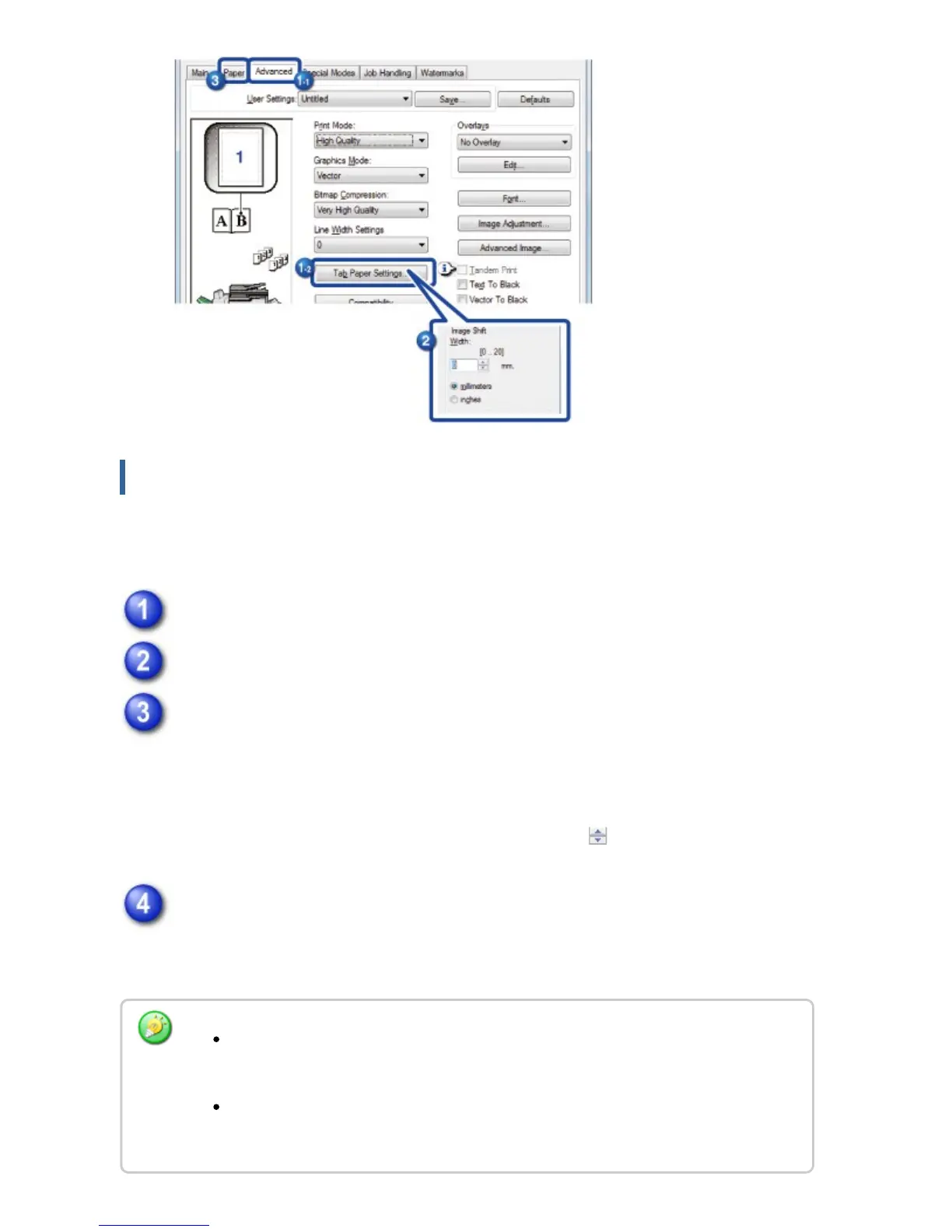
Open the data into which you wish to insert tab paper, and then select the settings.
Click the [Special Modes] tab.
Select [Tab Paper Print] and click the [Settings] button.
Select the tab position settings.
For commercially available tab paper, use the existing settings such as
[A4-5tab-D] in "User Settings". For other types of tab paper, the position of the
first tab, the distance between tabs, and the horizontal and vertical dimensions of
the tab can be directly entered or changed using the button. In addition, select
the size of the tab paper from "Paper Size".
Select the page settings.
Specify the pages where you wish to insert tab paper and enter the text that you
wish to print on the tabs. Also select the font and adjust the layout.
Set the paper type of the bypass tray to [Tab Paper] and load tab papers into the
bypass tray.
The tab paper settings can be stored and a stored file can be opened from "User
Settings".
USER'S MANUAL | MX-M365N/MX-M465N/MX-M565N USER'S ... http://siica.sharpusa.com/portals/0/downloads/Manuals/MX-M365N-M...
472 of 1441 3/17/2016 7:14 AM


 To Next Page