This document outlines the procedure for updating the firmware of a monitor using an HTTP server function. It is essential to read this manual thoroughly before attempting any firmware update to ensure a smooth and successful process.
Function Description
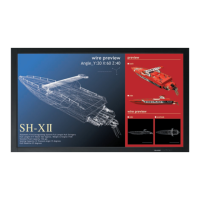
This manual details the steps to update the firmware of specific monitor models (PN-ME432, PN-ME502, PN-ME552, PN-ME652) via an HTTP server. The firmware update process involves downloading a firmware ZIP file from a designated FIRMWARE download page, unzipping it, connecting the monitor to a computer via a LAN cable, accessing the monitor's home screen through a web browser, uploading the firmware image file, and initiating the update. The primary function of this procedure is to install new firmware versions, which can introduce new features, improve performance, or resolve existing issues.
Usage Features
The firmware update process is designed to be user-friendly, leveraging a web-based interface for interaction.
- Web Browser Interface: The update is performed through a standard web browser, allowing users to manage the process from a computer connected to the same network as the monitor. The monitor's home screen, accessible via its IP address, serves as the central hub for initiating the update.
- File Selection and Upload: Users can easily select the firmware image file from their local computer using a "Select A File" button within the web interface. The system provides feedback on the upload status, indicating "Success" when the file is ready for installation.
- Version Display: The web interface clearly displays the "Current Version" of the firmware, allowing users to verify the existing firmware before proceeding with an update and to confirm the new version after the update is complete.
- Status Indicators: During the update, the monitor's LED will blink in green, providing a visual cue that the process is underway. The web interface also shows "Upload Status" messages, such as "Uploading" and "Success," to keep the user informed.
- Automatic Reboot: Upon successful completion of the firmware update, the monitor will automatically reboot, signifying the finalization of the installation. This eliminates the need for manual intervention to restart the device.
- Data Preservation: Updating the firmware does not affect any data or settings previously configured in the monitor's screen menu, ensuring that user preferences are retained. However, display settings may be reset under certain circumstances, and users are advised to check the Update History on the FIRMWARE download page for details.
- JavaScript and Cookies: The device utilizes JavaScript and Cookies for its web interface functionality. Users must ensure their browser settings are configured to accept these functions for the update process to work correctly.
Maintenance Features
Several features and precautions are in place to ensure the integrity and safety of the monitor during the firmware update, contributing to its overall maintenance.
- Precautionary Warnings: The manual explicitly warns against turning off the main power to the monitor or removing the LAN cable during the firmware update. These actions could lead to data corruption or damage to the device.
- Clear Instructions: The procedure is broken down into clear, sequential steps, making it easy for users to follow. Each step is accompanied by screenshots of the web interface, providing visual guidance.
- File Integrity: Users are advised not to change the extension of the firmware image file, as this could compromise its integrity and prevent a successful update. The manual also specifies the expected file names and extensions for the firmware ZIP file and the unzipped folder/image file.
- Estimated Update Time: The manual provides an estimate for the firmware update duration (approximately 10 minutes), helping users plan accordingly and understand the expected timeframe.
- Rebooting Information: It is noted that rebooting may occur several times during the update process, preparing users for this behavior and preventing unnecessary concern.
- Troubleshooting Guidance: In case the monitor does not operate with power on after an update or at any other time, users are instructed to contact their dealer, providing a clear path for support.
- Symbols for Clarity: The manual uses "Note" and "Tip" symbols to highlight important information, warnings, and supplementary explanations, enhancing readability and comprehension. "Notes" describe information that must be observed, while "Tips" offer useful additional details.
- Reference to Instruction Manual: For detailed information on the HTTP server function, component names, and Display Menu screen operations, users are directed to refer to the main instruction manual, ensuring comprehensive support for device management.

 Need help?
 General

 To Next Page