- 14 - - 15 -
PRINTING PHOTOS USING WIFI
(
*PD-450W/480W MODEL ONLY
)
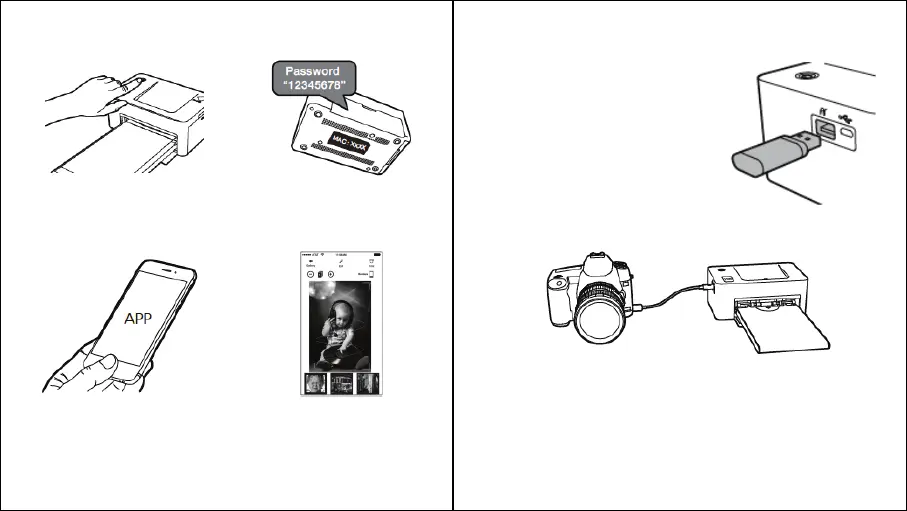
4. Choose a photo. To start printing, push
the print button in the App.
1. Turn on the printer by pressing the
power button on the top left corner.
Turn WiFi on in your smartphone.
3. App launch.
2. Go to WiFi setting in your smart
phone and find “Direct-SI-XXXX”.
Printer name (XXXX) is variable (4
characters). Password is “12345678.”
* You can find your printer Model No. on the label at the bottom of printer.
USB FLASH DRIVE/DIGITAL CAMERA
Printing with USB Flash Drive
1. Turn on the printer.
2. Connect your device to the printer.
3. Insert your flash drive into the USB port.
4. Select the USB menu from the printer app.
5. Select your image and print.
Printing with USB Flash Drive
If a “PictBridge” compatible camera is connected, you can print photos directly
from your digital camera.
1. Turn on the printer.
2. Remove any memory card or USB flash drive.
3. Connect your camera to the printer using a USB cable.
4. Turn on the camera and go to the album. (Certain cameras will show
(insert icon) icon)
5. Select your image from the camera and print.



 To Next Page