2. Operation Guide2. Operation Guide
2.3.2 Add a Step
2.3.2 Add a Step
2.3.3 Delete a Step
1. Program enable.
2. Select the chase that contains the step you
wish to delete.
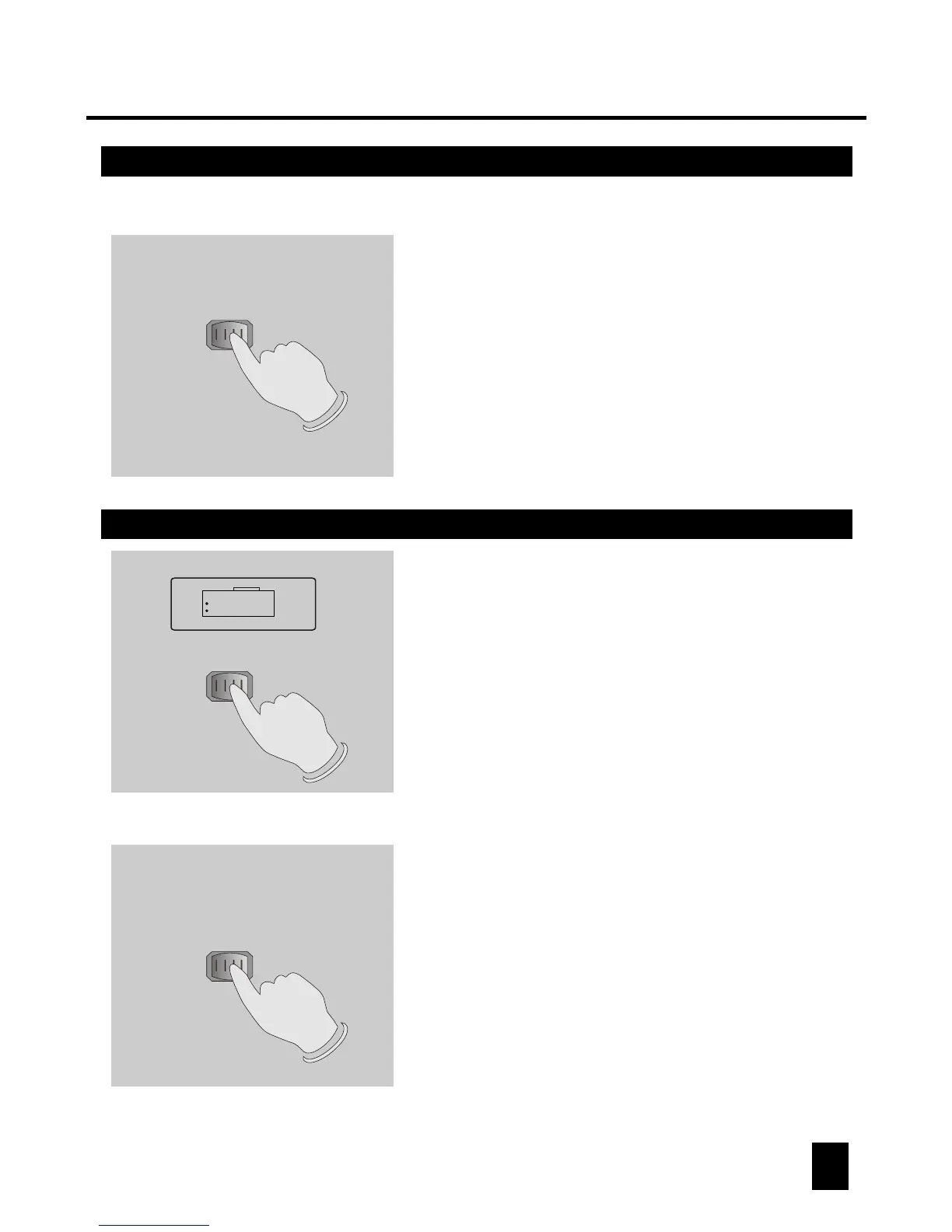
7. Tap the MIDI/Rec button again , all LEDs and
the Segment Display will flash three times briefly
indicating the new step has been inserted into
this chase.
2019
4. Tap the Bank Up/Down button to scroll to the
step you wish to add a step after.
5. Tap the MIDI/Rec button, the Segment Display
will read the step one higher than before.
For example, if you want to insert a step between
step 3 and step 4, and you scroll to step 3, when
you tap the MIDI/Rec button, the Segment Display
will read step 4.
6. Tap the Tap Sync/Display button again, the
Segment Display shows the current chase,
scene and bank.
Create a desired scene and record it as a new
step or select a programmed scene you wish to
add into this chase.
MIDI/Rec
MIDI/Rec
Auto/Del
Tap Sync/Display
Chase
Scene
Bank
Auto trigger
Music trigger
Blackout
Step
PROG
Step/time
8888
Hints: You may tap the Tap Sync/Display
button to change the display mode
between step and the bank.
3. Tap the Tap Sync/Display button causing the
Segment Display shows the steps.
4. Tap the Bank Up/Down button to scroll to the
step you wish to delete.
5. Tap the Auto/Del button to delete the step, all
LEDs and the Segment Display will flash three
times briefly indicating that the step has been
deleted.
Tap Sync/Display
Chase
Scene
Bank
Auto trigger
Music trigger
Blackout
Step
PROG
Step/time
8888
BANK


 To Next Page