8
WHICH SIDE OF YOUR LAPTOP DO YOU
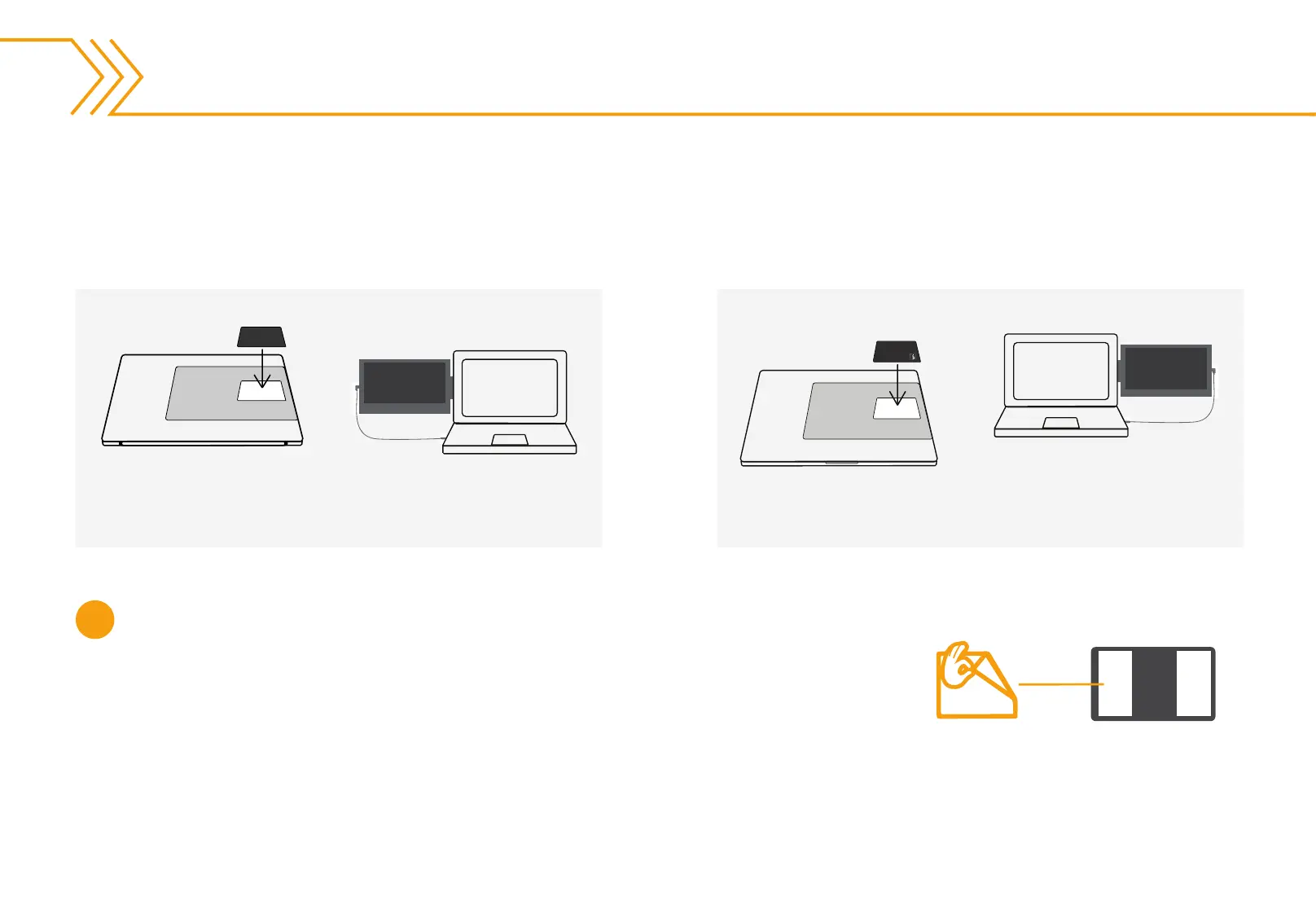
1 Make sure your laptop is closed and have the laptop
opening facing you.
2
Place paper on top of laptop. Align right edge of this guide
with the right edge of your laptop.
3 Peel the backing off of the metal plate and place ONE (1)
metal plate in the open space.
This is how the monitor will
look once attached.
This is how the monitor will
look once attached.
Installation cont.
WHICH SIDE OF YOUR LAPTOP DO YOU
1
Make sure your laptop is closed and have the laptop
opening facing you.
2
Place paper on top of laptop. Align right edge of this guide
with the right edge of your laptop.
3
Pleel the backing off of the metal plate and place ONE (1)
metal plate in the open space.
Left-side Attachment.
Place the mounting guide on top of your laptop and move it all
the way to the left side of your laptop so that the right edge of
the mounting guide aligns with the left edge of your laptop.
Right-side Attachment.
Place the mounting guide on top of your laptop and move it all
the way to the right side of your laptop so that the right edge of
the mounting guide aligns with the right edge of your laptop.
Place metal plate.
Peel the backing from the metal plate and place ONE (1) metal plate in the open space.
Make sure to align the SideTrak logo in the bottom right corner.
Apply pressure for 10 seconds and remove the mounting guide from your laptop.
Before attaching your SideTrak, give the metal plate a few minutes to allow the adhesive
to properly grip your laptop.
1


 To Next Page
 Loading...
