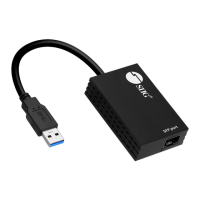
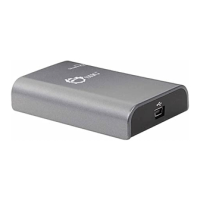
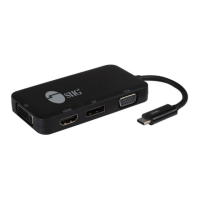
The SIIG USB 3.0 to HDMI/DVI Dual Display Adapter is a connectivity solution designed to easily and quickly add dual displays to a USB 3.0 enabled system. This adapter is compatible with both Windows and Mac computers, offering versatility for a wide range of users.
Function Description:
The primary function of this device is to expand a computer's display capabilities by adding an HDMI and a DVI-I port. This allows users to connect up to two additional monitors to their system, facilitating multi-display setups for enhanced productivity or entertainment. The adapter leverages the SuperSpeed USB 3.0 data transfer rate to ensure smooth video and image rendering across the connected displays. It supports high resolutions, including 1080p (Full HD) and 2048x1152, catering to various display needs. A single PC can connect up to three of these adapters, effectively supporting up to six monitors, providing extensive display expansion options.
Important Technical Specifications:
- Connectivity: Adds one HDMI port and one DVI-I port.
- Interface: USB 3.0 (backward compatible with USB 2.0).
- Data Transfer Rate: SuperSpeed USB 3.0.
- Supported Resolutions: Up to 1080p (Full HD) and 2048x1152.
- System Requirements (Windows):
- Intel Core Duo 2.0 GHz CPU.
- Available USB 2.0/3.0 port (USB 3.0 recommended).
- Operating Systems: Windows 10 (32-/64-bit), Windows 8 (32-/64-bit), Windows 7 (32-/64-bit), Windows Vista (32-/64-bit), Windows XP (32-bit).
- System Requirements (Mac):
- Intel Core Duo 2.0 GHz CPU.
- Available USB 2.0/3.0 port (USB 3.0 recommended).
- Operating Systems: Mac OS X v10.6 to 10.11.
- Power: No external power adapter required, powered via USB.
- Multi-Adapter Support: Allows connecting up to 3 adapters per system.
Usage Features:
- Easy Installation: The adapter is designed for quick and straightforward installation. For Windows, users insert a driver CD, run
Setup.exe, and follow on-screen prompts. The DisplayLink Graphics window guides the process, prompting for installation at the "system check" stage and connection of monitors and the adapter at the "First connect" stage. The final setup runs automatically upon detection, concluding with an "Installation complete" message and a system restart. For Mac OS, users insert the driver CD, browse to the appropriate folder, double-click DisplayLink_Mac_....dmg, run DisplayLink Software Installer.pkg, and follow on-screen steps, followed by a restart and connection of the adapter and monitors.
- Display Configuration Utility (Windows): A supplied utility allows users to configure various display settings:
- Display Mode: Extend or Mirror.
- Screen Rotation: Normal, Rotated Left, Rotated Right, Upside-Down.
- Screen Resolution: Select from available resolutions. This feature is disabled in mirror mode, where resolution is determined by the primary monitor.
- Extend To: Extends the screen to the Right, Left, Above, or Below.
- Set as Main Monitor: Designates the selected monitor as the primary display.
- Mirror: Displays the same image on all connected monitors.
- Off: Turns off the selected monitor.
- Fit to TV: Adjusts Windows Desktop size on a TV (works only with one add-on monitor).
- Audio Setup: Enables Windows audio configuration page (works only in specific models).
- Video Setup: Enables Windows screen resolution for advanced settings.
- Display Configuration Utility (Mac): Users can access display settings via the utility icon in the taskbar or through System Preference > Displays > Arrangement pane:
- Setting Display Resolution: Select from available resolutions, which depend on the adapter and display capabilities.
- Rotating a Display: Configure orientation using the "Rotate" drop-down list.
- Mirror/Extend Mode: Check/uncheck "Mirror Displays" box on the Arrangement pane.
- Changing the Main Display: Drag the white menu bar between displays to designate the main screen.
- Cursor Disappearing: In extended mode, if the cursor doesn't return to the primary monitor after removing the adapter, reconnect the add-on monitor(s) and adapter or move the mouse until the cursor reappears.
- Video Playback in Extended Mode: For optimal performance, if video or DVD playback quality is poor or slow on an add-on monitor, play it back on the primary monitor instead.
Maintenance Features:
- Driver Installation Verification (Windows): To verify successful installation, right-click "This PC," "Computer," or "My Computer" on the desktop, click "Manage," select "Device Manager," and expand "Sound, Video and game controllers." "U3 Multi Video Audio" should be listed. If a yellow question mark or exclamation mark appears, the driver is not properly installed. Users should delete the item, unplug the adapter, and repeat the installation steps.
- Driver Installation Verification (Mac): Click the Apple logo from the top menu bar, then "About this Mac," and "System Report...." Under "Hardware/ USB," "U3 Multi Video" should be displayed.
- Driver Uninstallation (Windows):
- Windows 10/8/7: Go to Control Panel > Programs > Programs and Features, then double-click "DisplayLink Graphics" under "Uninstall or change a program." Follow prompts (Yes/OK) and restart the computer.
- Windows Vista: Go to Control Panel > Programs and Features, then double-click "DisplayLink Graphics." Follow prompts (Yes, Allow, OK) and restart.
- Windows XP: Go to Control Panel > Add or Remove Program, click "DisplayLink Graphics," then "Remove." Follow prompts (Yes, OK) and restart.
- Troubleshooting (FAQ):
- DVD video not playing on extended display: Some DVD playback software packages do not support playing on a second display adapter.
- Lines or distorted screen: This is often due to a low or unsupported refresh rate. Users can adjust this in Display Properties/Settings/Advanced/Monitor, ensuring the refresh rate does not exceed the monitor's capabilities.
Warranty and Support:
SIIG offers a 2-year manufacturer warranty covering defects in materials or workmanship for the original purchaser. Technical support is available through SIIG's online support database at www.siig.com, which provides drivers, solutions, and allows for online question submission. For product repair or replacement, users submit an RMA request via the SIIG website. The product must be properly packed with all accessories, a copy of the sales receipt, and the RMA number clearly written on the package. SIIG covers shipping costs for the repaired or replaced product via Ground in the U.S. and International Economy outside the U.S.

 Need help?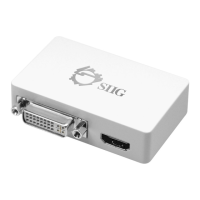

 To Next Page
 General