SILVER Audio Processor 4Bmini User’s manual
Page 24/38
Audemat-Aztec SA – Audemat-Aztec INC
web: www.audemat-aztec.com - e-mail: contact@audemat-aztec.com
Managing Presets (front panel control)
The SILVER Audio Processor 4Bmini has an assortment of factory presets and provision for 8 user ones. While the
factory presets may not suit your tastes you will generally find one that serves as a good starting point in creating
your own custom preset. The preset facilities of the SILVER Audio Processor 4Bmini are accessed from the three
intuitive soft keys.
Selecting a preset.
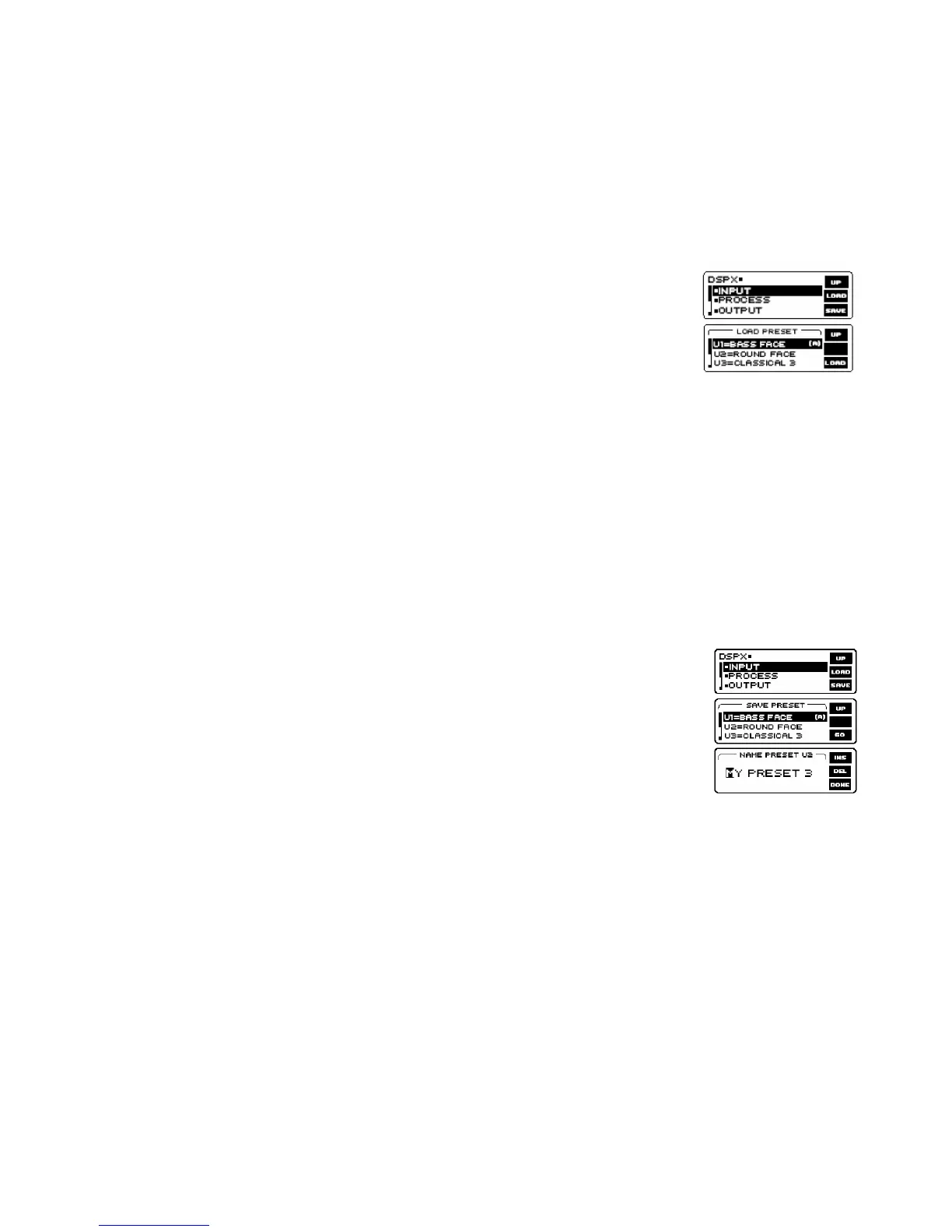
First press the 'LOAD' button and then select the preset you want with the control knob.
Factory presets are prefixed with Fx where x is a number. User presets are prefixed with
Ux where x is a number between 1 and 8. Once you have selected the preset you want
to load you simply press the 'LOAD' button again. You can audition various presets by
simply scrolling through the preset list and hitting 'LOAD' over each one you wish to listen to.
Comparing a preset
When making processing adjustments it is often desirable to compare against the preset you are adjusting. For
example you may wish to modify a factory preset and save it as a user preset. You select a factory preset and load it,
making it active. You like the factory preset but want to increase the bass slightly and possibly reduce the drive into
the main clipper to reduce distortion. You could modify both processing parameters and then press the 'LOAD'
button. The middle button of the softkeys will change to B. Pressing this button will reload the saved preset allowing
you to compare before and after your changes. The previously marked 'B' button will have now changed to a 'A’
button which if pressed will return you to the adjusted preset. The other option you have if you don't press 'UP' is the
'LOAD' button, reloading the saved preset and discarding your changes. By using the button you can easily make
processing adjustments quickly and hear instantly if the change is to your liking. It is very easy to forget where you
are sonically so the comparison feature is very useful. You can also use the facility to make one processing
parameter change at a time, adjusting it, discarding it or saving it to the preset. You can then repeat the comparison
process until you are happy with all of your processing changes.
Saving a preset
To save the current active settings to a user preset you simply press the 'SAVE' button. You
can then select the user preset with the control knob and press the 'GO' button. A new screen
is presented to you allowing the name of the preset to be changed. 'INSERT' and 'DELETE' hot
keys are provided to speed things up. Once you are happy with the name you press the 'DONE
soft key to save the preset to the SILVER Audio Processor 4Bmini's memory. For speed, saving the current settings
to the same active preset is as simple as pushing the same button three times as 'SAVE' selects
the presets, 'GO' confirms the preset to save and 'DONE' confirms the name entry stage.
Exporting a preset to a pc
This is handled by the remote control application.
Importing a preset from a pc
This is handled by the remote control application.


 To Next Page