18 GB/IE
Using the headphones
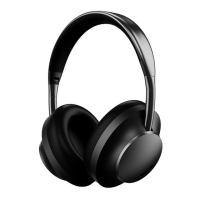
Connect the headphones with a communication device.
Place the headphones near a switched on communication
device (e.g. mobile or computer).
Pairing with a new Bluetooth
®
device: Hold the ON / OFF but-
ton
9
for approx. 2 seconds until the LED
8
flashes white. This
indicates the headphones are now ready to connect mode,
which
remains active for 10 minutes. If the pairing with a playback
device has not been established after 10 minutes, the head-
phones switch off automatically.
Now connect your communication device (mobile phone or
computer) via Bluetooth
®
with the headphones. Please refer
to the notes in the instructions for your communication device.
Select the entry “SBKL 40 C3“ from the list of devices detected
by your computer or mobile.
Once the connection has been established, the LED
8
will flash
white for 5 seconds.
Please note, your communication device must support Bluetooth
®
Standard 5.0 to use all options.
You may need to approve the connection on the communication
device. Please refer to the instructions for use of the communi-
cation device on this topic!
The headphones may be manually switched off by holding the
ON / OFF button
9
for 2 seconds until the LED
13
goes off.
Bluetooth
®
indicator:
LED indicator status Headphone state
Flashing white Pairing mode
Solid white (5 seconds) Paired
Connecting the headphones to
a second Bluetooth
®
device
The headphones may be connected to two Bluetooth
®
communica-
tion devices at the same time. If the headphones are already conn
ected
to a device, follow the steps below to connect to the second device:
Activate multipoint mode by pressing and holding Bluetooth
®
button
7
for 2 seconds. The first communication device (mobile
phone or computer) is disconnected.
Now connect to the second communication device via Blueto
oth
®
with the headphones. Please refer to the notes in the instructions
for your communication device. Select the entry “SBKL 40 C3“
from the list of devices detected by your computer or mobile.
The second communication device is connected.
Select the entry “SBKL 40 C3” from the list of devices detected
by your first communication device / computer. Now, both
communication devices are connected to the headphones
simultaneously.
After connected the headphone with 2 Bluetooth
®
devices,
you can playback music via either one of device.
Connection via NFC
You can simply connect the headphones with your mobile device
by tapping 2 devices together via NFC contact
6
.
Please follow below steps to complete the Bluetooth
®
connection
via NFC contact
6
.
1. T
urn the headphones and the Bluetooth
®
function on. The LED
8
will flash white. The NFC function is now enabled and ready for
th
e connection by tapping the NFC contact
6
of the headp
hones.
2. Enable your mobile device with both Bluetooth
®
and NFC func-
tion powered on.
3. Tap the NFC touchpoint of your mobile device and the NFC
contact
6
of the headphones. Your mobile device may prompt
out a message for Bluetooth
®
connection for acceptance.
4. Once the connection between the mobile device and the
headphones is established, the LED
8
flashes white.
NOTE: This feature requires your mobile device to support
Bluetooth
®
pairing via the NFC feature. Please refer to your
owner’s manual for your mobile device to learn about this
NFC feature.
Clearing paired devices
You can clear up the paired device anytime. Please press both
Bluetooth
®
button
7
and MFB
4
together at the same time
for approx. 2 seconds. The memory in the headphones is c
leared
and it will not auto-connected to the previous paired communi-
cation device.
After memory cleaned up, there will have a beep sound emit.
Connecting the headphones
through audio cable
Insert the audio cable with 3.5 mm jack plug
17
to 3.5 mm
jack socket
11
.
Insert the other audio cable with 3.5 mm jack plug
17
to 3.5 mm
jack socket of your playback device.
When a 3.5 mm cable is plugged into the 3.5 mm jack socket
11
, the Bluetooth
®
connection will be disconnected. The ANC
function remains ON.


 To Next Page
 Loading...