EasyManua.ls Logo

Silvercrest SKK 2 A1 - User Manual

Silvercrest SKK 2 A1
247 pages
Go to English
Print Icon
To Next Page IconTo Next Page
Loading...
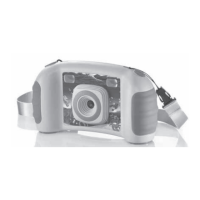
KIDS‘ CAMERA SKK 2 A1
QUICK START GUIDE
Lesen Sie vor der Verwendung die Bedienungsanleitung und beachten Sie
insbesondere die darin enthaltenen Sicherheitshinweise.
Before using the device for the first time, read the operating instructions
and pay close attention to the safety instructions.
Veuillez lire le mode d'emploi avant l'utilisation et observez tout particulièrement les
consignes de sécurité.
Lees voorafgaand aan gebruik de gebruiksaanwijzing en let met name op de daarin
opgenomen veiligheidsvoorschriften.
Πριν από τη χρήση διαβάστε τις οδηγίες χρήσης και προσέξτε κυρίως τις υποδείξεις
ασφαλείας που περιέχονται εκεί.
Przed zastosowaniem należy przeczytać instrukcję obsługi i przestrzegać w szczególności
zawartych w niej wskazówek bezpieczeństwa.
Přečtěte si před použitím návod k obsluze a zejména dodržujte bezpečnostní pokyny v
něm obsažené.
Pred použitím si prečítajte návod na obsluhu a dodržiavajte najmä bezpečnostné pokyny,
ktoré sú v ňom obsiahnuté.
IAN 313585

Table of Contents

Question and Answer IconNeed help?

Do you have a question about the Silvercrest SKK 2 A1 and is the answer not in the manual?

Overview

The SilverCrest Kids' Camera SKK 2 A1 is a digital camera designed for children, capable of taking photos and recording videos. This product comes with a neck strap, a 16 GB microSDHC card, an SD card adapter, a storage box, a USB cable, and four 1.5 V AA/Mignon/LR6 batteries. The device is intended for private use and not for commercial or industrial environments.

Function Description

The camera operates in two main modes: Photo mode and Video recording mode. In Photo mode, users can take single photos, use a self-timer function, or a 3x photo function for quick bursts of three photos. Additionally, the camera offers 8 different photo frames to add creative touches to pictures. In Video recording mode, the camera can record videos for a maximum duration of 20 minutes per clip. The device features a display to view captured images and videos, as well as to navigate settings. A red LED indicates when the camera is on or recording.

Important Technical Specifications

  • Power Supply: The camera is powered by four 1.5 V AA/Mignon/LR6 batteries (supplied).
  • Image Sensor Resolution: It has a 1.3 MP image sensor.
  • Image Resolution/Size:
    • High Resolution: 3.0 MP (2048 x 1536, interpolated)
    • Medium Resolution: 1.3 MP (1280 x 960)
    • Low Resolution: 0.3 MP (640 x 480)
  • Video Resolution: 640 x 480 (30fps).
  • File Formats: Photos are saved as JPG, and videos as AVI.
  • Supported Memory Cards: The camera supports MicroSD and MicroSDHC cards with a storage capacity of 4 GB to 32 GB.
  • Light Frequency: The default light frequency setting is 50 Hz, with an option to change to 60 Hz to reduce flicker effects from fluorescent light sources.

Usage Features

  • Switching On/Off: The camera is turned on by briefly pressing the MENU/On/Off button and turned off by pressing it for approximately 2 seconds. A beep and a short flash of the red LED confirm the action. The camera automatically switches off after about 1 minute of inactivity to conserve battery life.
  • Taking Photos: In Photo mode (indicated by a camera symbol on the top left of the display), press the Shutter button to take a picture. The number of available photos is shown on the bottom right of the display.
  • Self-timer: Activate the self-timer by pressing the left button on the control pad in Photo mode. A 10-second countdown will appear on the display before a photo is automatically taken. This function deactivates after use.
  • 3x Photo Function: In Photo mode, press the OK button to enable this function. Pressing the Shutter button will then take three photos in quick succession. This function also deactivates after use.
  • Photo Frames: In Photo mode, use the up or down buttons on the control pad to select one of 8 different photo frames. Press the Shutter button to take a photo with the chosen frame.
  • Recording Videos: Press the Video recording button to enter video mode (indicated by a video camera symbol on the top left of the display). Press it again to start recording. The red LED will flash, and a red recording symbol will blink on the display, showing the video's duration on the bottom right. Press the Video recording button once more to stop recording.
  • Playback: To view photos or videos, press the right button on the control pad. Use the up or down buttons to navigate through files. Press the OK button or Shutter button to play a selected video.
  • Deleting Files: In playback mode, select a photo or video using the up/down buttons on the control pad, then press the Delete button. Options to delete the selected file or cancel will appear. To delete all files, press the Delete button twice.
  • Settings:
    • Image Resolution: In Photo mode, press the MENU/On/Off button, then use the left/right buttons on the control pad to find the image resolution symbol. Use the up/down buttons to select desired resolution (3.0 MP, 1.3 MP, or 0.3 MP).
    • Picture Quality: Similar to image resolution, access this setting via the MENU/On/Off button, navigate to the picture quality symbol, and select between High or Low quality.
    • Light Frequency: Access this setting via the MENU/On/Off button, navigate to the Hz symbol, and select between 50 Hz or 60 Hz.
    • Formatting MicroSD Card: In Photo mode, press the MENU/On/Off button, navigate to the format symbol. This action will permanently erase all files on the microSD card. It is recommended to back up data before formatting.
  • Data Transfer:
    • Via SD Card Reader: Remove the microSD card from the camera and insert it into an SD card reader connected to a computer. Use the supplied SD card adapter if needed. The computer will recognize the card as a removable disk.
    • Via USB: Connect the camera to a computer using the supplied USB cable. Turn on the camera, and the computer should automatically recognize it and install necessary drivers. The camera will appear as a removable storage device for data transfer.

Maintenance Features

  • Cleaning: The camera housing should be cleaned with a soft, lightly moistened cloth. Abrasive, chemical, or caustic cleaning agents should not be used to avoid irreparable damage.
  • Storage: Store the device in a clean, dust-free, and dry location, away from direct sunlight.
  • Battery Removal: Remove the batteries if the device will not be used for an extended period to prevent leakage and damage.
  • Troubleshooting: The manual provides solutions for common issues such as the camera not switching on (check batteries, polarity), blurred photos (hold steady, clean lens), and the camera/SD card not being recognized by a computer (check connections, USB cable, operating system, SD card insertion, and formatting). For unresolved issues, contact the service hotline.

Safety Instructions

  • Always check for visible damage before use; do not operate a damaged device.
  • Damaged cables or connections should be replaced by authorized personnel.
  • The device contains small parts and a long strap, posing a risk of suffocation and strangulation for children under 36 months. Keep out of reach of children.
  • Children should only use the device under adult supervision.
  • Do not allow children to perform cleaning or maintenance.
  • Packaging materials are not toys and pose a risk of suffocation.
  • Repairs should only be carried out by authorized specialists; improper repairs invalidate the warranty.
  • Use only original replacement parts.
  • Do not place objects on the device.
  • Do not operate near open flames or place burning candles on or near the device.
  • Remove batteries and contact the service hotline if unusual noises, smoke, or other unclear situations occur.
  • Batteries should not be swallowed by children; seek medical help immediately if ingested.
  • Do not throw batteries into fire or expose them to high temperatures.
  • Only "rechargeable" labelled batteries may be recharged.
  • Do not open or short-circuit batteries.
  • Do not mix different types of batteries. Remove empty batteries and batteries during long periods of non-use.
  • Battery acid leakage can cause skin irritation; rinse with plenty of water if contact occurs, and seek medical attention if it gets into eyes.
  • Children must be supervised to ensure they do not play with memory cards. Seek medical help immediately if a memory card is swallowed.

Disposal

  • Do not dispose of the device in normal domestic waste. It is subject to European Directive 2012/19/EU and should be disposed of via an approved disposal company or municipal waste facility.
  • Used batteries must not be disposed of in household waste. Consumers are legally obliged to dispose of batteries at designated collection points. Only return discharged batteries.
  • Dispose of packaging materials in an environmentally friendly manner, separating components based on their labelling (plastics 1-7, paper/cardboard 20-22, composites 80-98).

Silvercrest SKK 2 A1 Specifications

General IconGeneral
BrandSilvercrest
ModelSKK 2 A1
CategoryToy
LanguageEnglish

Related product manuals