6
DISCONNECTING SIMPLEDRIVE
While the computer is powered on, it is recommended that you stop SimpleDrive from
running before disconnecting or powering off the drive. To avoid data loss, make sure to
close any open files and exit any applications running on the drive.
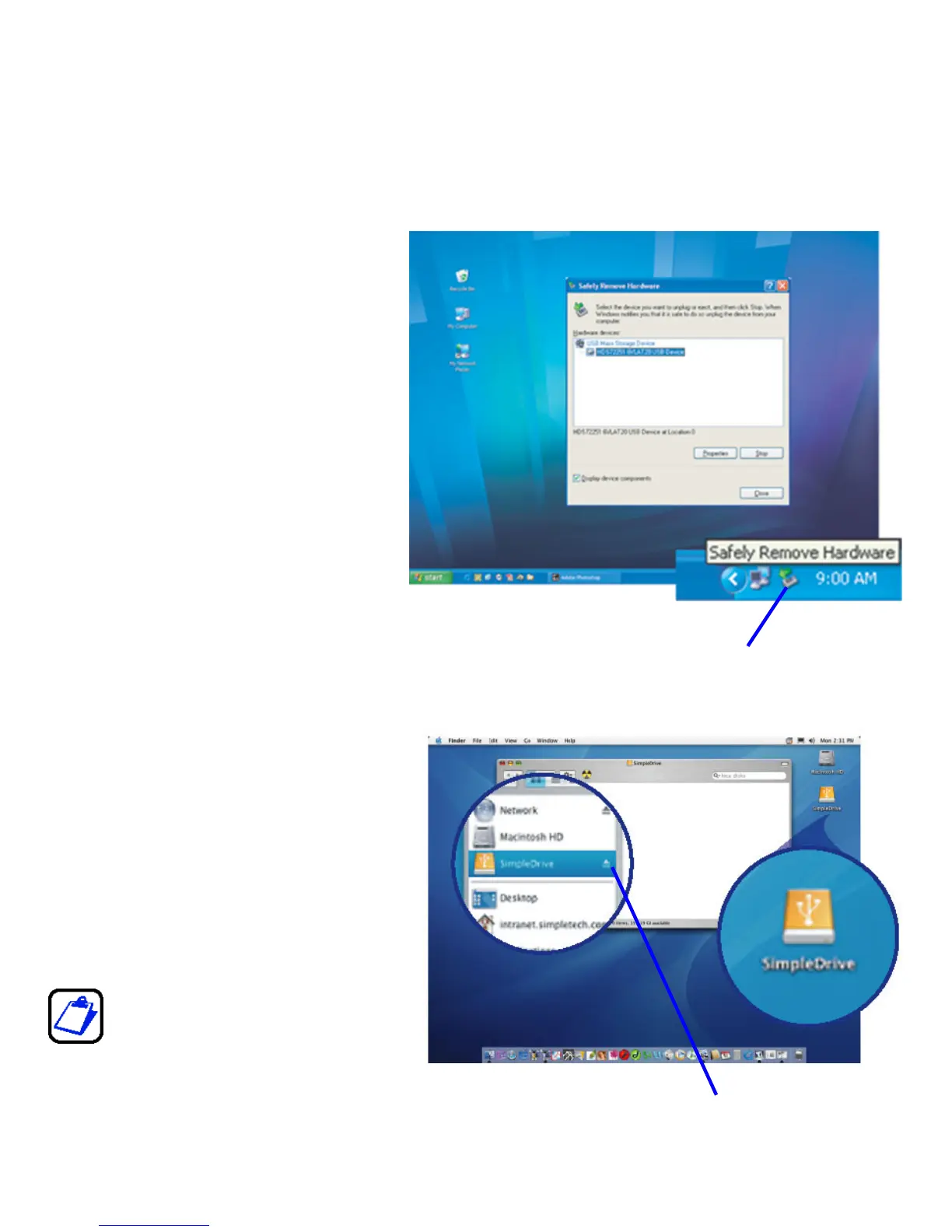
Shutting Down SimpleDrive in Windows
1 In the System Tray, double-
click the Safely Remove
Hardware icon.
2 In the Safely Remove
Hardware window that
appears, select SimpleDrive,
and then click Stop.
3 When Windows notifies you
that it is safe to do so, unplug
SimpleDrive from your
computer or power off the
drive.
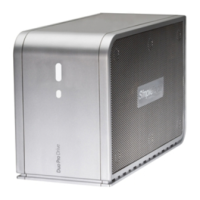
Shutting Down SimpleDrive in Mac OS
1 Double-click the SimpleDrive
desktop icon.
2 In the Finder window that
appears, click the Eject button.
3 Disconnect SimpleDrive from
your computer or power off the
drive.
You can also stop SimpleDrive
from running by dragging the
drive’s desktop icon to the
Safely Remove Hardware icon
Eject button


 To Next Page