Assembly
Assembly
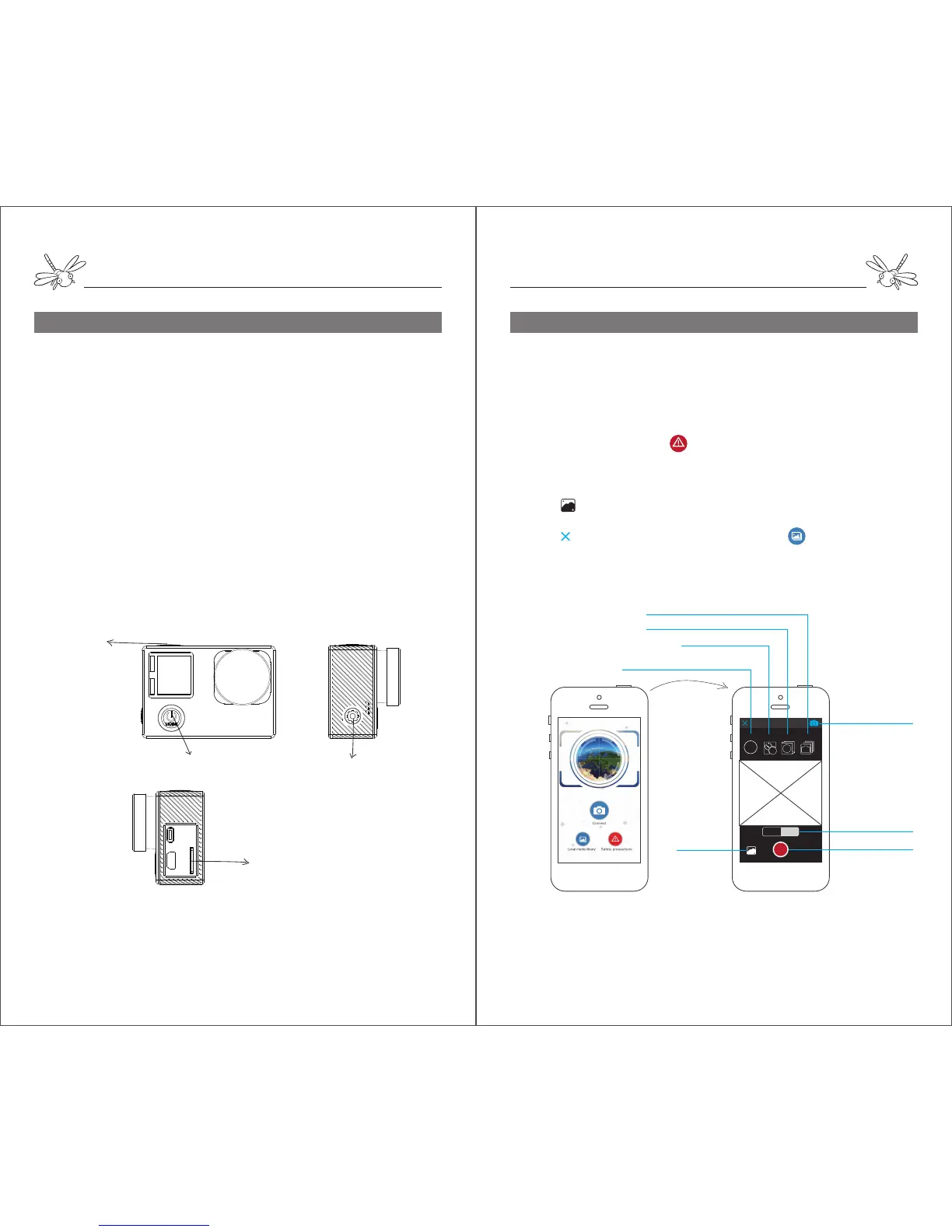
Step 7.Camera Instruction (Diagram 7)
Diagram 7:
Notes:
1. Do not insert or take out the SD card while the camera is power on. The card won’t go
into the slot if inserted in the opposite position.
2. The WI-FI may be weakened when the camera power is low. The WI-FI distance and
image fluency may vary on different mobile devices and different surroundings.
3. The camera can only support 4k or 2.7k video with SD card reading rate over 80MB/S.
Settings/ WIFI on
SD Card Slot
1. Remove the lens cover and film.
2. Insert a Micro SD/TF card into the camera. Micro SD supports
max 64GB.
3. Press and hold “
MODE” to turn on the camera. The camera
will automatically turn on the WIFI and display the WI-FI name and
initial password.
4. If you want to change camera settings, press ▼ to close the
WIFI. Press ▲ to enter setting interface. Then press ▲ or ▼ to
select settings options. Press “OK” to enter and confirm the
settings you’ve changed.
5. Press “
MODE” once to exit setting interface. Press ▼ to
restart the WIFI if needed.
6. Press and hold “
MODE” to turn off the camera.
7. The photos or videos can be transmitted to computer from the
SD card or USB cable.
Step 8. Camera APP (Diagram 8)
Diagram8:App Instruction
Notes:
1.Simtoo APP requires android 4.2 or later and IOS 7.1 or later.
2.The APP cannot shoot if there is no SD card inside the camera.
3.The image transmission range is around 30 meters. The video may delay on the App if the
aircraft gets too far from your mobile device.
resolutions of photo and video
Media Library
Shutter Button
Shooting Modes
APP Settings
time of delay shooting
time interval of burst shooting
the numbers of shots in continous shooting
FHM
Resolution Delay Interval
ON
ON
ON
Burst
Camera
1. Search “Simtoo” on Apple Store or Google Play and dowload
it to your mobile device.
The APP is also available on our website www.simtoo.com for
Android version.
2. Turn on the camera and connect your mobile device to camera
wifi. (Wifi name: Istarcam Initial Code: 1234567890)
3. Open the APP and tap for safety precautions before fly.
Tap “
Connect Camera” to enter the live video interface.
4. Tap“
Photo”or“Record”to switch the shooting mode you
want. Tap the shutter button to take photo or video.
4. Tap to albums and tap “
save” the download file to your
mobile device.
5. Tap to exit the live video interface. Tap to check the local
files you have downloaded from the camera.
Photos Record
Power Button/ Down Arrow
OK Button


 To Next Page
 Loading...