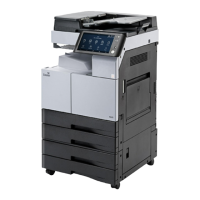
The Sindoh N620 Scan Box is a device designed to facilitate scanning and document management, integrating with a Sindoh machine and offering PC-based access to scanned documents. It supports various settings for efficient operation and secure document handling.
Function Description
The N620 Scan Box serves as an integrated solution for document scanning, storage, and retrieval. It allows users to scan documents directly to a "box" on the machine, which can then be accessed and managed from a PC using the "Scan Box Link" software. The system supports both public and private (security) boxes, offering flexibility in document sharing and access control. Key functions include:
- Machine-based Scanning: Users can scan documents directly to designated boxes on the Sindoh machine.
- PC-based Access: The "Scan Box Link" software enables users to connect to the machine from a PC, download scanned files, and manage boxes.
- Box Management: Features for creating, editing, and deleting boxes are available, along with options for setting up automatic document deletion.
- Security Features: Password protection can be applied to individual boxes, enhancing document security.
- Network Integration: The device supports various transmission setups (HTTP, HTTPS, HTTP + HTTPS) for network communication.
Important Technical Specifications
While specific detailed technical specifications like processor speed or memory are not explicitly listed in the provided pages, the manual highlights several important aspects:
- Storage Medium: The device utilizes a MicroSD Card for storage.
- Recommended MicroSD Card:
- Item Code: n410msd32
- Capacity: 32GB
- Type: MicroSDHC, Class 10 or more. This specification is crucial for ensuring reliable performance and sufficient storage for scanned documents.
- Network Ports: The manual mentions HTTP Port 80 and HTTPS Port 443, indicating standard network communication protocols.
- Scan Resolution: The scanning function supports resolutions up to 600 DPI, with common options including 150, 200, 300, 400, and 600 DPI.
- Document Output Formats: Scanned documents can be saved as PDF files.
- Color Modes: Supports Color and Color/BW scanning.
- Duplex Scanning: The device supports 1-sided and duplex scanning.
Usage Features
The N620 Scan Box offers a user-friendly interface on both the Sindoh machine and the PC software.
Machine-based Usage:
- SD Card Setup:
- Installation: Requires powering off the machine, inserting the MicroSD card, and then powering it back on.
- Formatting: The MicroSD card must be formatted via the machine's "Setting" -> "Admin" -> "Basic" menu, selecting "Format SD card" and executing. This step often requires a power cycle.
- Mounting: The SD card needs to be "ON" in the "Setting" -> "Admin" -> "Basic" menu, followed by saving and a power cycle.
- Box Activation:
- Accessed through "SP Mode" -> "Solution" -> "Box enable." After enabling, "Save" and manually power cycle the machine.
- Activation Check: Once activated, a "Box" menu icon appears on the "Ready Screen," and "Register Box" options appear in "Setting" -> "General" and "Setting" -> "Admin."
- Registering/Editing/Deleting Boxes:
- Accessed via "Admin" -> "Box" -> "Register Box."
- New Box Creation: Users can create new boxes, assigning a name and optionally a password. The system automatically assigns a box number.
- Document Deletion Interval: Users can set an interval (1, 2, 3, 7, 30 days, or "Keep") for automatic document deletion within a box.
- Box Edit/Deletion: Options to edit box details or delete boxes, including a "Del Empty Box" function for administrator use.
- Box Setting in Machine:
- Accessed via "Admin" -> "Box" -> "Setup Box."
- Show Box Menu: Option to show/hide the Box menu in General Setting (ON/OFF).
- Delete Cycle for All Documents: Sets a global deletion cycle for all documents in boxes.
- Transmission Setup: Configures network protocols (Http, Https, Http + Https) and ports (Http Port 80, Https Port 443).
- Box Scan:
- From the "Ready Screen," select "Scan," then "Box."
- Users select the desired box (multiple boxes can be selected) and press "Scan."
- After confirming the "Destination," the scan process starts.
PC-based Usage (Scan Box Link):
- Installation: The "ScanBoxLink Setup" wizard guides the user through the installation process on a PC.
- Login:
- Launch "ScanBoxLink.exe."
- Select the protocol (HTTP or HTTPS).
- Enter the IP address of the Sindoh machine.
- Click "Login."
- Public Box Usage:
- After logging in, a list of available boxes is displayed.
- Select a box to view its contents.
- Files can be downloaded by double-clicking them. A "Download Folder Change" option is available to specify the download location.
- Box Creation and File Deletion (PC):
- Box Creation: Users can create "General Box" (public) or "Security Box" (password-protected) from the PC interface. Options for setting a box password and auto-deletion date are available.
- Box Deletion: Select a box and choose the "Delete a box" option.
- File Deletion: Within a box, select files and choose the "Delete files" option. A confirmation prompt appears before deletion.
Maintenance Features
The manual implicitly covers several maintenance aspects, primarily focused on ensuring the system's operational integrity:
- SD Card Management: Regular formatting and proper mounting of the MicroSD card are essential for system stability and data integrity. The manual emphasizes power cycling after these operations.
- Automatic Document Deletion: The ability to set document deletion intervals (both per box and globally) helps manage storage space and ensures compliance with data retention policies. This prevents the storage medium from becoming full, which could impact performance.
- Software Updates: While not explicitly detailed in the provided pages, the "ScanBoxLink Setup(Ver.1.0.1.3).exe" filename suggests that the PC software is versioned, implying that updates would be released for bug fixes, new features, and compatibility.
- Error Handling: The initial note "Manual Order Setting required (error occures if not set in order)" highlights the importance of following the setup sequence to avoid operational errors, which is a key aspect of preventive maintenance.
- Administrator Controls: Features like "Del Empty Box" (only for administrator) and password protection for security boxes allow administrators to maintain control over the system and its data.

 Need help?
 General

 To Next Page