EasyManua.ls Logo

SingTel AC1900 - User Manual

SingTel AC1900
2 pages
Print Icon
To Next Page IconTo Next Page
Loading...
Setting up your WiFi Connection
You can nd the WiFi network name (SSID) and password
on the base of your Wireless Router.
To get help on connecting to WiFi on different operating
systems and devices, go to: bit.ly/connwireless or scan
the QR code on the right.
Connecting a Home Digital Line
Connect your home phone to “TEL 1” port in the ONT
using a Telephone cable (RJ11). Wait for the TEL 1 light
to turn solid green.
Connecting to Singtel TV Set-Top box
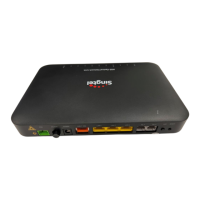
Use the RJ45 Ethernet cable to connect your Singtel TV set-top box to any yellow LAN port
on the Wireless Router.
Note: HDMI cable is recommended for connecting your Singtel TV set-top box to your TV
set for high-denition viewing. Turn on the set-top box and select the correct input source
(eg HDMI 1, HDMI 2) on your TV set (refer to your TV manual if needed) to watch Singtel TV.
Connecting to your devices
For faster and more consistent speed, connect your PC
or laptop to any yellow LAN port on the Wireless Router
using an RJ45 Ethernet Cable (minimum Category 5e,
available at most eletronic shops).
Optical Network
Terminal (ONT)
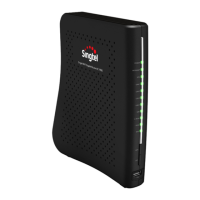
Wireless
Router
Quick
Installation
Guide for AC1900
Your quick and easy step-by-step guide to installing
the following Fibre Broadband devices at home.
Why do I only see one network
name (SSID)?
Only one network name is listed, so you
don’t have to worry about which band to
connect to. The Wireless Router intelligently
steers your devices to the optimal band,
according to signal quality and your devices’
WiFi capability.
How can I check which WiFi band
my device is connected to?
First, connect to the Wireless Router.
Then, scan the QR code or visit
bit.ly/whichwiband
The connected WiFi band
is shown with your device
name. You can nd the
name of your device in
your device’s general
settings menu.
5GHz
Less congestion
with 5GHz supported
devices. Works best
at close range.
(For 5GHz-supported
devices only).
2.4GHz
Wider coverage,
but prone to
interference and
congestion from
other nearby
WiFi networks.
What is a dual-band router?
Your Wireless Router transmits 2.4GHz
and 5GHz WiFi signal bands simultaneously,
allowing devices to switch between bands
for optimal speed and connectivity.
Learn more at
Singtel.com/dualbandrouter
.
FAQs
Singtel TV Set-Top Box
Fibre
Termination
Point
Optical Network
Terminal (ONT)
Wireless Router
1 x
Installation
Guide
1 x
Wireless
Router
1 x
Power
Adapter
For new installations only
2 x
RJ45 Ethernet
Cables
Quick
Installation
Guide for AC1900
Your quick and easy step-by-step guide to installing
the following Fibre Broadband devices at home.
Singtel TV Set-Top Box
Fibre
Termination
Point
Optical Network
Terminal (ONT)
Wireless Router
1 x
Installation
Guide
1 x
Wireless
Router
1 x
Power
Adapter
For new installations only
2 x
RJ45 Ethernet
Cables
Quick
Installation
Guide for AC1900
Your quick and easy step-by-step guide to installing
the following Fibre Broadband devices at home.
Fibre
Termination
Point
Optical Network
Terminal (ONT)
Wireless RouterSingtel TV Set-Top Box
1 x
Installation
Guide
1 x
Wireless
Router
1 x
Power
Adapter
For new installations only
2 x
RJ45 Ethernet
Cables
AC1900
Quick
Installation
Guide
Your quick and easy step-by-step guide to installing
the following Fibre Broadband devices at home.
Fibre
Termination
Point
Optical Network
Terminal (ONT)
Wireless RouterSingtel TV Set-Top Box
1 x
Installation
Guide
1 x
Wireless
Router
1 x
Power
Adapter
For new installations only
2 x
RJ45 Ethernet
Cables
What’s in the box
What’s in the box
What’s in the box
Quick
Installation
Guide for AC1900
Your quick and easy step-by-step guide to installing
the following Fibre Broadband devices at home.
Fibre
Termination
Point
Optical Network
Terminal (ONT)
Wireless RouterSingtel TV Set-Top Box
1 x
Installation
Guide
1 x
Wireless
Router
1 x
Power
Adapter
For new installations only
2 x
RJ45 Ethernet
Cables
Quick
Installation
Guide
What’s in the box
What’s in the box
Connecting Home Digital Line, Singtel TV and other devices
xx March 2016
Quick
Installation
Guide for AC1900
Your quick and easy step-by-step guide to installing
the following Fibre Broadband devices at home.
Fibre
Termination
Point
Optical Network
Terminal (ONT)
Wireless Router
Singtel TV Set-Top Box
1 x
Installation
Guide
1 x
Wireless
Router
1 x
Power
Adapter
For new installations only
2 x
RJ45 Ethernet
Cables
AC1900
Quick
Installation
Guide
Your quick and easy step-by-step guide to installing
the following Fibre Broadband
devices at home.
Fibre
Termination
Point
Optical Network
Terminal (ONT)
Wireless RouterSingtel TV Set-Top Box
1 x
Installation
Guide
1 x
Wireless
Router
1 x
Power
Adapter
For new installations only
2 x
RJ45 Ethernet
Cables
What’s in the box
What’s in the box
Question and Answer IconNeed help?

Do you have a question about the SingTel AC1900 and is the answer not in the manual?

Summary

Connecting Home Digital Line, Singtel TV and Other Devices

Setting Up Your WiFi Connection

Find the WiFi network name (SSID) and password on the base of your Wireless Router.

Connecting Devices to the Router

Connect PCs or laptops to any yellow LAN port on the Wireless Router using an RJ45 Ethernet Cable.

Connecting to Singtel TV Set-Top Box

Use the RJ45 Ethernet cable to connect your Singtel TV set-top box to any yellow LAN port on the Wireless Router.

Connecting a Home Digital Line

Connect your home phone to the "TEL 1" port in the ONT using a Telephone cable.

Frequently Asked Questions (FAQs)

What is a Dual-Band Router?

Your router transmits 2.4GHz and 5GHz WiFi signal bands simultaneously for optimal speed.

Why is only One Network Name (SSID) Listed?

The router intelligently steers devices to the optimal band based on signal quality.

Checking Your Devices Connected WiFi Band

Scan the QR code or visit bit.ly/whichwifiband to check your device's connection.

Boosting Your WiFi Connection

Optimizing Router Placement

Place your router in an elevated, central, and unobstructed location for best WiFi signal.

Avoiding Interference

Keep router away from other electronic devices that interfere with its 2.4GHz signal.

Ensuring Device Compatibility

Ensure your device supports WiFi standards of 802.11g and above.

Troubleshooting Connectivity Issues

Basic Connectivity Checks

Verify devices are powered on, switches are on, and wires are connected to correct ports.

Reconnecting Wires

Unplug and reconnect all wires to ensure they are securely connected.

Device Reboot Procedure

Turn off and on devices, waiting for 2 minutes for the process to complete.

Router Installation and Replacement Steps

Prepare Fibre Termination Point (FTP)

Remove the green plastic cover from port 1 on the Fibre Termination Point (FTP).

Handle Fibre Optic Cable

Remove green caps from fibre optic cable; avoid touching tip to prevent interference.

Connect and Power ONT

Connect ONT to power and switch on; wait for Power and PON lights to turn green.

Connect ONT to Wireless Router

Use RJ45 Ethernet cable to connect ONT LAN 1 port to router's blue Internet port.

Connect and Power Wireless Router

Connect Wireless Router to power and switch on; wait for Power and Internet lights.

Summary

Connecting Home Digital Line, Singtel TV and Other Devices

Setting Up Your WiFi Connection

Find the WiFi network name (SSID) and password on the base of your Wireless Router.

Connecting Devices to the Router

Connect PCs or laptops to any yellow LAN port on the Wireless Router using an RJ45 Ethernet Cable.

Connecting to Singtel TV Set-Top Box

Use the RJ45 Ethernet cable to connect your Singtel TV set-top box to any yellow LAN port on the Wireless Router.

Connecting a Home Digital Line

Connect your home phone to the "TEL 1" port in the ONT using a Telephone cable.

Frequently Asked Questions (FAQs)

What is a Dual-Band Router?

Your router transmits 2.4GHz and 5GHz WiFi signal bands simultaneously for optimal speed.

Why is only One Network Name (SSID) Listed?

The router intelligently steers devices to the optimal band based on signal quality.

Checking Your Devices Connected WiFi Band

Scan the QR code or visit bit.ly/whichwifiband to check your device's connection.

Boosting Your WiFi Connection

Optimizing Router Placement

Place your router in an elevated, central, and unobstructed location for best WiFi signal.

Avoiding Interference

Keep router away from other electronic devices that interfere with its 2.4GHz signal.

Ensuring Device Compatibility

Ensure your device supports WiFi standards of 802.11g and above.

Troubleshooting Connectivity Issues

Basic Connectivity Checks

Verify devices are powered on, switches are on, and wires are connected to correct ports.

Reconnecting Wires

Unplug and reconnect all wires to ensure they are securely connected.

Device Reboot Procedure

Turn off and on devices, waiting for 2 minutes for the process to complete.

Router Installation and Replacement Steps

Prepare Fibre Termination Point (FTP)

Remove the green plastic cover from port 1 on the Fibre Termination Point (FTP).

Handle Fibre Optic Cable

Remove green caps from fibre optic cable; avoid touching tip to prevent interference.

Connect and Power ONT

Connect ONT to power and switch on; wait for Power and PON lights to turn green.

Connect ONT to Wireless Router

Use RJ45 Ethernet cable to connect ONT LAN 1 port to router's blue Internet port.

Connect and Power Wireless Router

Connect Wireless Router to power and switch on; wait for Power and Internet lights.

SingTel AC1900 Specifications

General IconGeneral
Wi-Fi Standard802.11ac
USB Ports1 x USB 3.0
ModelAC1900
Frequency Bands2.4 GHz and 5 GHz
Maximum Wi-Fi Speed1900 Mbps
Ethernet Ports4 x Gigabit
SecurityWPA/WPA2-PSK
Antennas3 x External
ProcessorDual-core 1 GHz
Memory256MB RAM, 128MB Flash

Related product manuals