one pro
/
Other Options:
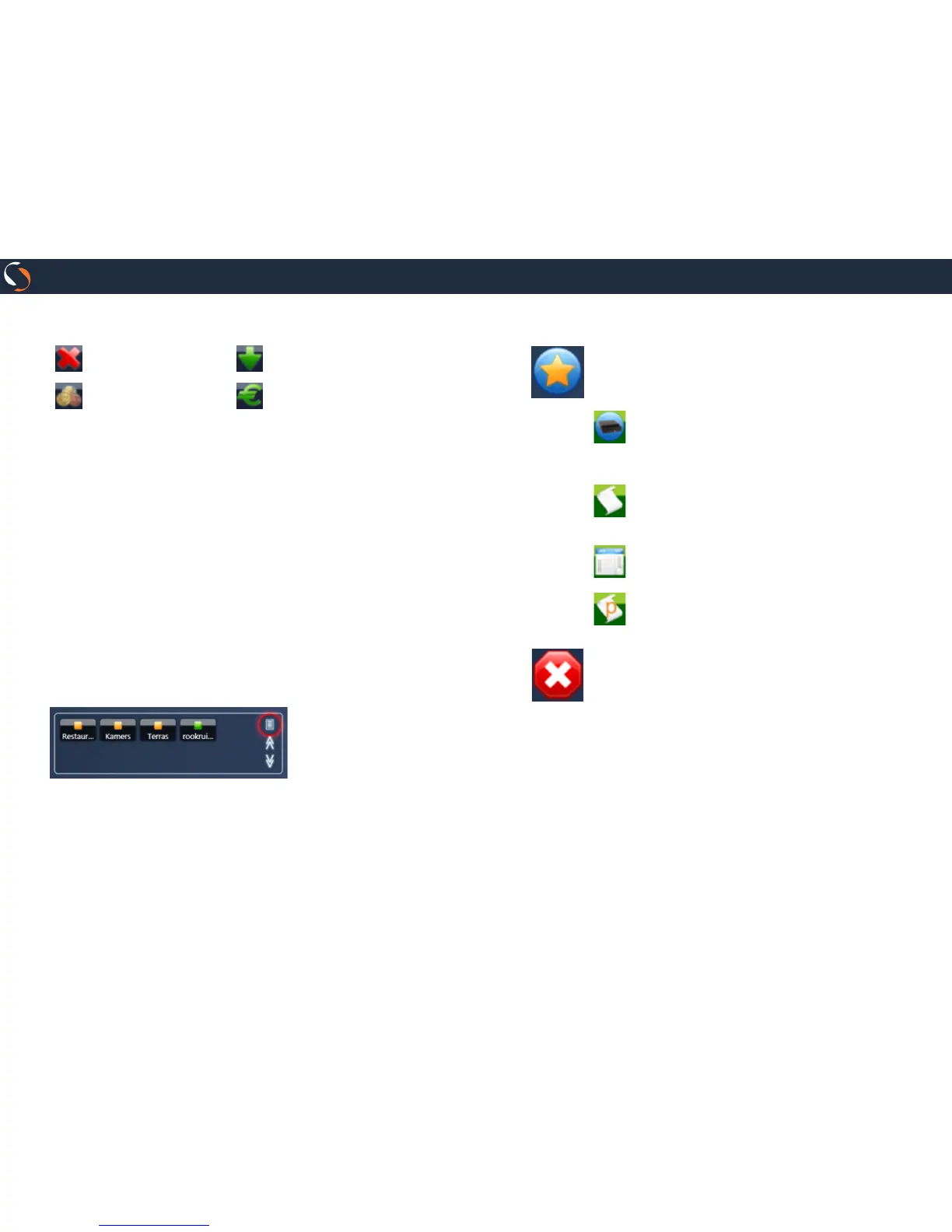
Press to delete ticket. Press to hold ticket.
Press to fast tender (*). Press to charge ticket.
(*) If you have a value entered on the keyboard, is used as the amount
paid, if not imply that the customer pays the exact amount. The
program will print the ticket (if the payment option is enabled on the
print button) and open the drawer displaying a message on screen if
there is change.
F) Parked tickets Area
If you have not congured the program to work with areas of
consumption and consumption tables, you will see a keypad
with numbers of parked tickets:
Click on one of them to recover.
If you have congured the program to work with areas of con-
sumption and consumption tables, you will see a keypad with
the identied areas and color. If color is green, the area has no
tickets parked. If orange, the area has parked tickets.
If you press the red remarked button, you can access quick
ticket list screen.
G) Other Actions
Click the Actions button if you want to access special
actions.
This button will display a menu screen allowing you to
perform the following operations:
Press the cash drawer button if you want to open
the cash drawer. Can only open the drawer users who
have permission to open drawer.
Press Reprint the last ticket if you want to print
the last ticket charged.
Press todo enter quick cash movement.
Press to print a ticket proforma.
Press the Exit button if you want to close the sale screen
and return to the login screen. From the login screen,
you can close the program.


 To Next Page