EasyManua.ls Logo

Sirius XM RAdio Commander Touch - User Manual

Sirius XM RAdio Commander Touch
62 pages
Print Icon
To Next Page IconTo Next Page
Loading...
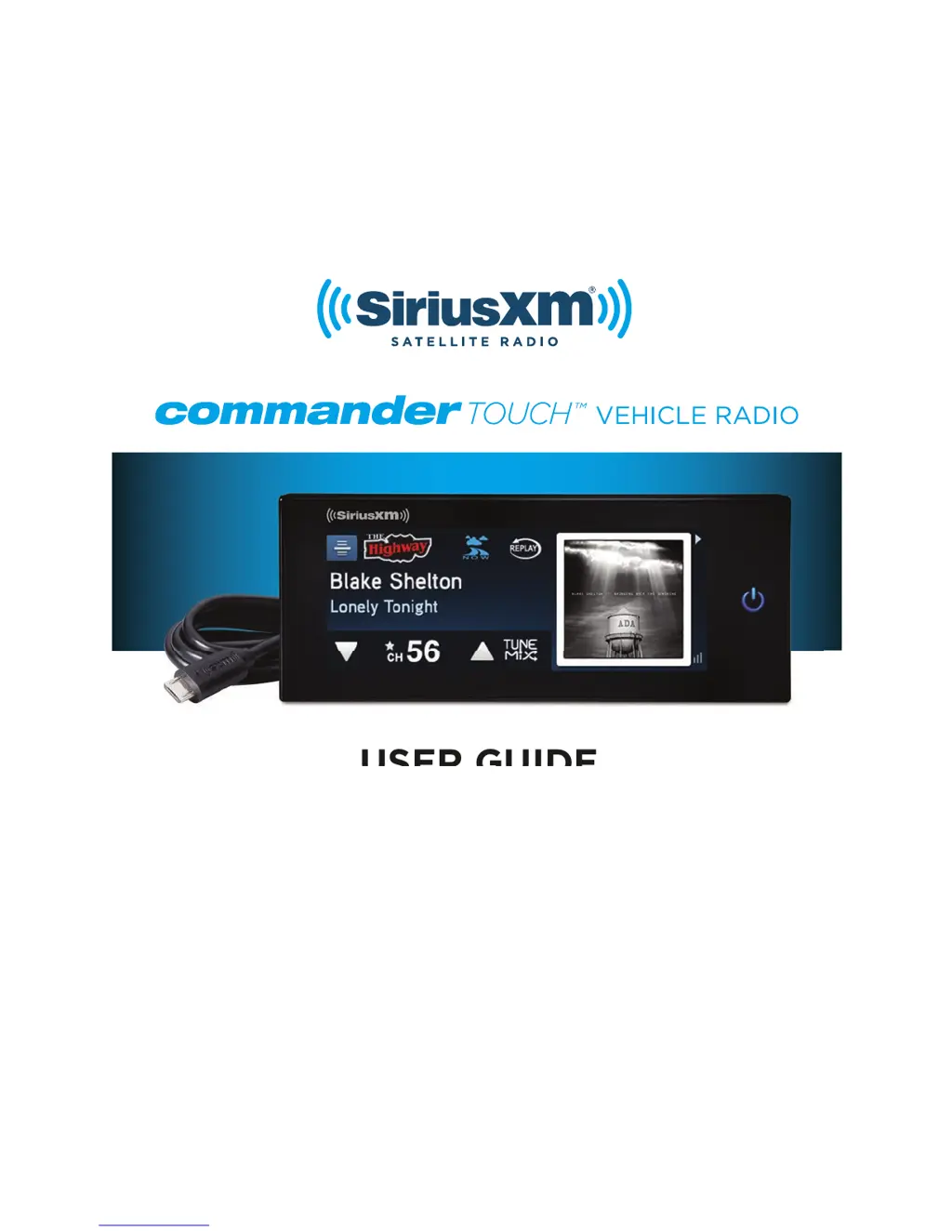
USER GUIDE
USER GUIDE

Other manuals for Sirius XM RAdio Commander Touch

Questions and Answers

  • J
    jacobharrisSep 23, 2025
    Why aren't all music channels saved as Favourite channels playing in TuneMix on my Sirius XM RAdio Car Receiver?
    • R
      Robert AndrewsSep 23, 2025
      If not all music channels saved as Favourite channels are playing in TuneMix on your Sirius XM RAdio Car Receiver, it is because certain music channels are not eligible for TuneMix due to the way they are broadcast. While these music channels can be saved as Favourites, they will not be included in TuneMix.
  • D
    David BrownAug 25, 2025
    What to do if my Sirius XM RAdio Tuner displays 'Check Antenna'?
    • V
      vgarnerAug 25, 2025
      If your radio detects a fault with the SiriusXM antenna, verify that the antenna cable is connected to the Tuner Module. Inspect the antenna cable for damage and kinks. Replace the antenna if the cable is damaged.
  • S
    Shane BarrettAug 25, 2025
    What to do if my Sirius XM RAdio Tuner is playing the demo?
    • C
      carolhudsonAug 26, 2025
      If the demo is playing, your Magnetic Mount Antenna may not be connected, or you may not be receiving the signal. Check that the antenna is connected properly and is not obstructed. You can also tap the display screen to exit Demo Mode.
  • D
    dmooreAug 27, 2025
    What to do if I don't hear audio when using the Aux In Cable with my Sirius XM RAdio Tuner?
    • A
      Angel ChaseAug 27, 2025
      If you experience no audio when using the Aux In Cable, check all cables between your Commander Touch and your vehicle’s stereo system to ensure they are firmly and securely connected. Also, ensure you have selected the AUX input source on your vehicle’s stereo system.
  • F
    Francisco WalkerAug 27, 2025
    What to do if my Sirius XM RAdio Tuner displays 'Subscription Updated'?
    • J
      janet17Aug 27, 2025
      If the radio has detected a change in your SiriusXM subscription status, tap OK to clear the message.
  • M
    Matthew SchmidtSep 13, 2025
    Why is the demo playing on my Sirius XM RAdio Car Receiver?
    • J
      Jeffrey CunninghamSep 13, 2025
      If the demo is playing on your Sirius XM RAdio Car Receiver, it could be because your Magnetic Mount Antenna is not connected, or you are not receiving the signal. Check that the antenna is connected properly and is not obstructed. Tap the display screen to exit Demo Mode, or disable Demo Mode.
  • A
    Angela BakerSep 12, 2025
    What does 'Check Tuner' mean on my Sirius XM RAdio Car Receiver and how do I fix it?
    • A
      Andrew CarrSep 12, 2025
      If your Sirius XM RAdio Car Receiver displays 'Check Tuner', check that all connections to the Tuner Module are firmly and securely plugged in.
  • B
    brownjasonSep 12, 2025
    What does 'Subscription Updated' mean on my Sirius XM RAdio Car Receiver?
    • E
      Elizabeth RobinsonSep 12, 2025
      If your Sirius XM RAdio Car Receiver displays 'Subscription Updated', tap OK to clear the message. If you have questions about your subscription, visit siriusxm.ca or call 1-888-539-7474.
  • S
    Sara PerezSep 4, 2025
    Why are not all music channels saved as favorite channels playing in TuneMix on my Sirius XM RAdio Tuner?
    • A
      Amanda BellSep 4, 2025
      Certain music channels are not eligible for TuneMix due to the way in which they are broadcast.
  • V
    Vincent PierceSep 2, 2025
    Why do Traffic and Weather Now sound different from other channels on my Sirius XM RAdio Tuner?
    • R
      Richard GatesSep 2, 2025
      These channels use a different audio technology than other channels.

Summary

Introduction

Features

Details the exciting features of the SiriusXM Commander Touch, highlighting its display and audio capabilities.

Safety and Care Information

Provides important safety instructions and care guidelines for the SiriusXM Commander Touch device, including warnings.

Whats in the Box?

Lists all components included in the SiriusXM Commander Touch package for user reference.

Commander Touch Connections

Explains how to connect the Commander Touch display and tuner modules, detailing port functions.

Installation Guide

Install Display Controller

Guides through mounting the Commander Touch display controller using flush or alternate methods.

Install Tuner Module

Details the process of securing the Commander Touch tuner module behind the vehicle's dash.

Install Antenna and Route Cable

Provides guidance on selecting the best antenna location and routing the cable through the vehicle.

Install Wiring and Audio Connection

Details wiring harness connections and audio setup via AUX or FMDA25.

Activation and Subscription

Subscribe to Service

Guides on how to subscribe and activate the Commander Touch service online or by phone.

Software Updates

Update Commander Touch Software

Provides instructions for checking and installing software updates for the Commander Touch.

Using Commander Touch

Powering On and Off

Explains how to turn the Commander Touch device on and off using the power button.

Navigation Basics

Details how to navigate the Commander Touch interface using touchscreen and swipe gestures.

Main Display Screen Overview

Describes the elements and functions of the main display screen and swipe areas.

Swipe Area Content

Details the content available in the swipe area, including favorites, album art, and lists.

Swipe Area Carousel Navigation

Explains how to navigate through the circular carousel of content in the swipe area.

Tuning Channels

Guides on how to tune to channels using channel lists or direct input.

Commander Touch Features

Favorite Channels

Explains how to save, tune, delete, and replace favorite channels for quick access.

Channel Lock

Details how to lock and unlock individual channels using a numerical code for parental control.

Pause and Replay

Describes how to pause, replay, and navigate live satellite radio content up to 60 minutes.

Traffic and Weather Now

Explains how to get traffic and weather reports for a selected city near your location.

TuneStart Feature

Details the TuneStart feature, which plays songs from the beginning on favorite channels.

TuneMix Feature

Explains how to create blended music channels from saved favorite channels.

Settings and Configuration

About Device Information

Displays Radio ID, subscription status, and software versions for the Commander Touch.

FM Transmitter Settings

Covers turning the FM transmitter on/off and setting FM channels and presets.

Display Options

Allows adjustment of screen brightness, display mode (Auto, Day, Night).

Audio Level Adjustment

Explains how to adjust the audio output level for AUX and FM connections.

Feature Settings Control

Enables/disables TuneStart, Traffic/Weather Now, Audible Beep, and TuneMix modes.

Signal Indicator

Visually displays the strength of satellite and terrestrial signals being received.

Power Options

Configures device behavior for power button presses and ACC power removal.

Factory Reset

Restores Commander Touch to default factory settings, clearing configurations and favorites.

Demo Mode Operation

Demonstrates device features; can be turned on/off or entered manually.

Troubleshooting and Support

Antenna and Tuner Issues

Addresses problems related to antenna connection, tuner faults, and signal reception.

Audio and Connectivity Problems

Resolves issues with audio output, Aux/FM connections, and TuneMix functionality.

Product Specifications

System Requirements

Details power requirements, operating temperature, and audio output specifications.

Included Components and Dimensions

Lists specifications for screws, brackets, and removal tools included with the device.

Legal and Compliance Information

Patent and Software Licensing

Outlines patent information and licensing terms for the product's technology and software.

FCC Compliance Statement

Details FCC rules and compliance statements for the device, including interference guidelines.

Important Legal Notices

Provides crucial legal notices regarding subscriptions, terms, and product warnings.

Owner Information

Owner Record and Radio ID

Space to record the Radio Model Number and XM Radio ID for dealer reference.

Sirius XM RAdio Commander Touch Specifications

General IconGeneral
BrandSirius XM RAdio
ModelCommander Touch
CategoryCar Receiver
LanguageEnglish

Related product manuals