How to install a cat stick (as shown)
①Replace the grain barn cover with buckle holes
②Insert the cat stick into the buckle
hole on the cover of the grain barn
①
②
How to put a snack
Press the grain bin switch to open the
door,put the pet food into the grain bin,
and put suitable amount of pet food and close the door
※Use pet food of 7-16 mm in diameter.
※Pet food should not exceed grain bin.
Snack tray
Snack tray open/close switch
Due to the communication environment
and password entry mistakes,
If the connection is not successful,
pls reset the product.
When the wireless LAN connection does not work
Get ready to play
Use the included accessories or add your favorite snack.
The positioning card will be used for
auto cruise when driving automatically.
Attach the attached positioning card sticker
to the four corners and attach it to the floor to fix it.
*Cannot be attached to the carpet floor.
*The flooring may be damaged when peeled off.
Use any seal.
Positioning Card
How to stick Positioning Card
●Read the two-dimensional code and hear the beep when adding the device, and the device
can't be connected. Check whether the Wi-Fi password is correct and then reconnect.
(Note if the blue light is flashing. if it is always on, press the device Reset hole for 5 seconds
and hear the "beep" sound, the device restores to the addible state)
●Read the two-dimensional code and hear the beep when adding the device. Check whether
the blue light flashes. If the blue light is always on, it indicates that the device has been added,
press the device Reset hole for 5 seconds and hear the "beep" sound so that the device can be
restored to the addible state and then reconnect.
●ln case of any error in equipment addition, you may have used 5G Wi-Fi for binding.
Wireless Wi-Fi supports 2.4GHz frequency band only. 5G Wi-Fi is not supported temporarily.
Please adjust for 2.4G Wi-Fi.
●The real-time pictures are not smooth. Confirm if the web uploading and downloading rates
meet the equipment work requirements. If the web rate is too low, you may choose a smooth mode.
●The equipment displays offline. Check if the web is normal.
①
②
③
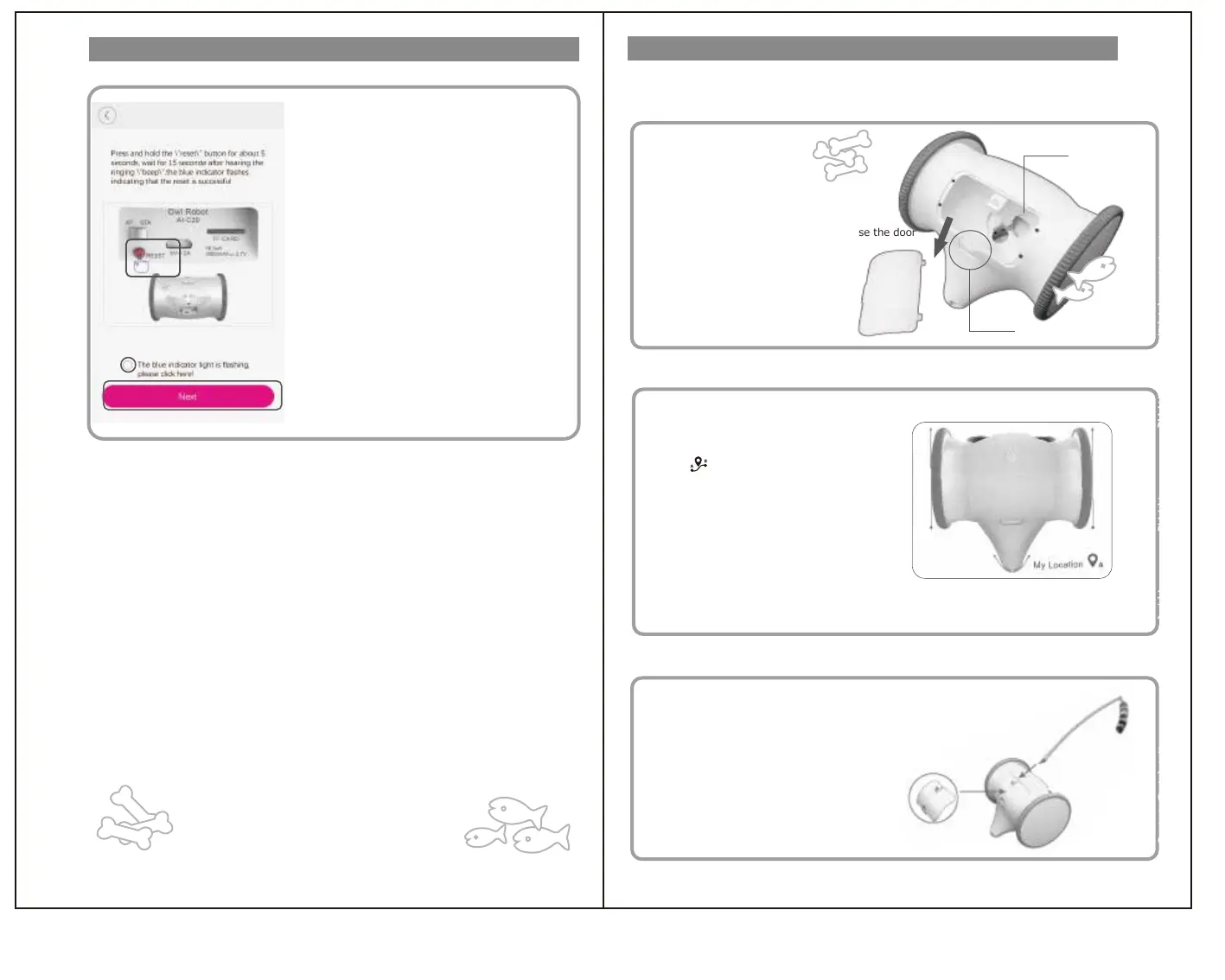
① Press and hold the "Reset" button for about 5 seconds
Approximately 15 seconds after making a ping-pong sound,
Blue light blinks.
② Tap ○ to add ✓.
③ Tap “Next” .
Please continue to refer to 10 to 11P of this manual. ..
はじめに
はじめに
アプリ登録
アプリ登録
無線LAN接続
操作方法
操作方法
安全のために
安全のために
無線LAN接続


 To Next Page
 Loading...