This document is a user manual for a Direct Thermal Barcode Printer, specifically the XPRINTER XP-460B model, designed for printing labels of 100mm x 150mm. The manual provides comprehensive instructions for setting up, installing, and configuring the printer.
Function Description
The XPRINTER XP-460B is a direct thermal barcode printer used for generating labels, particularly for applications requiring 100mm x 150mm paper size. It connects to a computer via a USB cable and requires a specific driver for operation. The printer is designed for ease of use, with clear instructions for paper loading and size configuration to ensure accurate printing. Its primary function is to print barcodes and other label information efficiently and reliably.
Important Technical Specifications
- Brand: XPRINTER
- Model: XP-460B
- Printing Technology: Direct Thermal
- Supported Paper Size: 100mm x 150mm
- Connectivity: USB Interface, RS-232C DB-9 Interface
- Power: Requires a Power Adapter, connected via a Power Jack.
- Resolution: Maximum resolution of 203 dpi (as indicated in the printer properties).
- Speed: Speed is listed as "Unknown" in the provided printer properties screenshot, suggesting it might be configurable or not a primary specification highlighted in the basic setup.
- Color Capability: No (as indicated by "Color: No" in printer properties, consistent with a direct thermal printer).
- Double-sided Printing: No (as indicated by "Double-sided: No" in printer properties).
- Staple Functionality: No (as indicated by "Staple: No" in printer properties).
Usage Features
The printer offers several features designed for user convenience and efficient operation:
- Equipment Checklist: The manual starts with a detailed checklist of items included in the box, ensuring users have all necessary components. This includes the Barcode Printer, Power Adapter, Power Cord, Label Spindle (4/5), USB Cable, BarTender UltraLite CD disk, and a Guidebook. An external roll mount is also shown, indicating support for larger label rolls.
- Printer Parts Identification: Clear diagrams label the front and back surfaces of the printer, identifying key components such as the Clear Window, Feed Button with LED Indicator Light, Top Cover Open Lever, Power Switch, SD Card slot, Power Jack, USB Interface, RS-232C DB-9 Interface, and Label Tray.
- Driver Download and Installation: The manual provides step-by-step instructions for downloading the printer driver from a specified website, extracting the driver file, and installing it on a Windows computer. This involves navigating through Windows settings to "Add a Printer or Scanner," selecting "Add a local printer or network printer with manual settings," choosing the correct USB port (USB001), and installing the driver from the extracted files.
- Printer Setting and Paper Loading:
- Connection: Users are guided to connect the USB cable and power adapter, then turn on the power switch.
- Power Indicator: The feed button's LED indicator light confirms the printer is powered on.
- Paper Loading: Detailed steps explain how to use the external roll mount for thicker paper rolls and how to insert the paper from the back of the printer into the label tray.
- Top Cover Operation: Instructions are provided to open the top cover by pushing upward on both sides and to use internal clips to secure the paper before closing the cover.
- Size Setting: Crucial for correct label printing, the manual outlines how to configure the paper size:
- Accessing Printer Properties: From the "Printers & scanners" settings, users click "Manage" for the Xprinter XP-460B, then "Printer properties."
- Preferences: Within the printer properties, users click the "Preferences" button.
- Page Setup: Under the "Page Setup" tab, the specific sticker size "4x6" (4.00 in x 6.00 in) is selected.
- Confirmation: After selecting the size, users click "Apply" and "OK" to save the settings.
- Test Page Printing: After setup and size configuration, users can print a test page to verify the printer's functionality.
- eAWB Printing: The manual demonstrates how to print an eAWB (electronic Air Waybill) by selecting the Xprinter XP-460B as the destination printer and choosing the "4x6" paper size in the print dialog.
Maintenance Features
While the manual does not explicitly detail maintenance procedures, some aspects can be inferred:
- Clear Window: The presence of a "Clear Window" on the top surface suggests users can visually inspect the label roll and printing process, which aids in identifying issues like low paper or paper jams.
- Top Cover Open Lever: The "Top Cover Open Lever" allows easy access to the internal mechanisms for paper loading and potentially for clearing jams or basic cleaning.
- Sensor Detector: The "Sensor detector" mentioned during paper loading implies the printer has mechanisms to detect paper presence and position, which is important for accurate printing and error detection.
- Driver Updates: The installation process mentions "Windows Update" as an option for printer drivers, suggesting that driver updates might be available through the operating system to ensure continued compatibility and performance.
- Troubleshooting: The "Print a test page" and "Run the troubleshooter" options in the printer's settings indicate built-in tools for diagnosing and resolving common printing issues.
Overall, the XPRINTER XP-460B is presented as a user-friendly direct thermal barcode printer, with a strong emphasis on clear setup instructions and essential configuration steps for its intended label printing application.

 Need help?
 General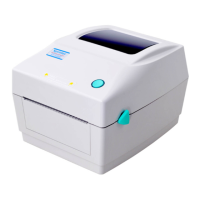

 To Next Page