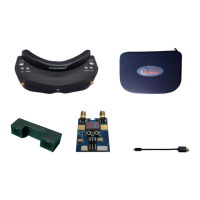
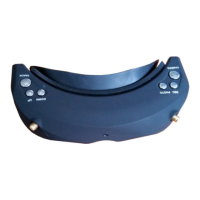
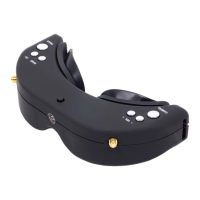
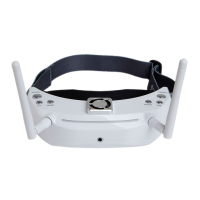
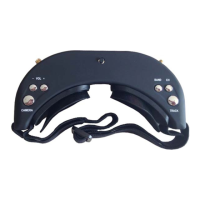
· You may use the Record function in both RF mode and AV IN mode. In normal state, the screen will
display < > and SD Card Capacity Information; in such case, you may press the <REC> button to
activate video recording; then the device will activate video recording with the icon <
> appearing in
red and recording time starting to count.
· In preview state, you may press the <PHOTO> button to take photos with warning tone heard. (You
cannot take photos during video recording)
· In default state, the video recorded also includes sound. You may close “REC Sound” in the system
menu. In such case, you may record the video without sound.
· You may inactivate the whole video module to power save.
· In order to ensure reliability, in video state, if the capacity of the card is less than 0.5GB, the device will
automatically stop recording videos; if less than 0.01GB, the function of taking photos will be
ineffective.
Playback
Functions of Playback Button:
· In RF mode or AV IN mode, Long press <REC> button to enter the playback mode.
· REC < PLAY/PAUSE/OK> button.
· PHOTO < STOP/BACK> button
· BAND < PREVIOUS/ Fast Backward > button.
· CHANNEL < NEXT/ Fast Forward > button.
· TRACK < DELETE> button.
· In playback mode, you may directly preview the video or photo in the storage card and the back 4 digits
of the file name appears on the upper right corner. In case of video, the recording duration of the file
will appear under the file name.
· In the process of playing a video file, you may press the < Fast Backward/Fast Forward > button for 2X,
4X, 8X play, and press the <PLAY > button to restore normal speed. When the play is over, the image
will stay on the first frame of this file. In such case, press the < STOP > button to back to the previous
state to have other operations or replay the video.
· When browsing the files in the storage card, to delete one file, press the < DELETE> button to pop up
the “Delete” menu, and press the <OK> button to delete the desired file.
· This device may be unable to identify the other files taken by other devices.
HDMI IN
· This device supports HDMI IN. When the HDMI IN connection cable is inserted, it may automatically
turn off the radio reception module to save power.
· When the resolution format supported is identified, images may automatically appear; otherwise, the
inbuilt test image of 8 color bar.
AV IN
· This device supports AV IN. When the AV IN connection cable is inserted, it may automatically turn off
the radio reception module to save power.


 To Next Page
 Loading...