NEED MORE HELP?
Go to http://support.slingbox.com
TROUBLESHOOTING
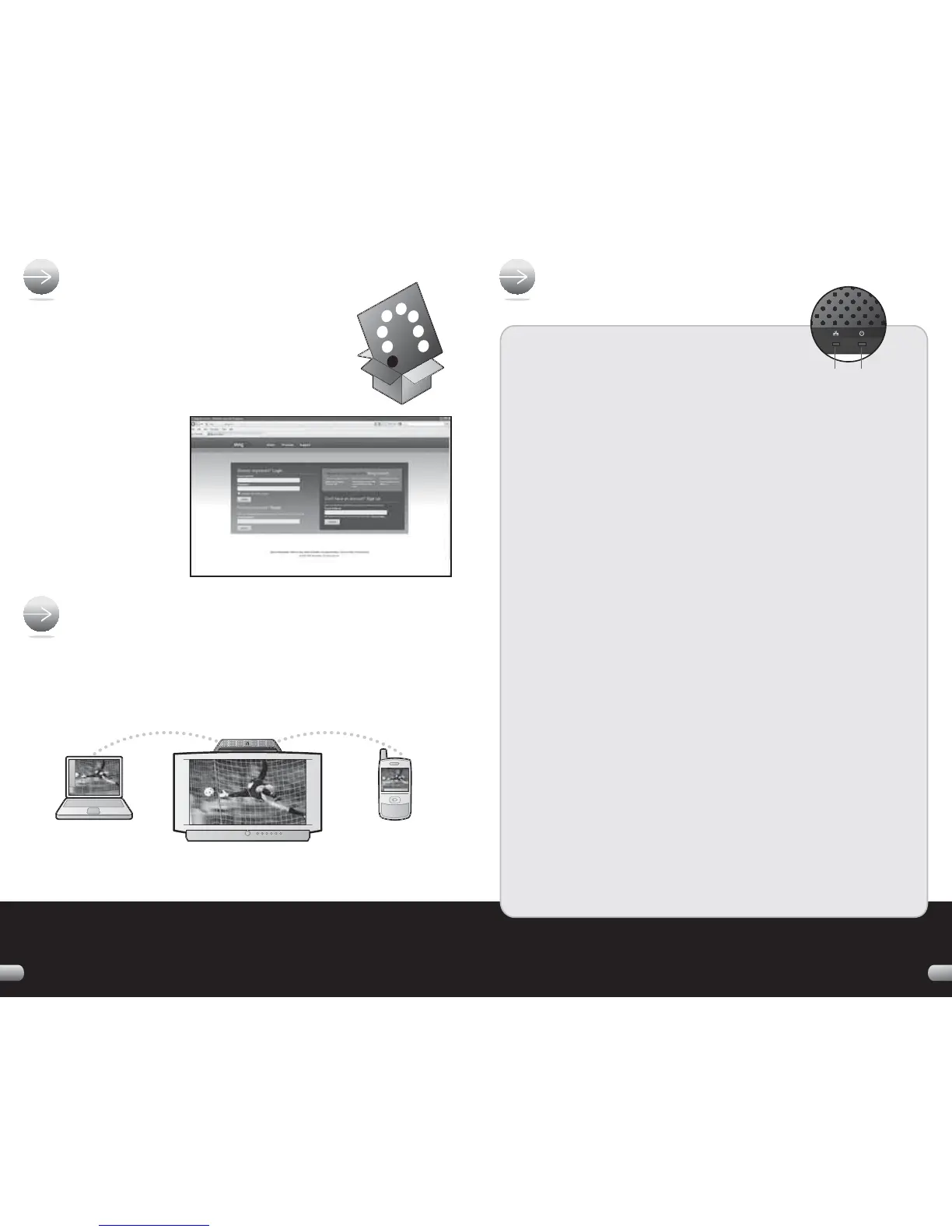
1. If the power light is not on:
Disconnect the power cable from both the Slingbox and the electrical socket and
reconnect them – making sure that they are secure.
2. If the network light is not on:
Disconnect the Ethernet cable from the back of the Slingbox and re-insert it.
You will hear a click when it is fully inserted.
Do the same with the other end of the Ethernet cable, making sure that it is
attached to your router.
Make sure that your router is on the same home network as your Slingbox.
3. If the network light is continuously blinking:
Press and hold the reset button on the back of the Slingbox for 10 seconds.
The lights on the front of the Slingbox quickly fl ash from left to right, and then
fl ash slowly. This resets the Slingbox to factory settings. If you've already
confi gured your Slingbox using SlingPlayer, you'll need to go through the setup
assistant again after you reset your Slingbox.
Turn your router off and back on again. Note: Most routers do not have
on/off switches. You may need to unplug and plug the router back into the
electrical socket.
4. If the SlingPlayer software does not discover the Slingbox on your network:
Some fi rewall security software blocks the Slingbox from being recognised on
your home network. If this occurs, you need to change your security
software settings to see the Slingbox as a device on your network.
5. If you don’t see your audio/video source while installing the SlingPlayer software:
Re-check the cable connections between your A/ V devices and the Slingbox.
Make sure that the cables are fully inserted into the connectors on the back of the
Slingbox and your A/V devices. The cables should fi t snugly.
6. If the SlingPlayer application is not controlling your A/V source:
Make sure the remote control IR cable is fully inserted. Move the IR emitters to a
different location on the front of your cable/satellite box or DVR.
7. If your TV is no longer receiving a signal:
Connect the output of the Slingbox to your TV's inputs. Make sure your TV is set to
the correct input. For example, if your Slingbox is connected to your TV's INPUT 1
sockets, change the input setting to INPUT 1.
Turn your router off and back on again. Note: Most routers do not have on/off
switches. You may need to unplug and plug the router back into the electrical outlet.
POWERNETWORK
* To watch your Slingbox on your mobile phone you must purchase SlingPlayer Mobile software separately. There are
versions of SlingPlayer Mobile specifi c to many PDAs, mobile phones and smart phones. Visit www.slingbox.com for a
list of supported mobile devices and to download a 30-day free trial of SlingPlayer Mobile. SlingPlayer Mobile for iPod
touch and iPhone is only available through your local iTunes store and is excluded from the 30- day free trial.
STEP 7
:
CONFIGURE YOUR SLINGBOX
STEP 8
:
ENJOY YOUR SLINGBOX!
Now that you have the Slingbox connected, you’re ready
to confi gure it. Before you do, make sure that your
computer is on the same network as your Slingbox.
Next go to www.slingbox.com/getstarted and follow
the onscreen instructions
to set up and confi gure your
Slingbox. After you confi gure
your Slingbox, you can install
SlingPlayer Mobile on your
mobile phone if desired.*
Congratulations! Now that you've set up everything, you're now ready to enjoy
watching your TV on your PC, Mac or mobile phone
*
– at home or 3,000 miles
away – via the Internet. Thanks for buying the Slingbox PRO
-
HD.
1514


 To Next Page
 Loading...