21
Press button or button to quit Home Menu.
button.To access Home Menu anytime, you may press the
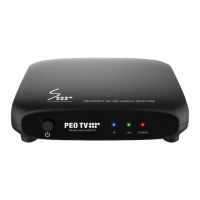
Once you have powered on PEO TV devices it will take a few minutes to completely boot
up the system.
Once the system is ready, you will see the Home Menu with a channel playing in the
background.
You can access Live TV, Movies, SVOD, Programme Guide, Information, Self-Care,
Settings etc.
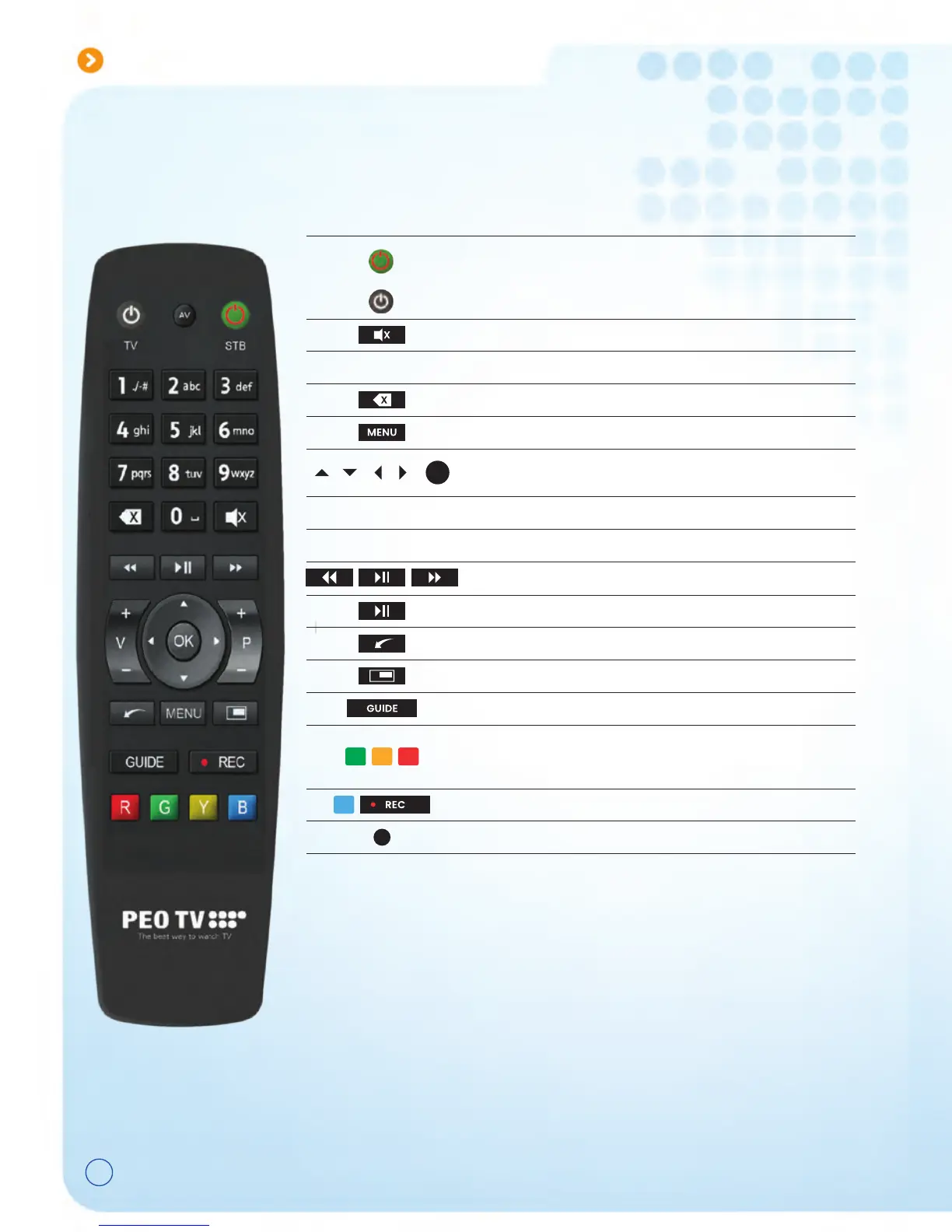
Your PEO TV Remote Controller Home Menu
Function
Learning Procedure
Pressing RED key for 3 second ( 2 blinks )
Hold STB remote and TV remote head to head
Press once the key to be learnt on STB then press TV key until 2 blinks
Press RED key to exit or step 3 to learn more keys
Reset Learn Key will back to default key code
1.
2.
3.
4.
Remote Controller Button
OK
AV
G Y R
B
Move through menu items, select and
confirm options
Rewind/ Play/ Pause/ Fast Forward
Switch AV Input of TV ( Learn Key )
R - Favourite Channels
Y - Start-Over TV
G - Picture in Picture ( PIP )
Switch the IPTV STB ON or turn the
device into the stand-by mode
Switch the TV ON or OFF ( Learn Key )
Disable/ Enable sound ( Learn Key )
Enter numbers, letters & symbols
Delete input text
Open the menu
STB Power Button
TV Power Button
Mute Button
Numeric Buttons
Delete Button
Menu Button
V+/-
P+/-
Play & Pause Button
Video Player Buttons
Arrow Buttons/ OK
Back Button
Change volume ( Learn Key )
Switch channels ( Learn Key )
Play command & Pause command
Go back from the current screen
Access the Channel Universe
Access the Electronic Programme Guide
Channel Universe Button
Guide Button
Features not assigned


 To Next Page