4.4.Using the APP
4.4.1. Add Lock
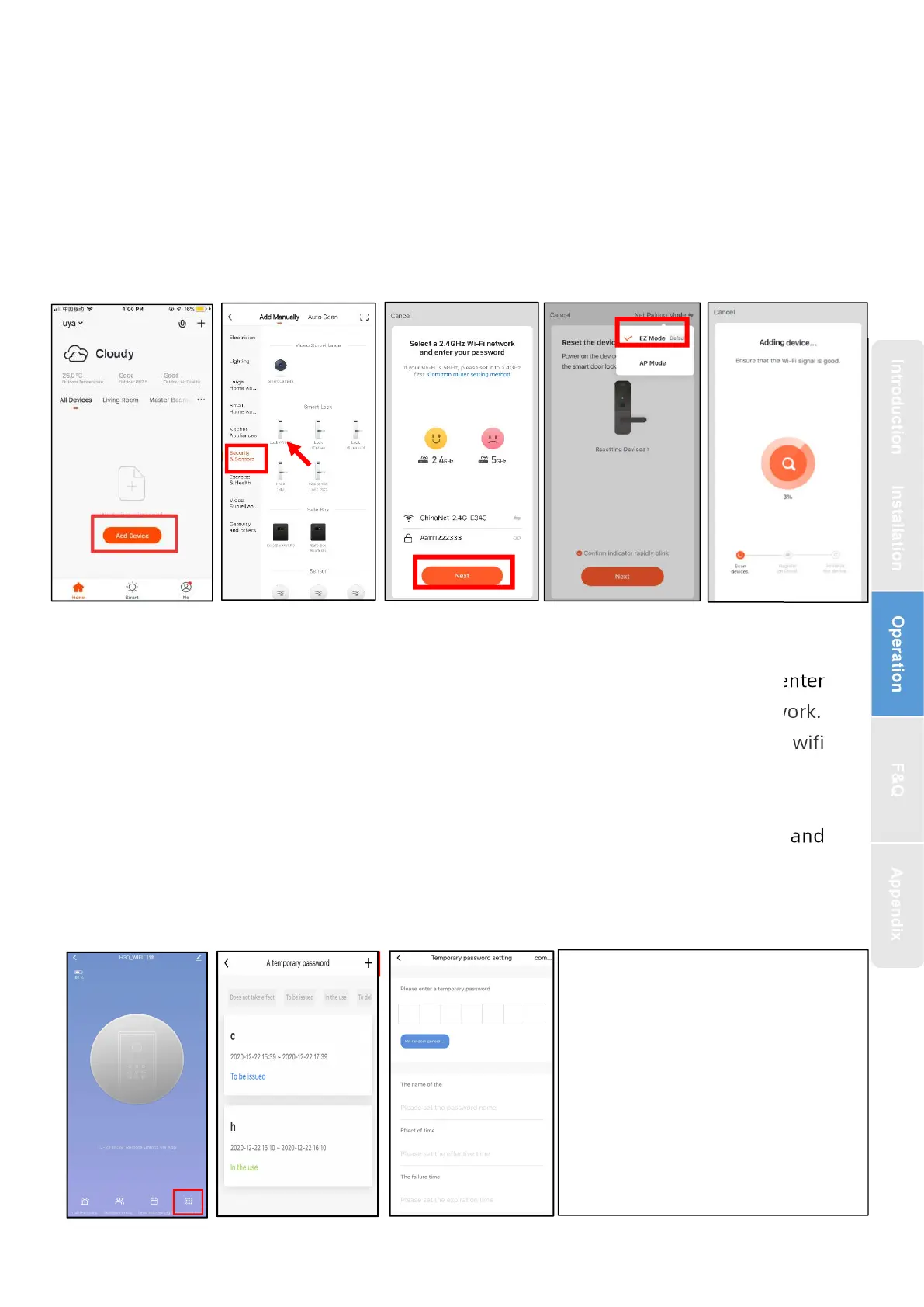
1. Tap Add Device on the Home page or + in the upper right corner of the page
to go to the Add Device page. Currently, you can manually add devices or search
for devices to add to the app.
Attention:You should be add admin first!!!
Method:
○
1 After pressing “2” + “#” to verify the administrator, press “1” to enter
the Network config , The “5”starts flashing,The screen is displayed in the network.
○
2
As shown in the figure, the mobile app connects the lock. Select the wifi
door lock, enter the wifi password and connect the door lock
○
3 Adding success: the voice prompt “successful”
○
4
Adding Failure: The keyboard light No. 1234 on the keyboard is not lit, and
the timeout voice prompt “failed”
4.4.2. Remote unlock and temporary passwor
a) Temporary Password
1.Click on the APP homepage
to enter the corresponding door
lock page
2.Generate a temporary
password on your app
3.Press “5”+“#” on the door
lock, You can open the door
with the temporary password
after success


 To Next Page