CHAPTER 3
USING APPS ON THE DISPLAY
24 smarttech.com/kb/171166
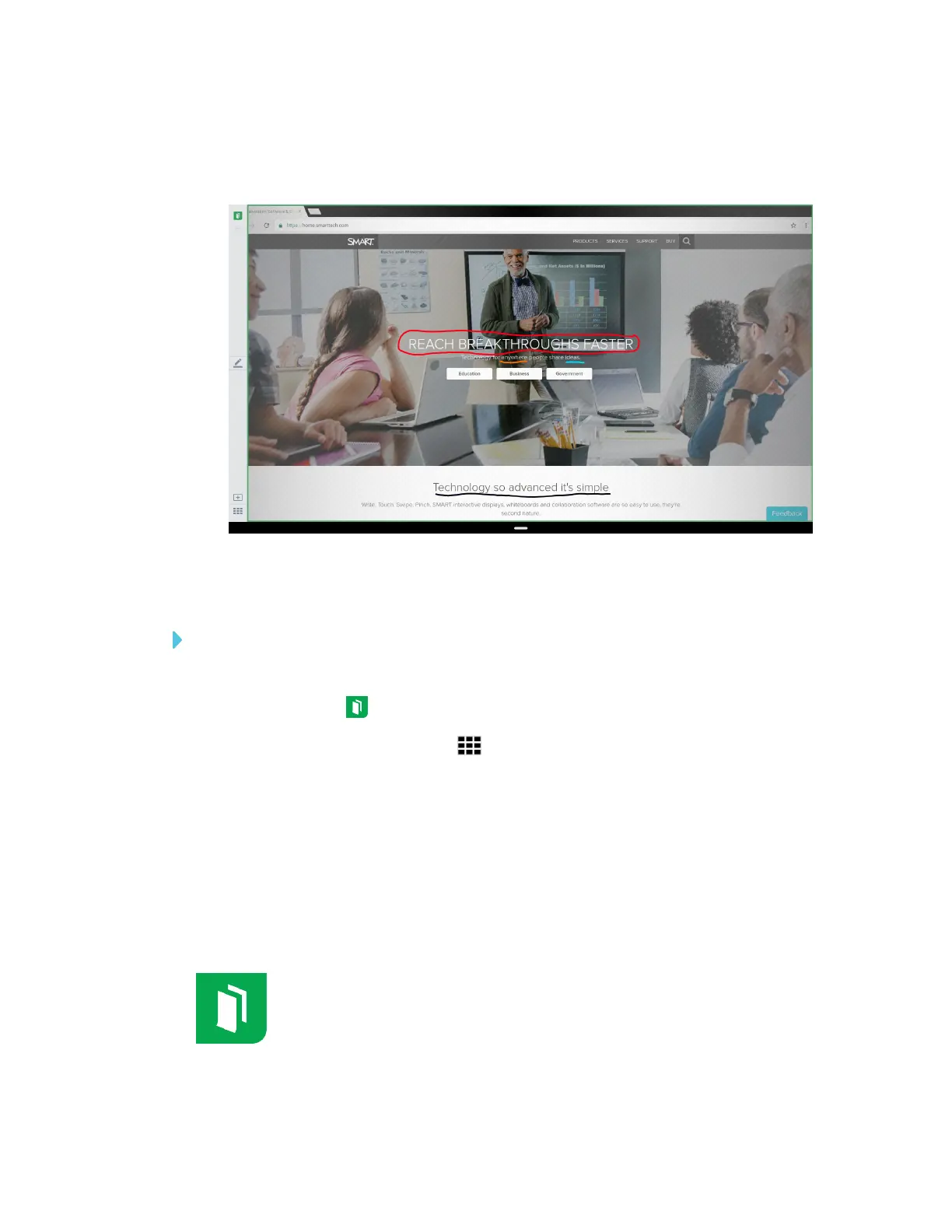
4. Select an acetate by tapping the acetate’s screen shot.
The acetate appears.
Deleting acetates
To delete a saved acetate
1. Open the launcher.
2.
Tap Whiteboard .
3.
Tap the Whiteboard Library icon .
4. Select an acetate by tapping its check box.
OR
Tap Select All to select all whiteboard sessions and acetates.
5. Tap Trash to delete the selected acetates.
Using the Whiteboard
You can view and erase notes, continue a Whiteboard session from the Library and
share your Whiteboard using the app.












 To Next Page