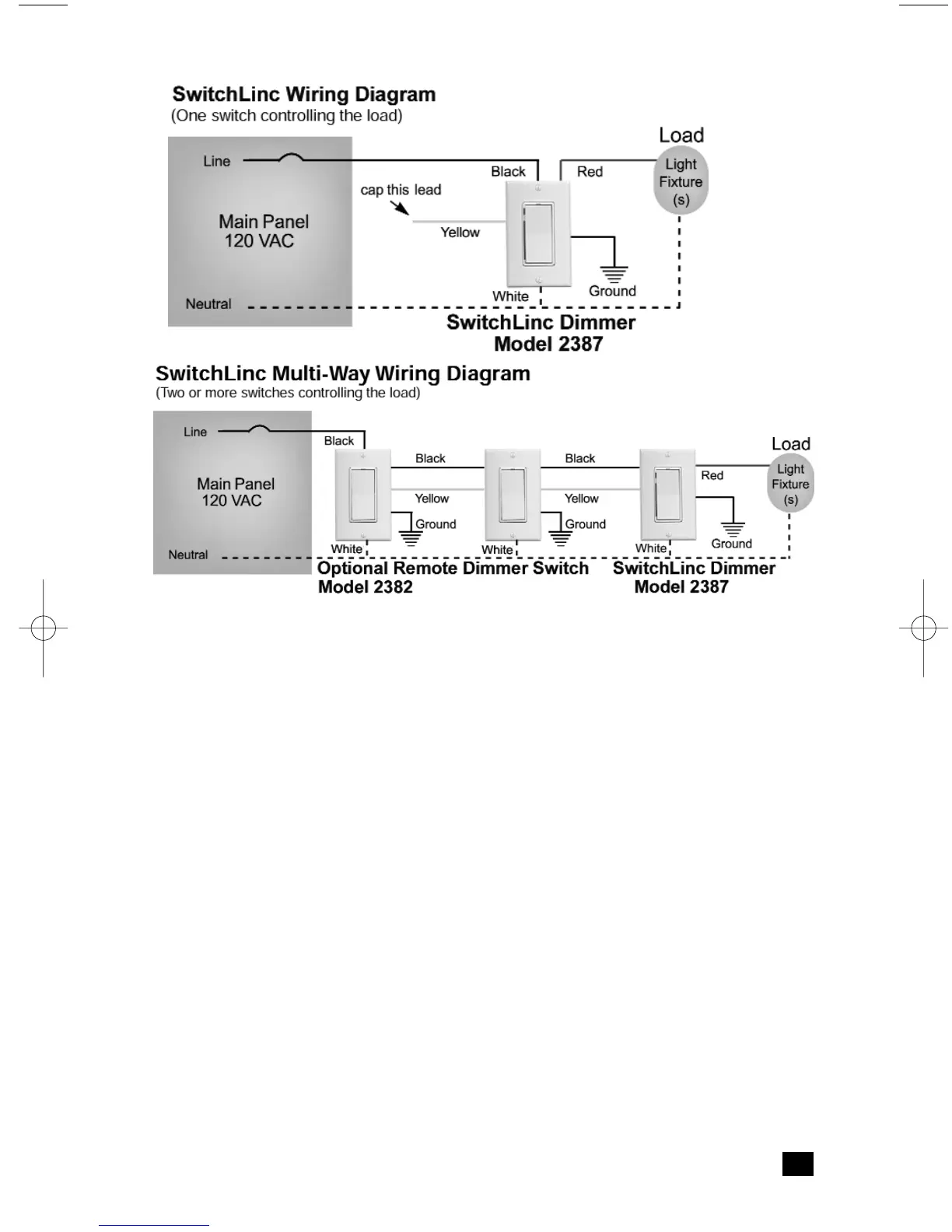
Setting the ON-Level
The Default ON-Level is the default brightness level to which SwitchLinc will adjust the light
when the switch is turned on locally. This is ideal for situations where lighting is normally too
bright. For example, you only have a 100-watt bulb on hand and the area is well lit with only a
60-watt bulb. Please note that you should never use a bulb whose wattage is greater than the
fixture’s rating. Set the ON-Level for the room lighting by following these steps:
Setting a fixed brightness level:
1. Adjust the brightness of the light to the desired level by pressing and holding SwitchLinc’s
rocker.
2. Tap the Status LED/Set Button ONCE.
The light(s) will blink indicating that it has set the new brightness level.
The Default ON Level is stored in SwitchLinc’s non-volatile memory and will be remembered if
the power fails. It can also be changed at any time by following the procedures above.
Additionally, if more brightness is needed from the light(s), press the top of the rocker switch
and SwitchLinc will go to 100% brightness.
Setting the Resume Dim Mode
SwitchLinc can be set to fade the lights on to the last level they were at when turned off. For
example, if the lights were dimmed at the switch to 40%, then turned off, the next time the
SwitchLinc is turned on, the lights will fade on to 40%. Follow these steps to put the
SwitchLinc into the Resume Dim Mode:
1. Turn the light off.
2. Tap the Status LED/Set Button ONCE.
5


 To Next Page