6. Connecting process will begin. Do not turn off
Smart Wi-Fi Remote or phone while connecting.
Wait for connection process to complete.
7. Once device has been successfully added, name
the device what you would like it to be called in
the app. The Smart Wi-Fi Remote is ready for use.
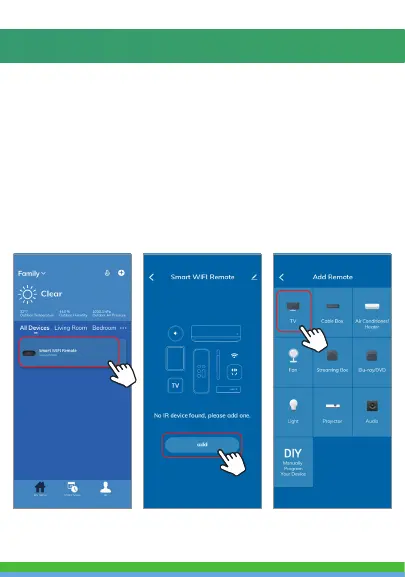
8. To connect an IR remote controlled device to the
Smart Wi-Fi Remote, click on your Smart Wi-Fi
Remote under “All devices” on your home page.
Then click on “Add”.
9. Then select what kind of device you would like to
add. If you would like to set up a TV, press the TV
button.



 To Next Page