Testing
2
If you have an ADT professional monitoring service
activated, make sure that your ADT Security Hub is in
Test Mode to avoid triggering a false alarm. See the
ADT Security Hub User Guide for more details.
Press the Disarm button on your remote for
2 seconds to disarm the ADT Security Hub. Door,
window, and motion detectors will be disarmed.
Press the Away button on your remote for 2 seconds
to arm the ADT Security Hub. Door, window, and
motion detectors will be armed.
Press the Stay button on your remote for 2 seconds
to arm the ADT Security Hub in Stay Mode. Door and
window detectors will be armed.
Press the * and Stay buttons on your remote for
3 seconds to send a panic alert (requires optional
ADT professional monitoring service).
1.
2.
3.
4.
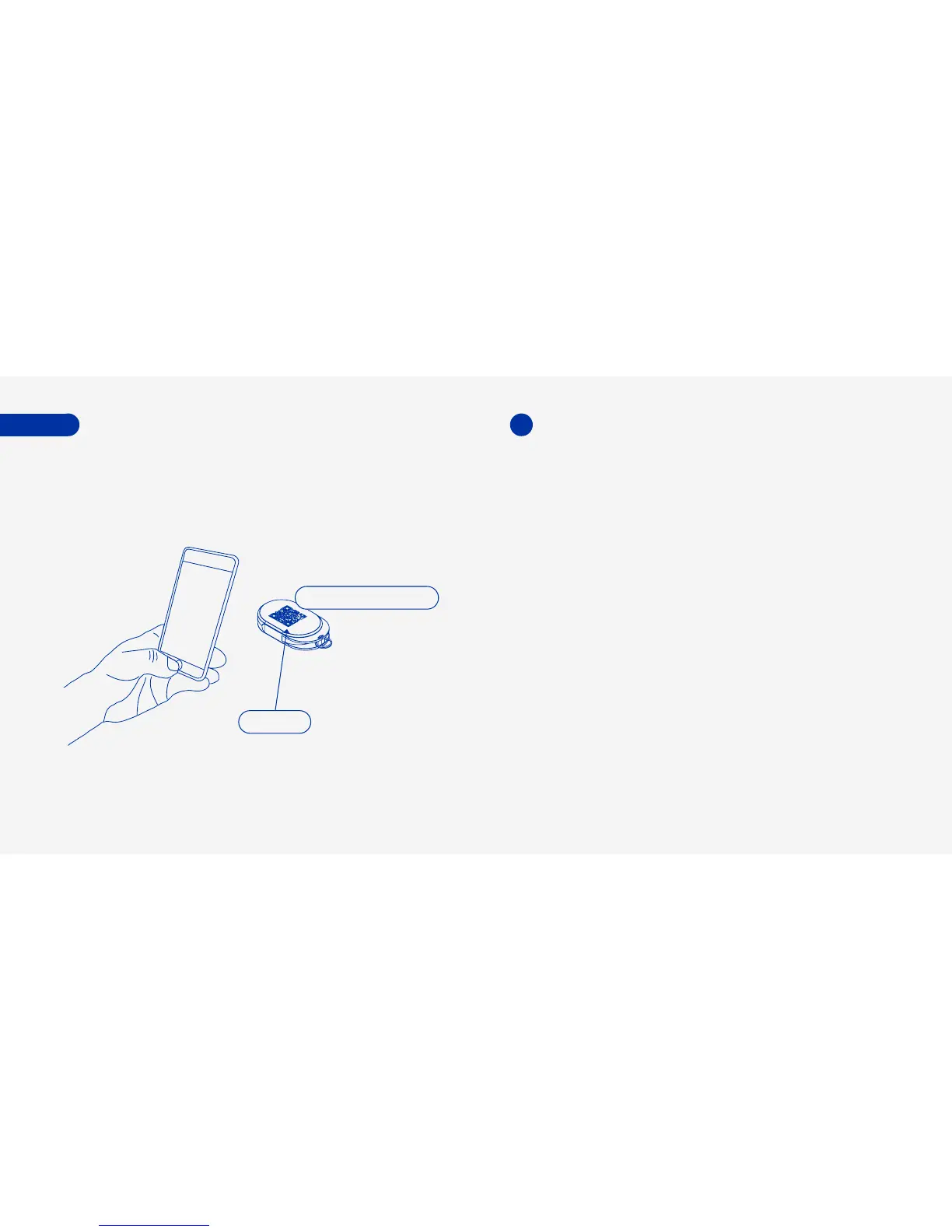
Keychain Remote (Back)
Setup
Use the SmartThings app to scan the QR code on the
back of the remote and then follow the on-screen
instructions to complete setup.
4.
5.
QR Code
Remove the QR code from the back of the remote
and attach it to this guide for future reference.



 To Next Page