Page 6 of 17
Reviewing the panel and ports
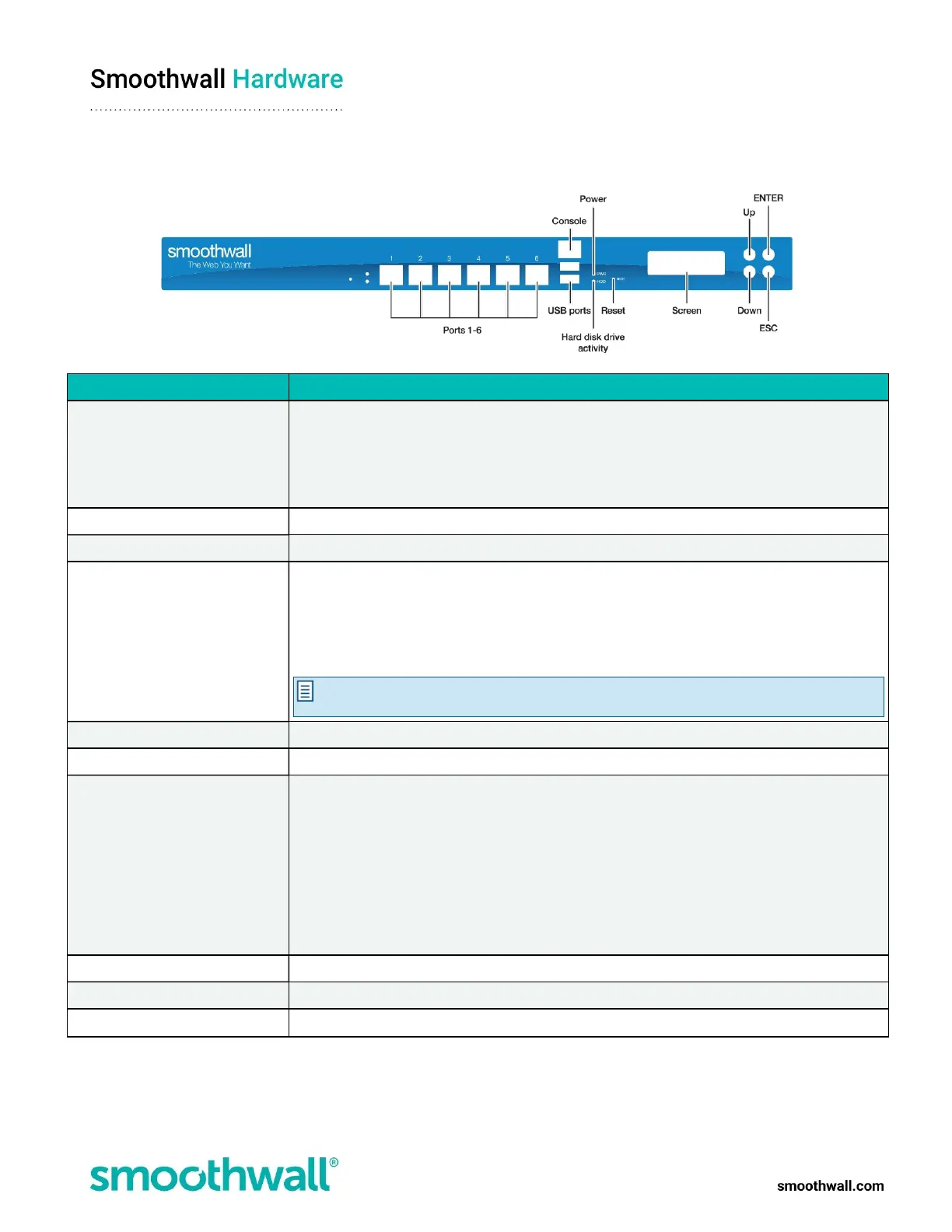
The image below provides an overview of the appliance’s ports, buttons and screen:
Object Description
Ports Port 1 is the default interface.
All other ports can be used to provide internal networking zones and external connections.
If required, you can configure ports 3 and 4 to be shorted together to provide a bypass port.
This leaves the client network with unfiltered network access without having to re-cable.
Console Can be used to connect a console and administer the appliance.
USB ports Connection of external storage devices and keyboard, if required.
Power
Indicates when the power supply to the appliance is on. The power button on the rear of the
appliance.
To initiate a clean shutdown when the appliance is running, press the power button.
To force a power off, press and hold the power button for five seconds.
Note: It is not usually necessary to use the power button to power on the appliance, as
applying mains power should automatically start it.
Hard disk drive activity Indicates hard disk drive activity.
Reset Can be used to reset the appliance if it becomes unresponsive.
Screen By default, the panel screen runs in information mode and displays the following information:
l Current bandwidth usage on the external connection
l The internal IP address
l Current memory usage
l The hostname
l Time and date
This is also where you view and access the panel menu options available.
Up Used to access and scroll through the panel menu.
Down Used to access and scroll through the panel menu.
ESC Used to cancel panel menu options.



 To Next Page