1. Archive Client
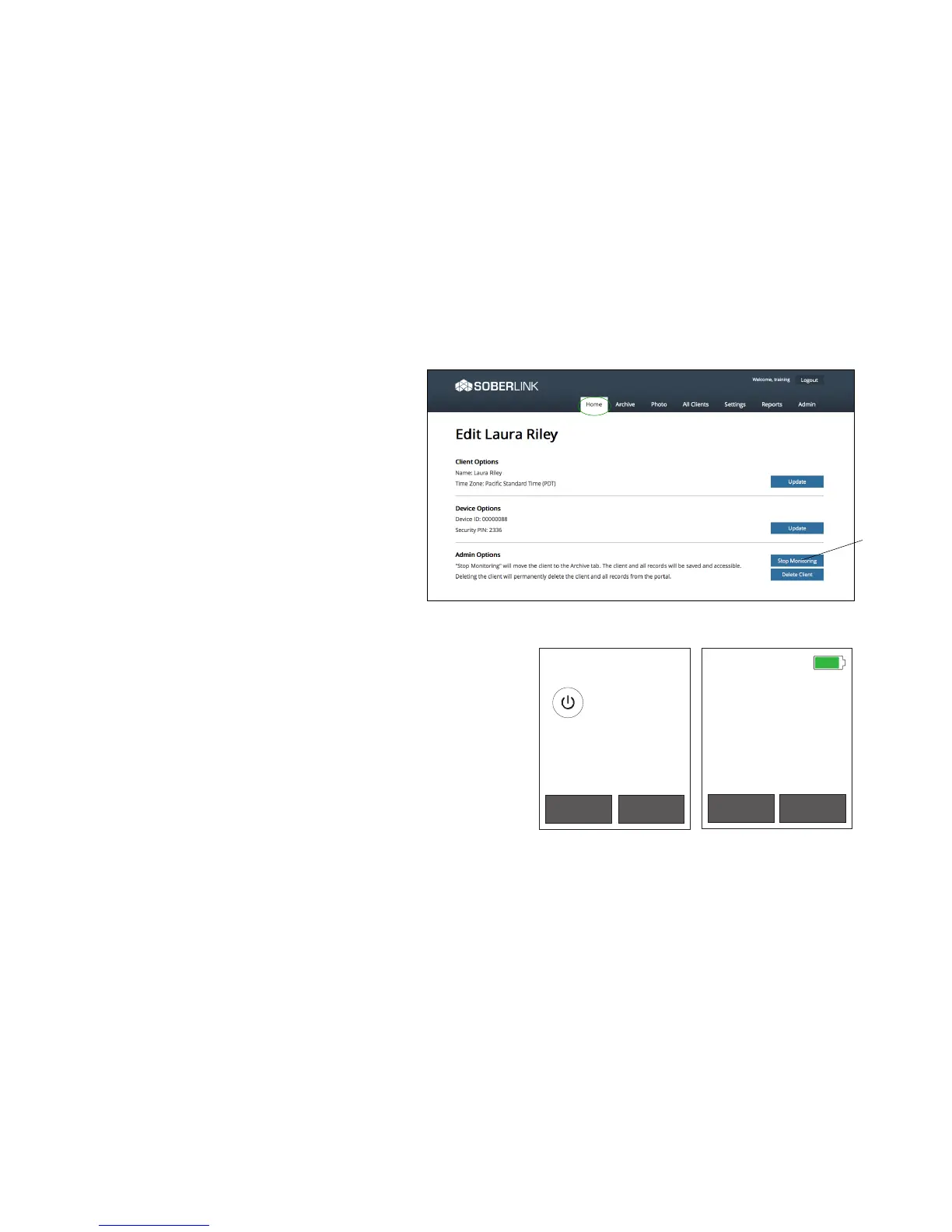
Log on to your account and choose Edit
under the client who has finished using SOBERLINK.
Click the Stop Monitoring button. This will move the client,
along with all client’s tests, to the Archive Section and
will “release” the Device to be activated
under a new client’s name.
2. Reset SL2
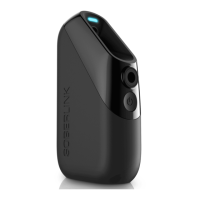
To reset the SL2 to factory settings, press both buttons
simultaneously to display the Menu Options screen, then
follow the instructions below:
Scroll down to highlight Reset Device
Click power button
Click left display button
Click right display button
Click power button
Once reset, the “Device Requires Activation” screen will appear.
The SL2 is now ready to be put back into inventory or assigned to
a new client, as shown in step 3 below.
3. Reassign SL2
To give the SL2 to a new client, click Start to receive the Device ID and
Security PIN. From www.soberlink.net log on to the account where the
new client will be monitored. Once logged into the desired account, click
Enroll New Client, enter the client’s name, select the time zone and
folder where the client will be added and enter the Device ID and Security
PIN from the SL2 screen.


 To Next Page